Integration · Codex
Codex takes plans from your board.
featureloom connects to Codex as a remote MCP server. One connect command from the app connects the console to your plan board: the agent gets your team’s prompt and the whole plan, delivers it and reports on the board, and you accept the work.
MCP server address: https://mcp.featureloom.com/mcp. A console acts with the rights of the person who connected it. Each person has up to 10 consoles at once.
What Codex gets
The prompt, the plan and what was built before. In one command.
Your organization’s prompts as commands
Your organization’s prompts work as commands in Codex. The command from a plan, such as featureloom realizer INV-14, gives the agent the prompt with your team’s process, the whole plan document and the documents of the delivered plans it directly depends on.
- You copy the command from the plan, in Command for a console
- The agent takes the next ready plan itself and, when it is missing something, asks in the plan
- Reporting the work moves the card on the board, and you give the verdict
With its person’s rights
A Codex console acts with the rights of the person who connected it. It always reads, and it delivers, writes and deletes plans only when that person has the right to. The server refuses the rest.
- The tool list in Codex follows the rights and refreshes when the console reconnects
- Only a person gives the acceptance verdict, in the app
- People set the column and the order of plans on the board
How you start
Three steps to your first plan.
Connect a console in the app
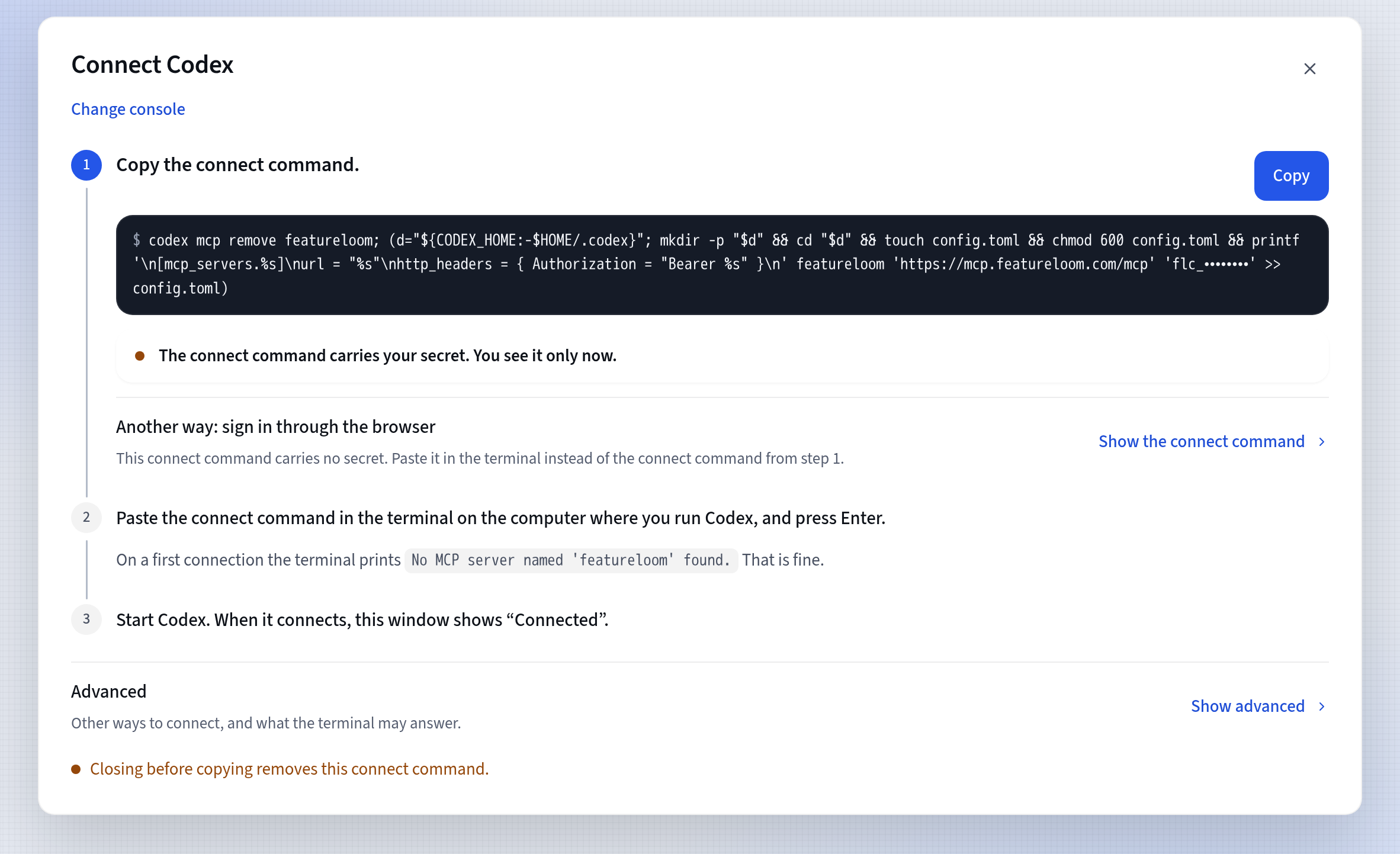
In the app, open Integrations, press Connect console on the Your consoles card, then choose Codex. The app shows the connect command with its secret. You see it only once, so press Copy right away.
Paste it in your system terminal
Paste the connect command in your ordinary system terminal, not in the Codex window, as the same computer user who runs Codex. It closes config.toml to the computer’s other users and appends this entry to it:
url = "https://mcp.featureloom.com/mcp"
http_headers = { Authorization = "Bearer flc_…" }
Give your console a plan
Start Codex, or restart it if it is already running. Open a plan with a prompt and copy the command under its contents, in Command for a console. Paste it in Codex: it reads the plan, delivers it and reports that on the board. For plan INV-14 the command is:
A browser on the same computer? You can also connect the console by signing in, with no secret in the connect command.
Tutorial: Connect Codex with one commandQuestions about Codex and featureloom
Does featureloom run Codex for me?
No. Codex runs on your machine, paid for with your provider, for example on your own OpenAI plan. featureloom gives it plans and prompts over MCP and shows its work on the board.
Can I connect Codex with no secret?
Yes, when that computer has a browser. In the Connect Codex window open “Another way: sign in through the browser”, press Show the connect command and paste the Sign-in connect command in your terminal instead of the one above. It adds featureloom with codex mcp add featureloom --url https://mcp.featureloom.com/mcp, and Codex opens the sign-in in your browser.
How long does the connect command work?
Its secret works for 90 days from issue and expires sooner after 14 days without use. You get a new connect command for the same console with Reconnect on the Your consoles card.
Does featureloom work with Claude Code and Cursor too?
Yes. You connect Claude Code the same way, with one connect command from the app, and Cursor with a button from the app, and both get the same plans and prompts. See the Claude Code integration and Cursor integration pages.
Give Codex the plans. Keep the decisions.
30 days free, no payment card needed. You connect Codex in a few minutes.