Start here · step 2 of 7
Connect the Cursor editor with one button
A button in the app adds featureloom to the Cursor editor, and you confirm the connection by signing in through the browser. From then on, your agent takes plans from your board.
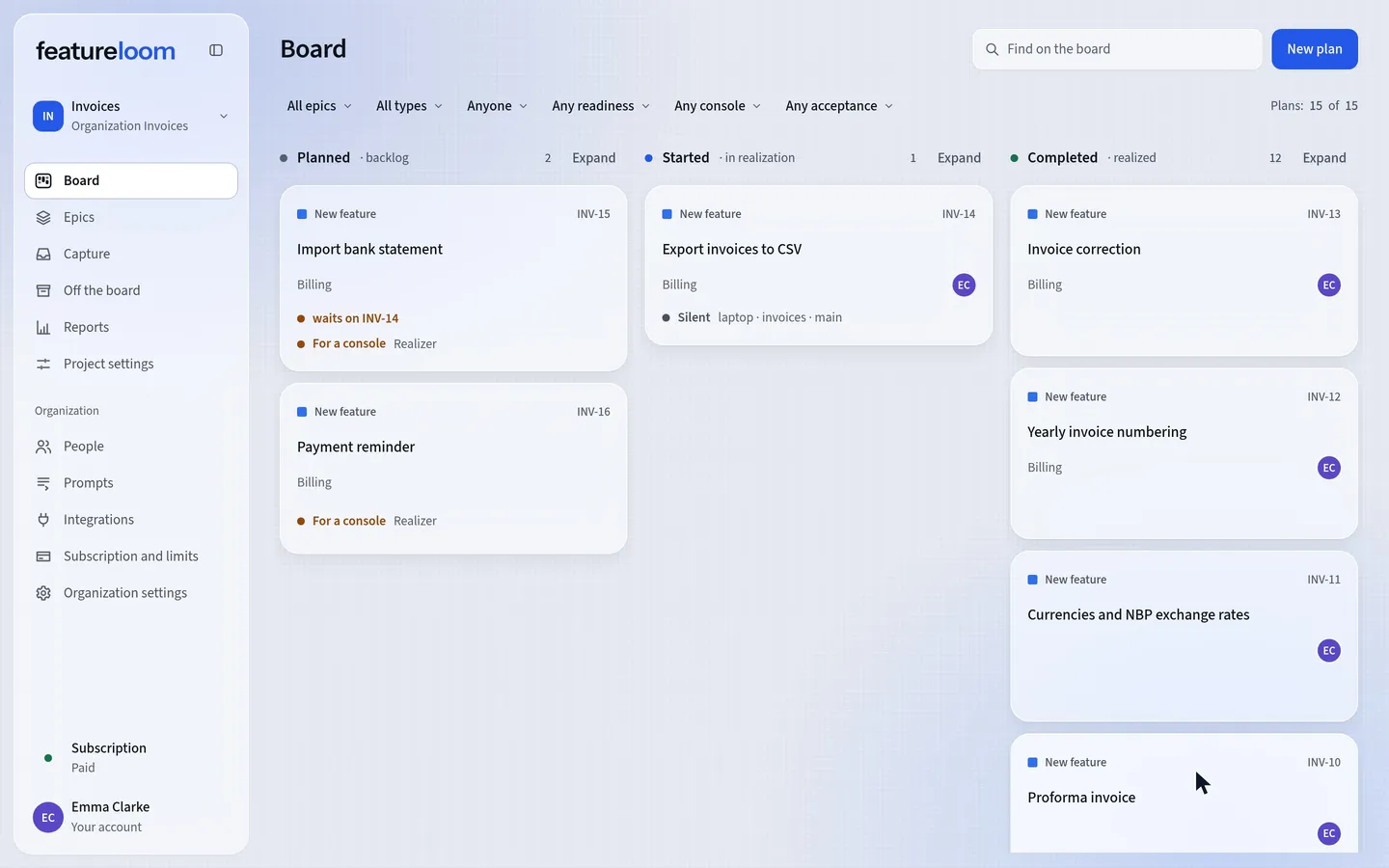 Play the film: Connect the Cursor editor with one button
Contents
Open Integrations and choose Cursor
In the menu on the left, open Integrations. On the Your consoles card, press Connect console. The app asks which console you work from: choose Cursor.
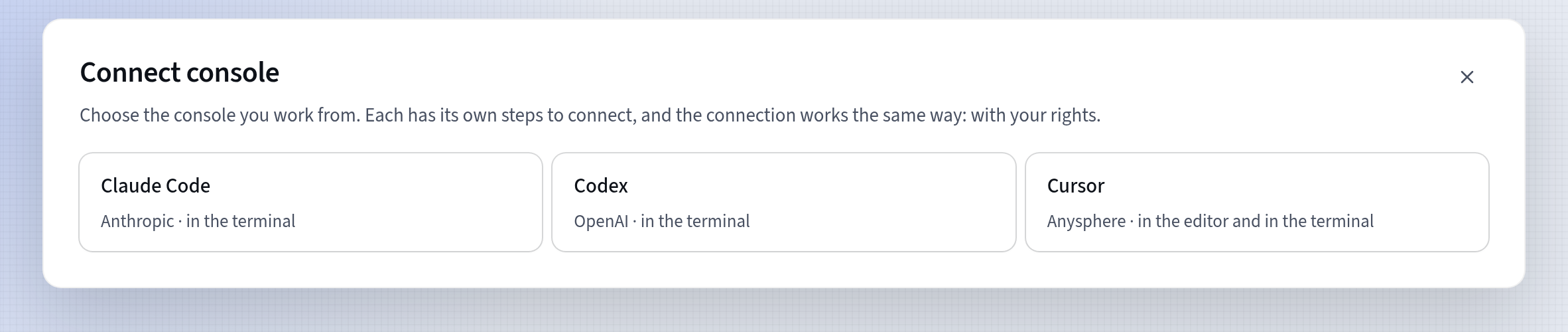
Connect console: choosing the console Press Add to Cursor
If the window first shows Confirm it’s you, confirm the way you sign in. featureloom asks once an hour.
The Connect Cursor window shows no connect command for the terminal. In step 1, press Add to Cursor. The button opens Cursor on this computer and carries no secret: it hands Cursor only the server’s name, featureloom, and its address.
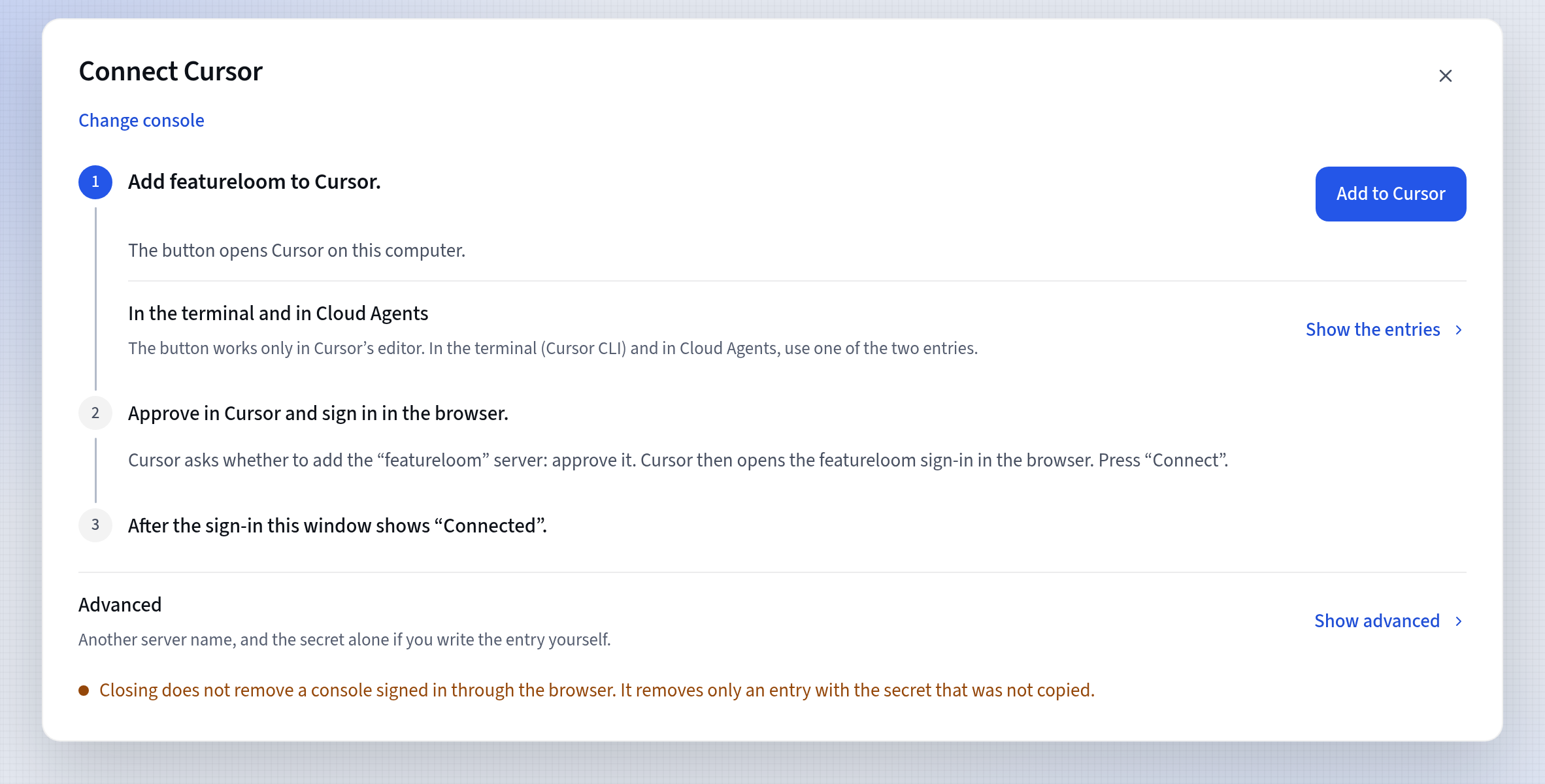
Connect Cursor: the Add to Cursor button Approve in Cursor and sign in
Cursor asks whether to install the featureloom server. Press Install.
In Cursor’s list of servers, beside featureloom, press Authenticate: the sign-in opens in the browser. If featureloom asks, sign in to your account. On the Connect a console screen, you see what the console will be able to do in the organization: it has the same rights as you. If you belong to more than one organization, first choose the one to connect Cursor to. Press Connect.
If you don’t see the list of servers, type /mcp in the chat and choose featureloom.
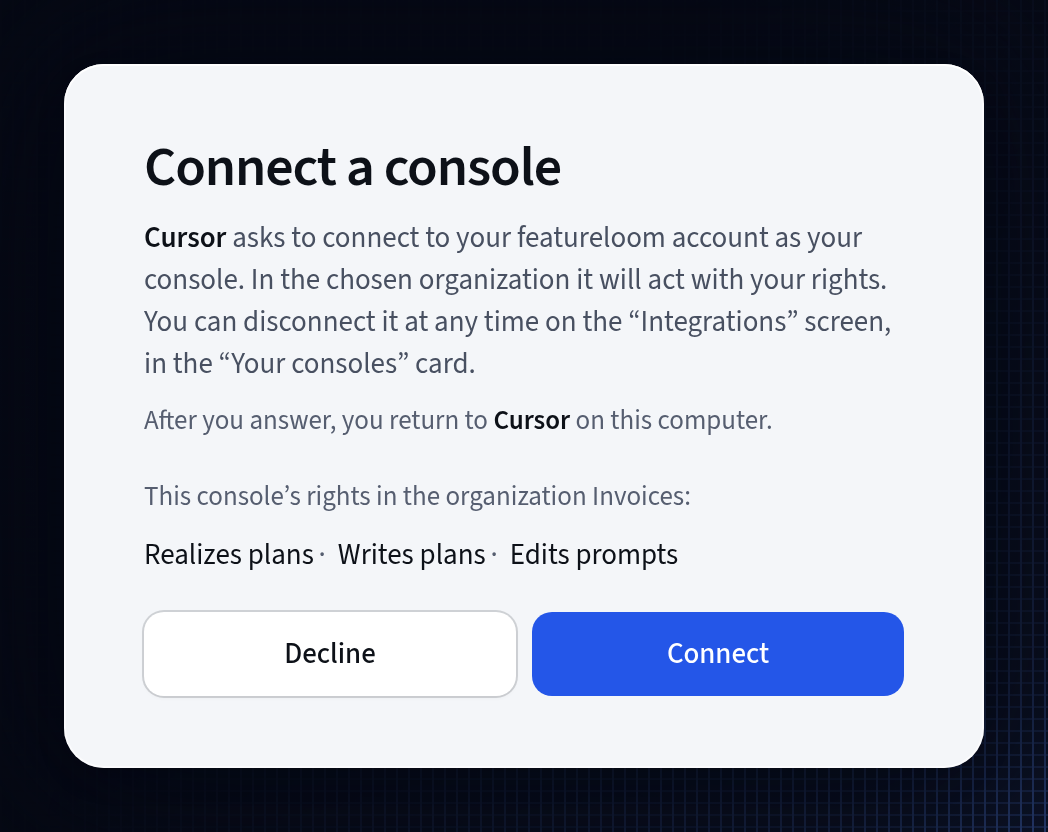
The console gets your rights If you see Confirm it’s you after pressing Connect, enter your password and, with two-step sign-in, the code from your app too. featureloom asks when your session hasn’t been confirmed in the last hour.
Back in Cursor, featureloom shows how many tools are enabled.
Check the connection
The Connect Cursor window in the app shows Connected: Cursor. On the Your consoles card, you see the new Cursor console marked signed in through the browser.
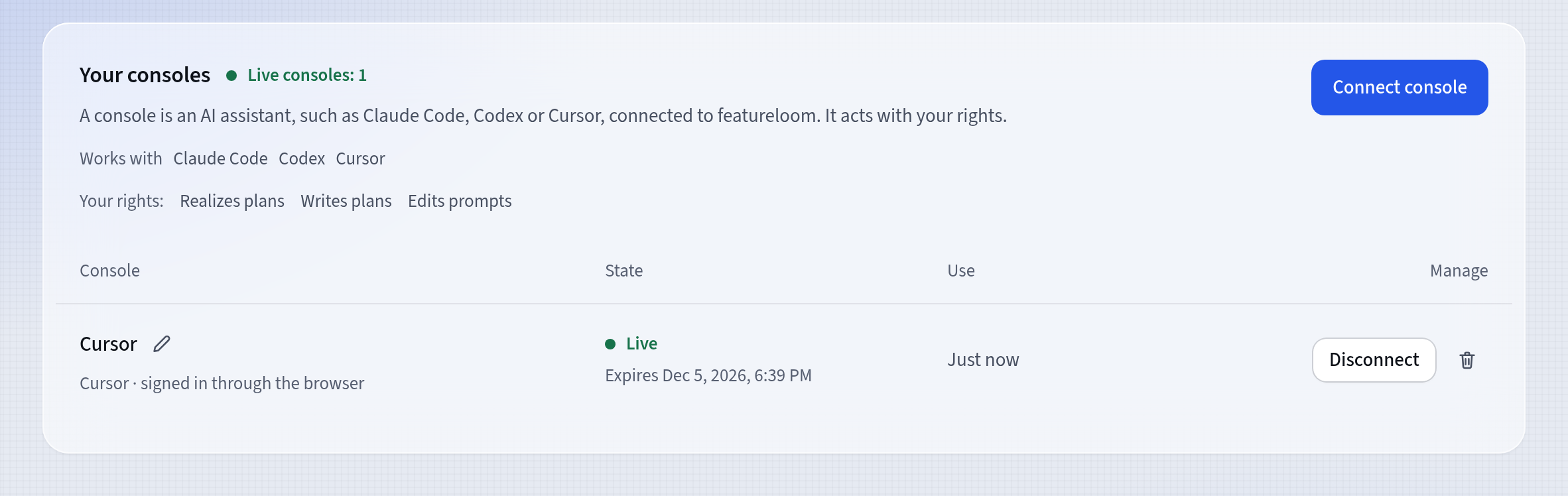
The new console, signed in through the browser If the window says there is no connection yet, go back to Cursor and press Authenticate beside featureloom, or press Add to Cursor again in the window.
Give your console a plan
Open a plan with a prompt and copy the command under its contents, in Command for a console. Paste it in the agent’s chat in Cursor. For plan INV-14 the command is:
featureloom realizer INV-14A new chat uses featureloom right away. If Cursor asks you to approve a featureloom tool, approve it. The agent reads the plan, realizes it and reports that on the board.
Good to know
- The button opens nothing? Install Cursor from cursor.com/download, or add featureloom with an entry in Cursor’s file, as in the tutorial Connect Cursor CLI by signing in through the browser.
- Closing the Connect Cursor window removes the unused secret. A console signed in through the browser stays.
- After you disconnect the console, Cursor still shows the number of tools beside featureloom. When you paste a command into a chat, it shows the card Connect with featureloom: press Authenticate on it.
- The Cursor editor and Cursor CLI are two separate consoles, so the Your consoles card shows two Cursor rows.
- A sign-in lasts 90 days from your consent, and ends sooner if the console doesn’t work for 30 days.
- You have up to 10 consoles at once, those connected by signing in included. When you run out of room, featureloom disconnects the one you haven’t used for the longest time.
- Cursor CLI on a computer with no browser connects with the entry with the secret. The tutorial Connect Cursor with a secret shows how.
- The Cursor integration page shows how Cursor works with your board and what it may do.
Updated: November 8, 2026
Next
Your agent writes a plan from a console conversation
Your console is connected: tell your agent what you need, and it creates the plan on your board.
See the tutorial