Start here · step 7 of 7
Invite people and grant rights
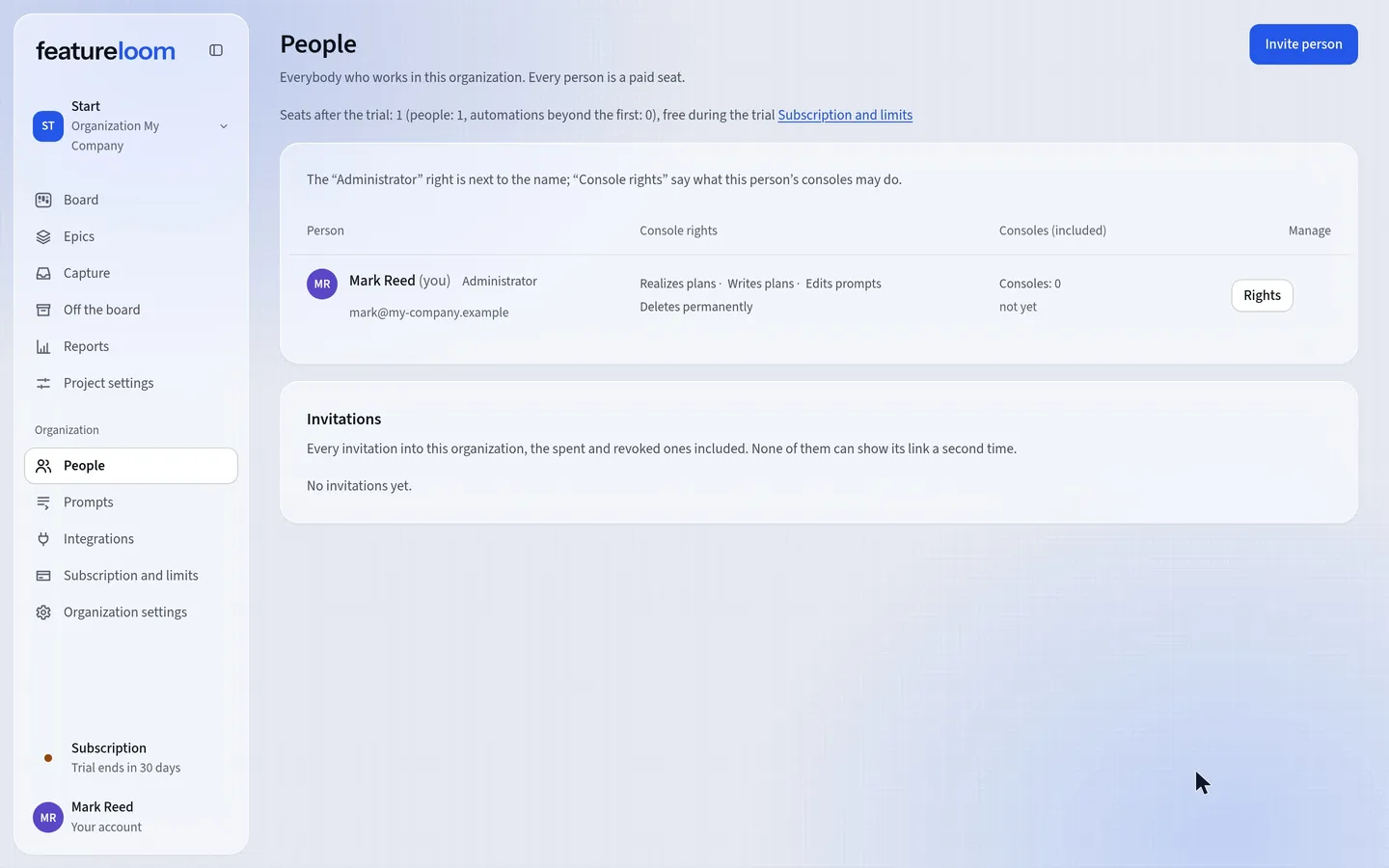
Invite your team from the People screen: everyone gets their own account, and their rights say what their consoles may do.
 Play the film: Invite people and grant rights
Contents
Invite a person
In the menu on the left, open People and press Invite person. Type the email, choose the email language and the console rights: by default, the new person realizes plans.
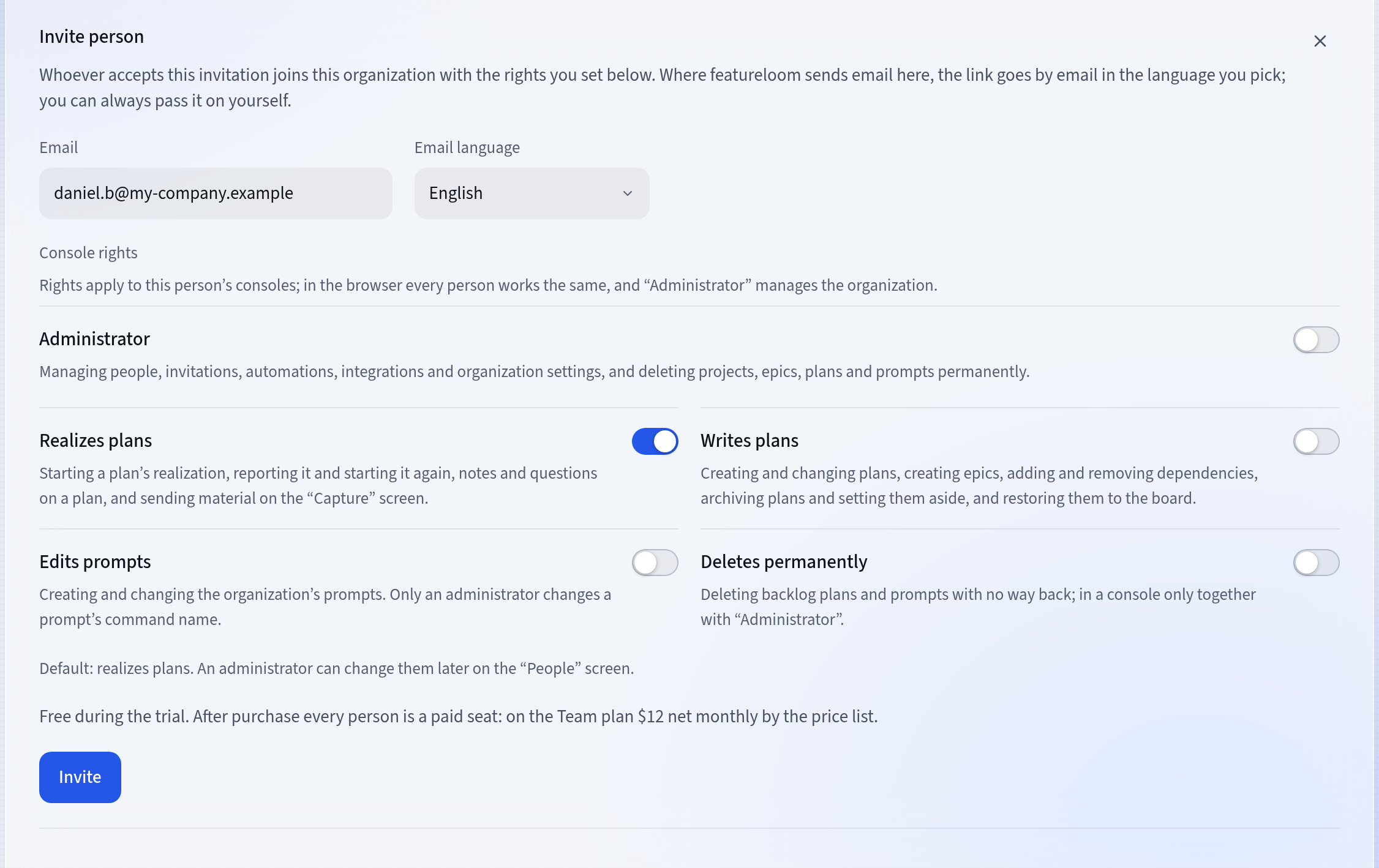
An invitation with its console rights During the trial an invitation costs nothing. After purchase every person is a paid seat on the Team plan.
Pass the link on
Press Invite. The link is sent by email in the language you chose, and the screen shows it only once, so you can pass it on yourself. If no more invitation emails can go to that address today, the screen says so: the invitation is valid all the same, and you pass the link on yourself.
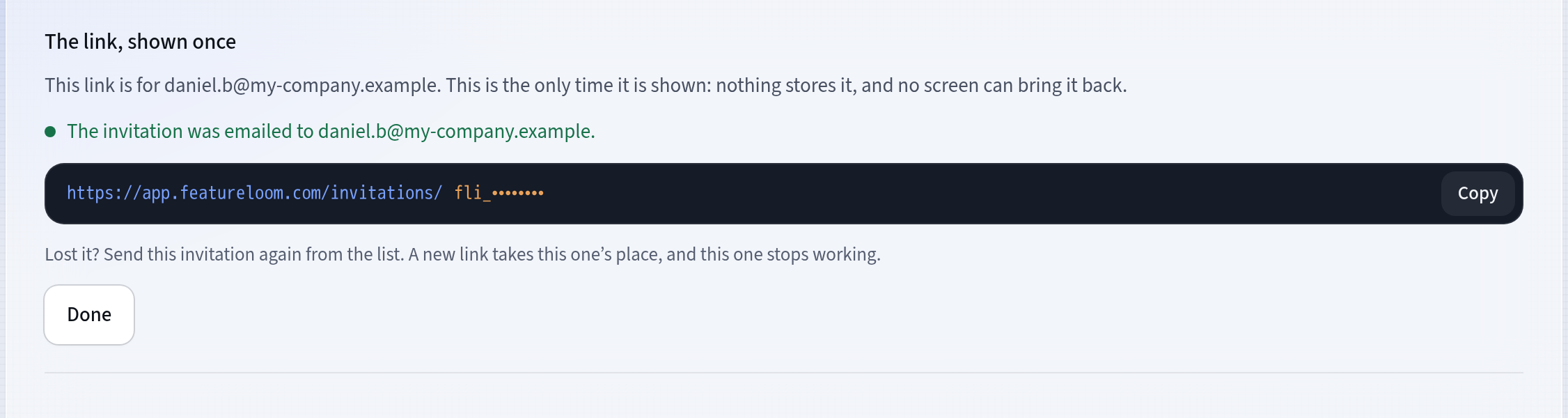
The link, shown once The new person creates an account
The new person opens the link, types a display name and a password, and presses Create account. From then on, they are on the People list, with their consoles’ rights.
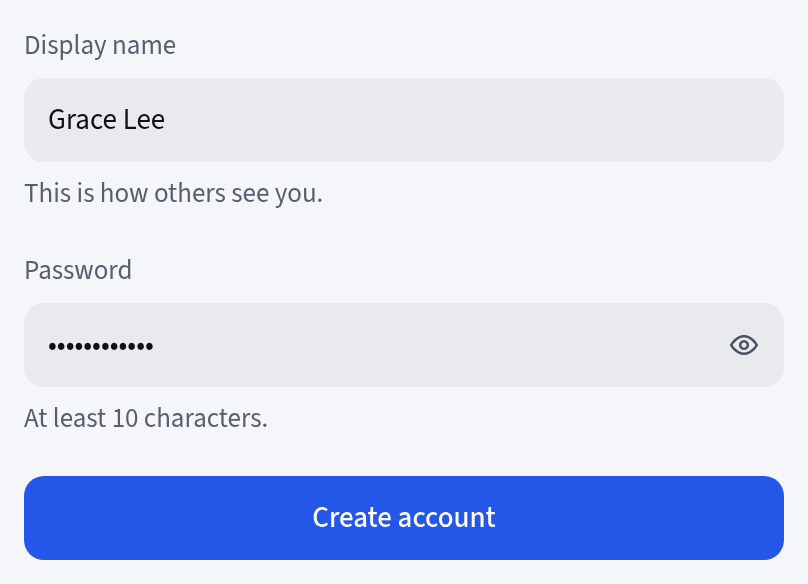
The new person creates an account from the link Change the rights
With the Rights button you change them at any time, for example to add Writes plans. The change applies from the console’s next request.
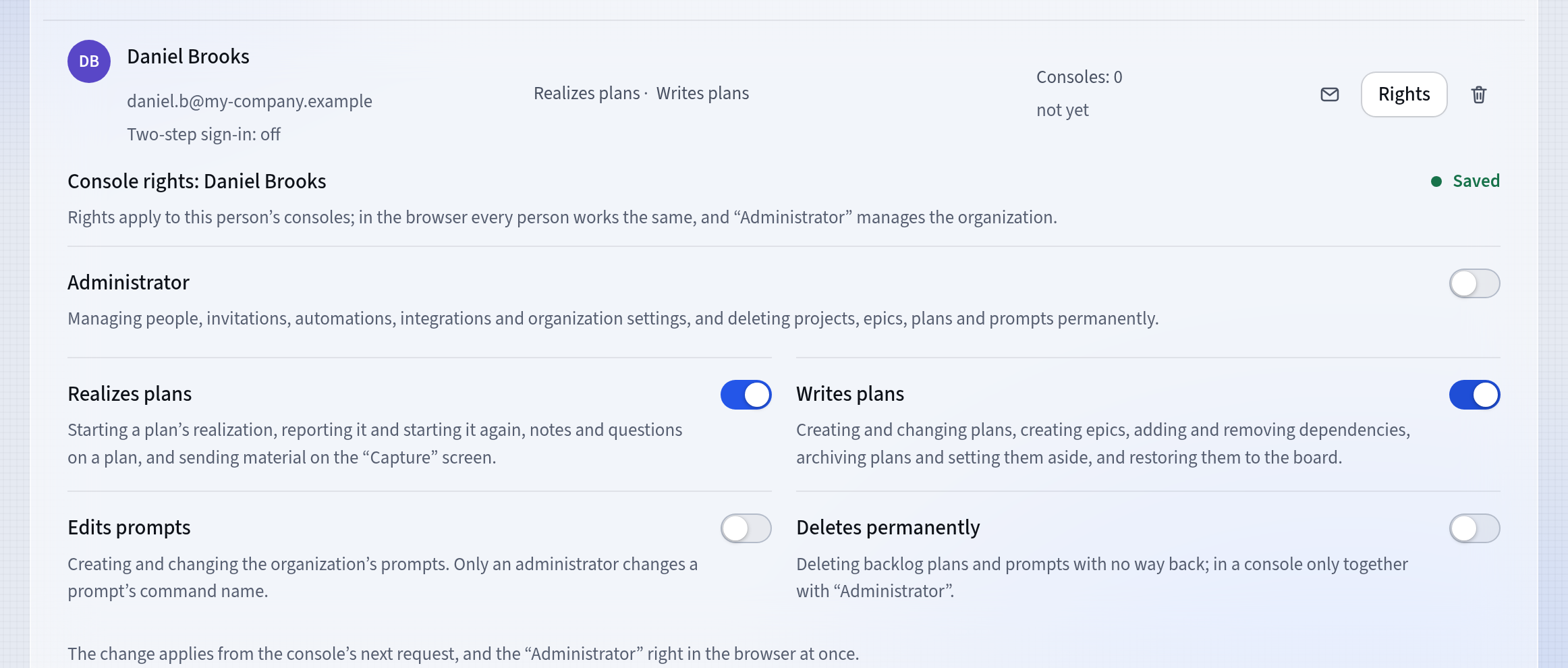
The new person’s console rights
Good to know
- In an organization of more than one person, an administrator always uses two-step sign-in. Once the new person accepts the invitation, you get an email and 7 days to turn on an authenticator code or add a passkey.
- The Administrator right lets a person manage the organization: its people, invitations and settings. The last administrator keeps it until they give it to someone else.
- Rights apply to this person’s consoles. In the browser every person works the same.
- An invitation is valid for two weeks. On the Invitations list you send it again with a new link or revoke it.
- The subscription limits how many invitations can be open at a time and how many the organization sends in 24 hours. The Limits card on the Subscription and limits screen shows both counts.
- Someone who already has a featureloom account presses Accept invitation and gets the new organization next to their own.
Updated: November 5, 2026
Next
Tutorials
All featureloom tutorials are in one place.
See the tutorials