Start here · step 4 of 7
A plan in the app from your meeting transcript
You paste a meeting transcript made with your own tool, and a cloud language model writes the plan.
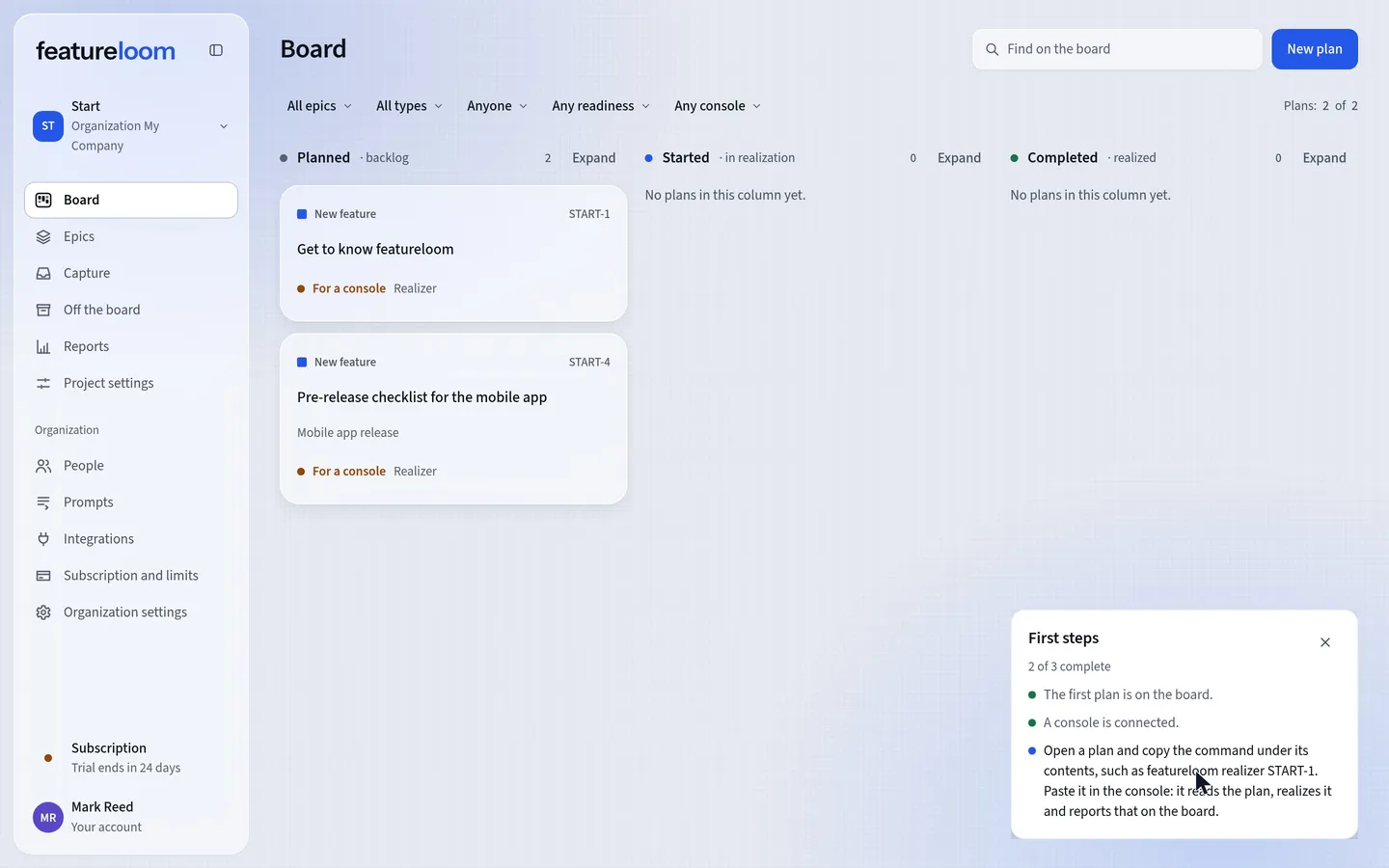 Play the film: A plan in the app from your meeting transcript
Contents
Paste the transcript in Capture
In the menu on the left, open Capture. Paste the meeting transcript into the Material field and press Send material.
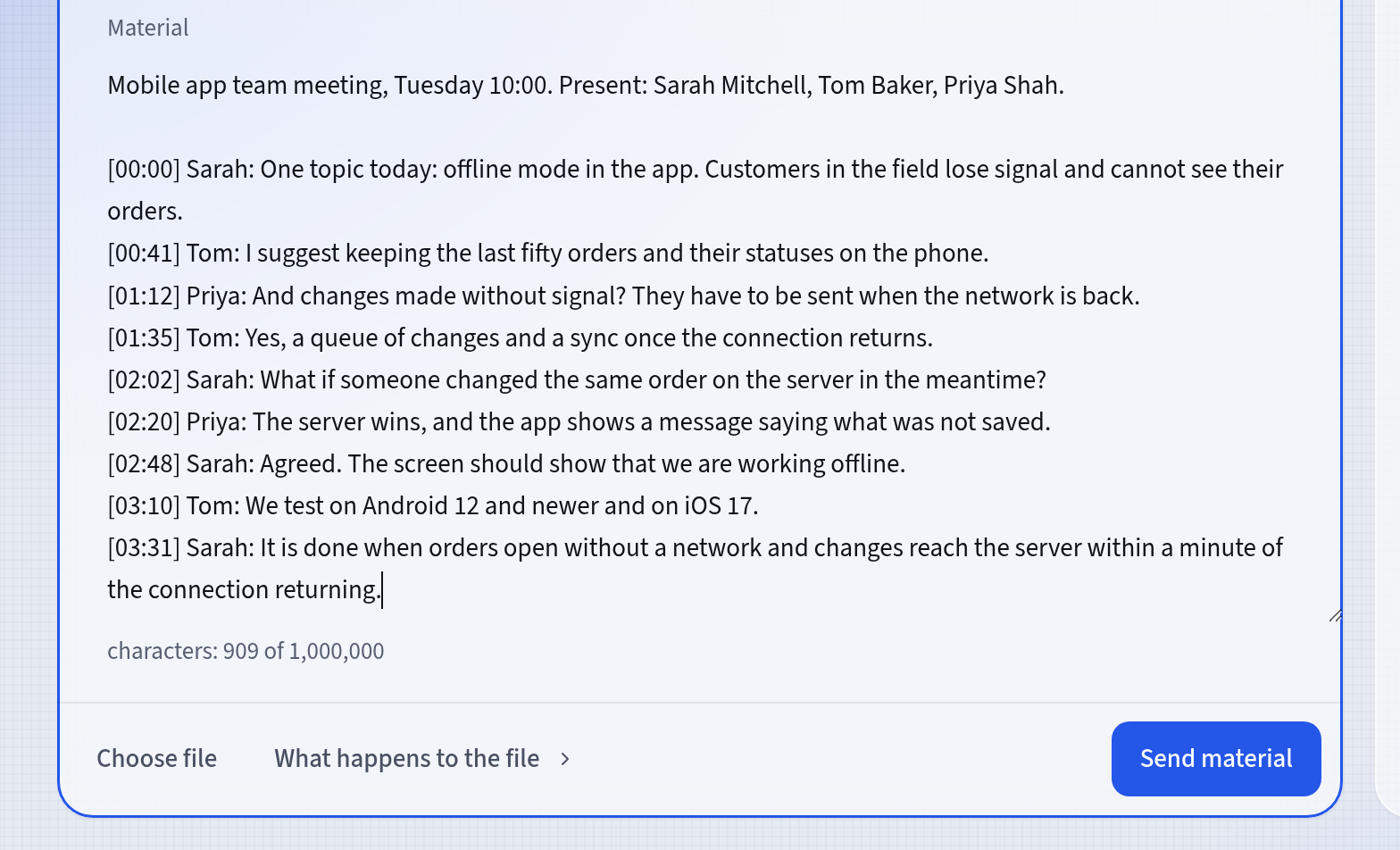
A meeting transcript in the Material field Wait for Material ready
A capture session opens. It saves the text as material and, after a moment, shows Material ready.
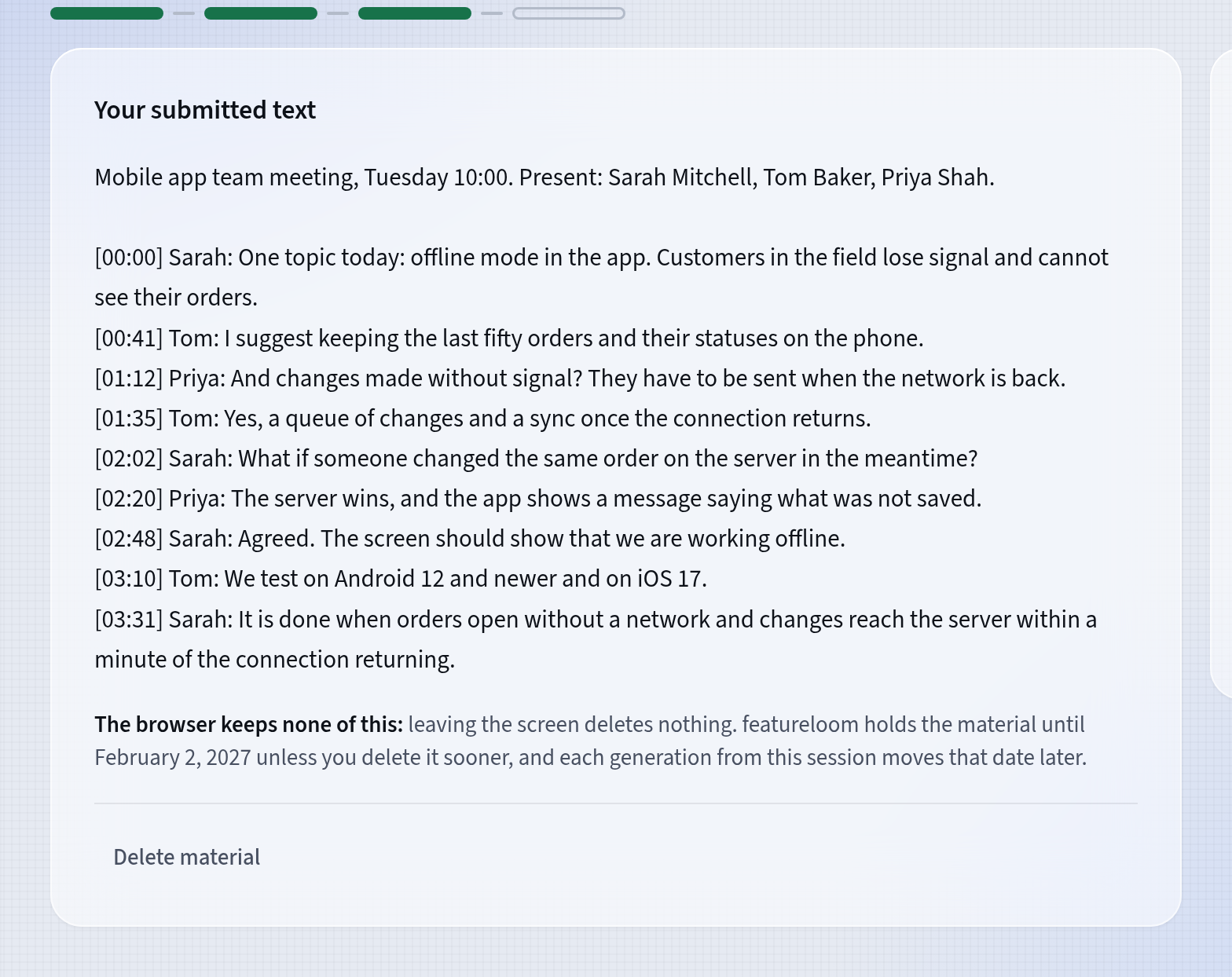
The capture session with your text Generate the plan
The screen also tells you that generating sends this material to a language model hosted outside featureloom. If you agree, press Generate plan.
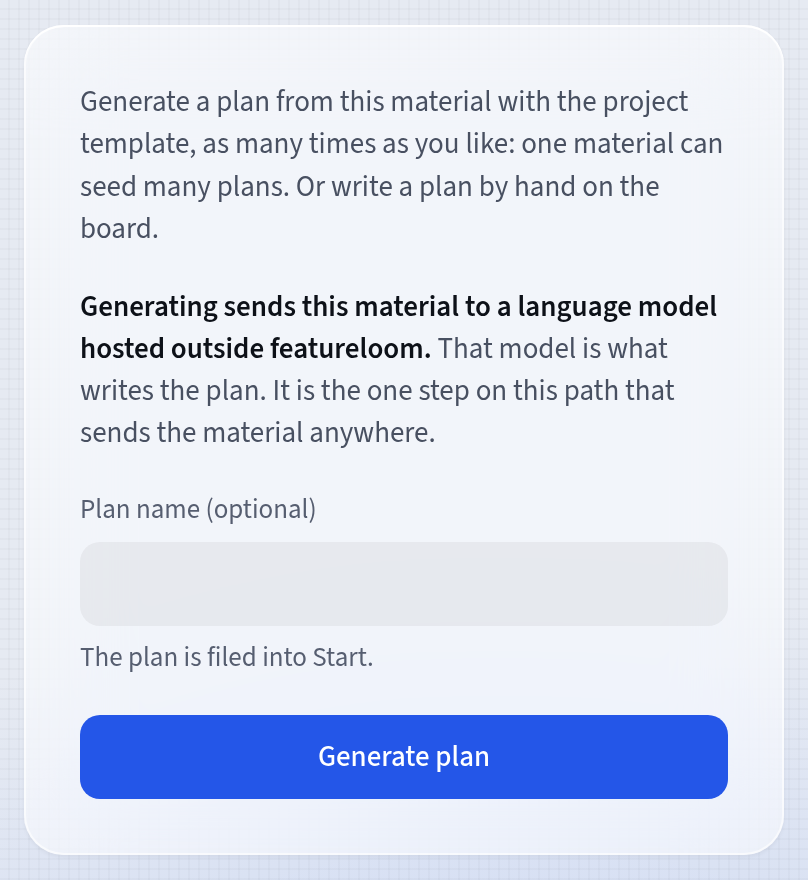
Generating sends the material to a hosted model Generating takes a moment, and you can close this page. When featureloom is done, the session shows Open plan.
Open the plan
The plan has the plan template’s sections, and above the document is a link to the session it came from.
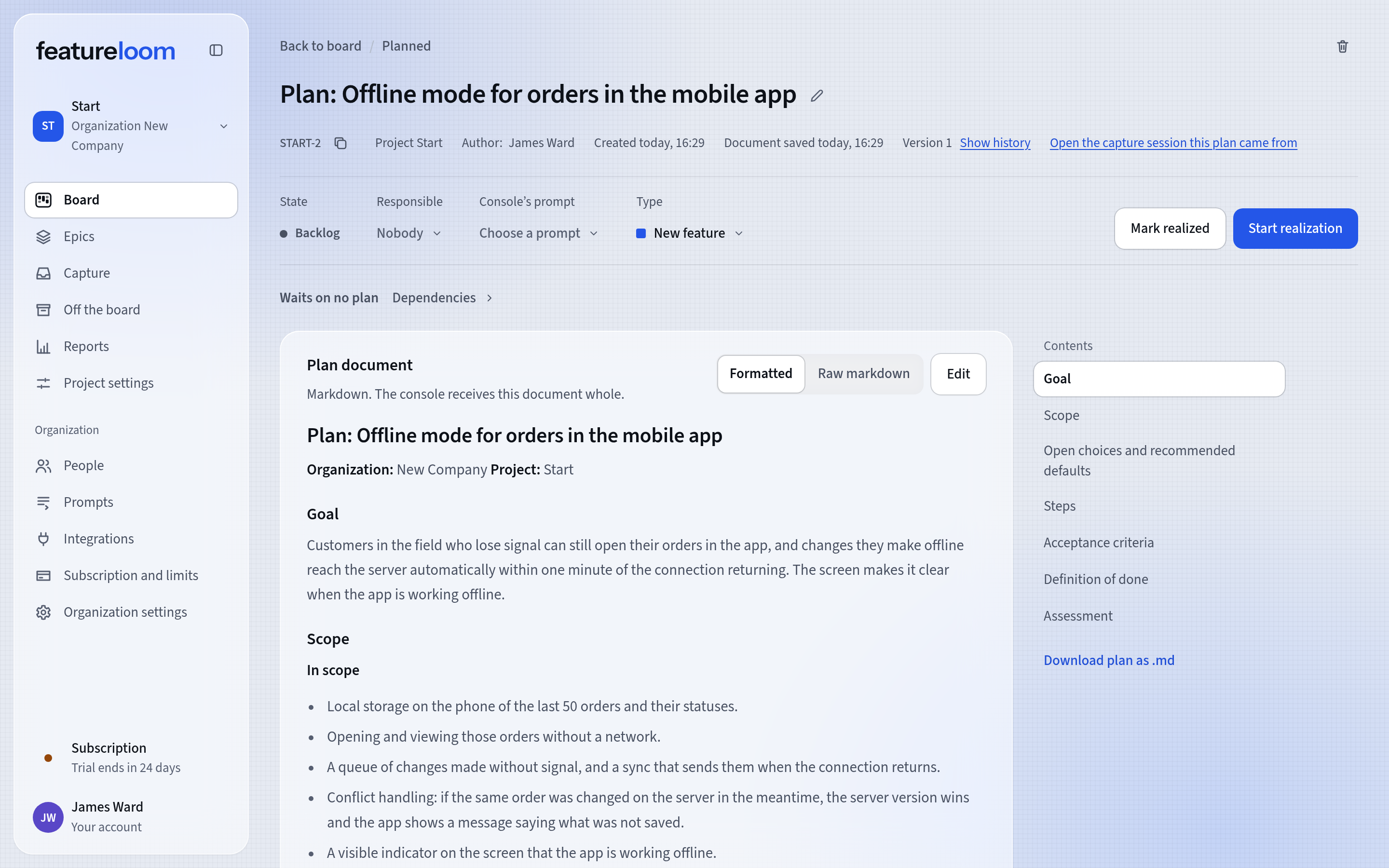
A plan with the template’s sections and a link to its session Choose the Realizer prompt
Press the Console’s prompt field and choose Realizer. The Command for a console appears below the table of contents: with it, you hand the plan to an agent like any other plan. On the board, the plan is in the Planned column.
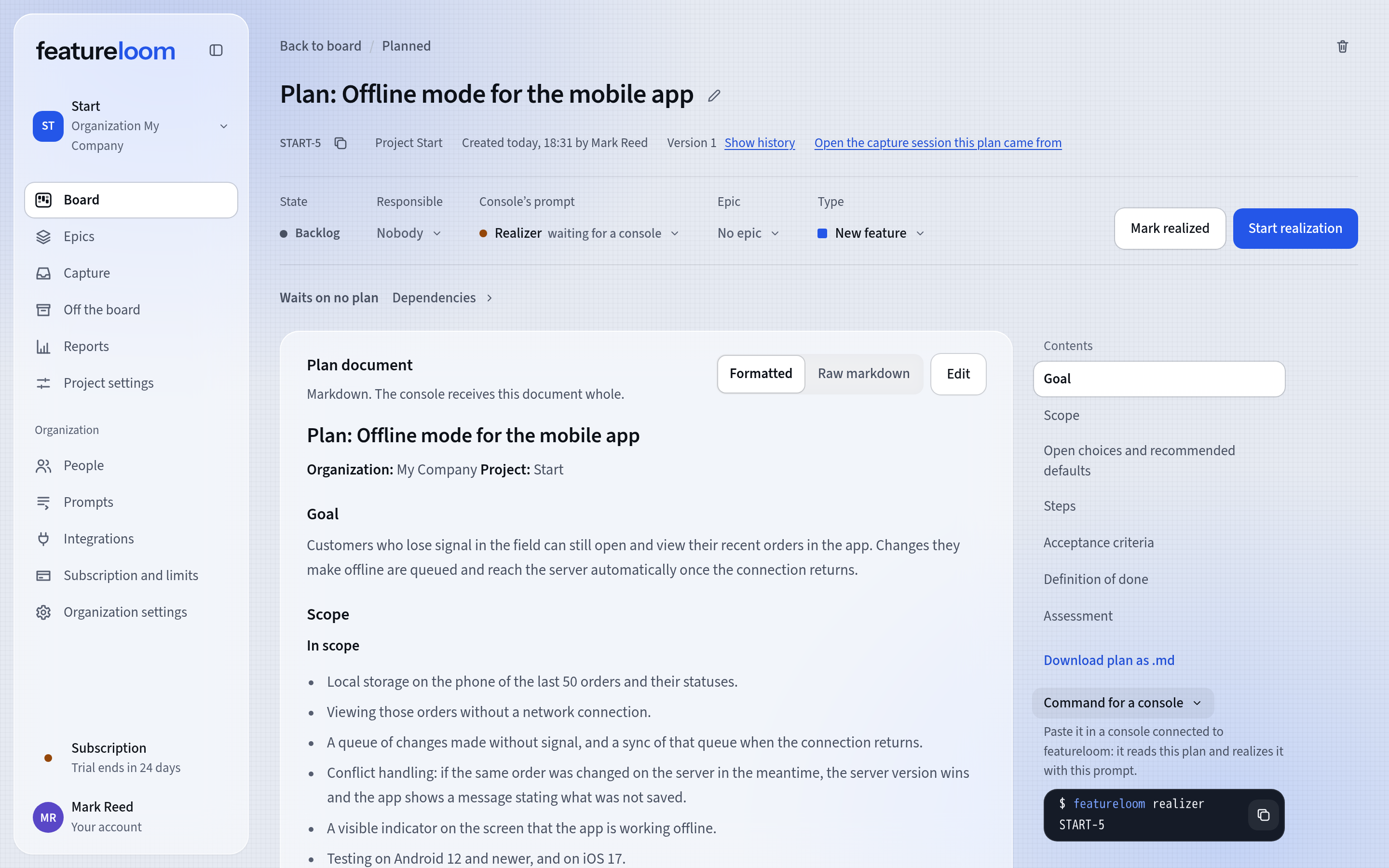
A plan ready for a console
Good to know
- Every new organization has the Planner and Realizer prompts. You find them under Prompts in the menu, and you can change them.
- Instead of pasting, you can add the transcript as a PDF or Word (.docx) file: Choose file.
- From the plan, the link above the document takes you back to the capture session. The session screen says how long its material is kept.
- You change a generated plan like any other: the Edit button above the document.
Updated: November 5, 2026
Next
Your agent realizes a plan from the board
One command hands a plan to your agent, and you follow its work on the board and in the plan document.
See the tutorial