Start here · step 5 of 7
Your agent realizes a plan from the board
A plan from the board goes to your agent with one command, and you follow its work on the board and in the plan document.
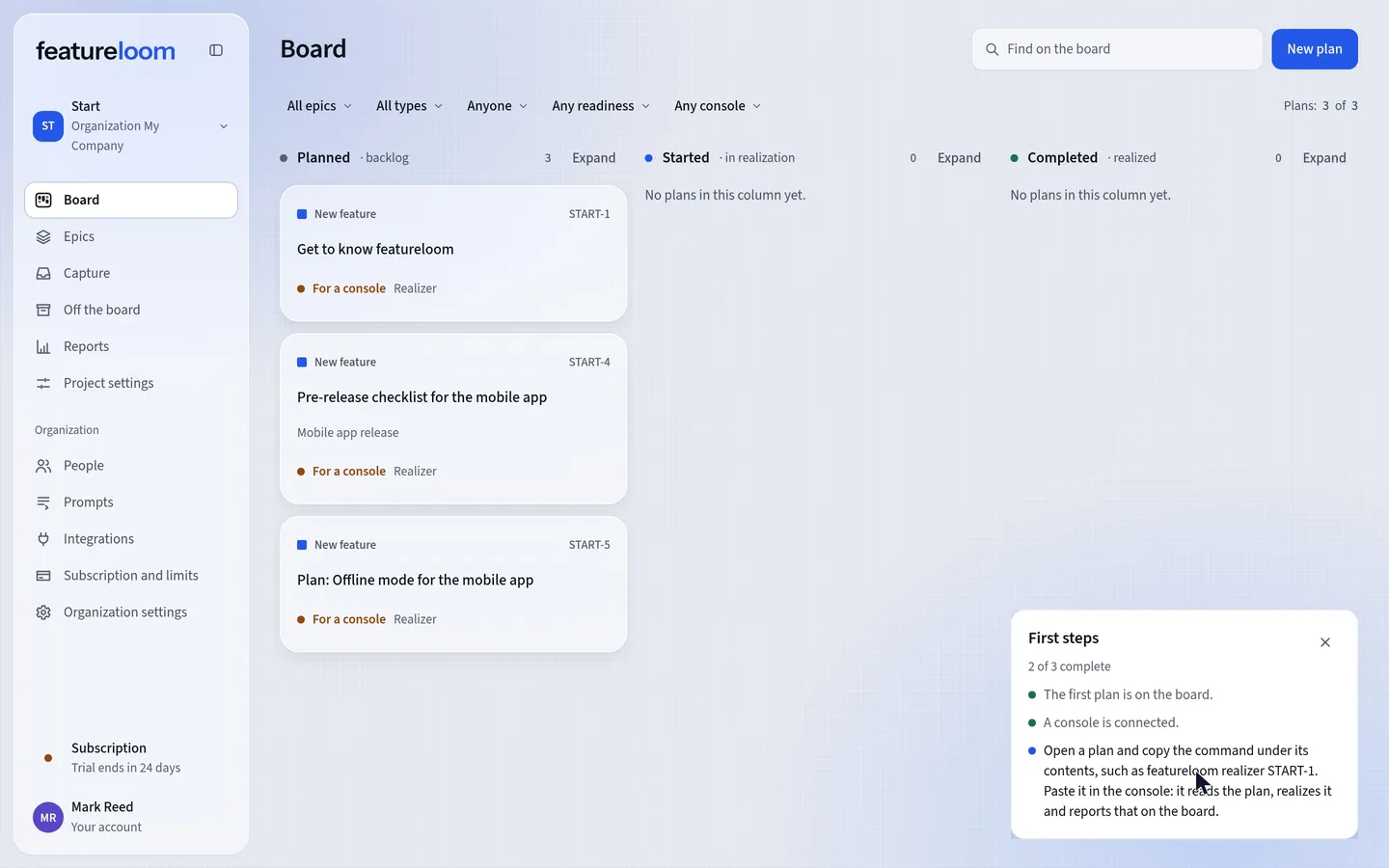 Play the film: Your agent realizes a plan from the board
Contents
Copy the Command for a console
Open the plan: the document tells the agent what to do. Below the table of contents is the Command for a console. Copy it with the button beside it.
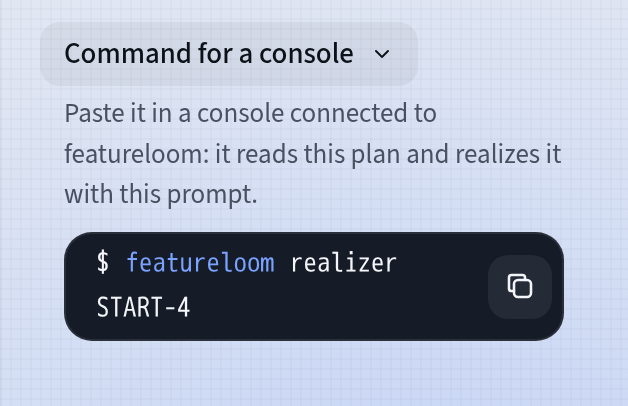
The Command for a console Paste it into Claude Code
Start Claude Code in your project’s folder and paste the command into its window, like a message to the agent. In the film, that was:
featureloom realizer START-4You can also ask the agent in your own words to realize a featureloom plan by its number.
The agent receives the whole plan and the Realizer prompt, takes the plan on and does what it asks. When the console asks to use featureloom’s tools, allow it.
Refresh the board
The card is in the Started column and shows whose console is realizing the plan. When the agent is done, it reports the plan as realized, and the card moves to Completed.
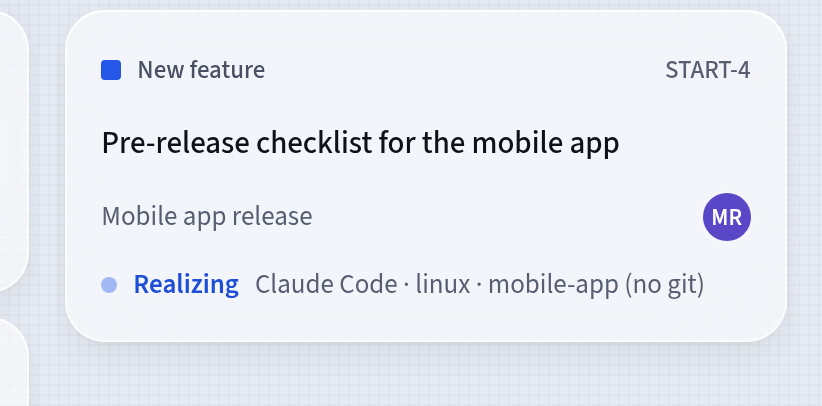
The plan in realization Read the note and decide
The plan document now contains the agent’s Realization note: what the plan asks for. Acceptance is your decision: in the Acceptance section, the Accept and Do not accept buttons are waiting.
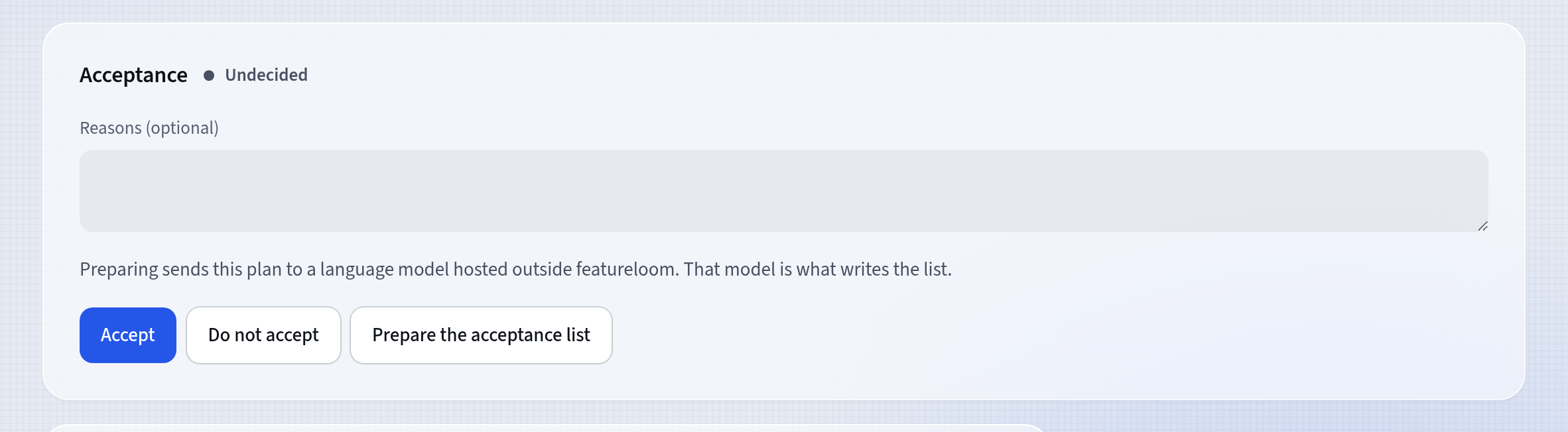
Acceptance waits for your decision
Good to know
- Every new organization has the Planner and Realizer prompts. You find them under Prompts in the menu, and you can change them.
- On the way, the agent may add a Progress note to the plan, for example with a decision it made.
- The card in Started also shows where the console works, as the agent gave it, for example the project’s folder.
- The Prepare the acceptance list button sends the text the plan was made from to a language model hosted outside featureloom, which adds an acceptance list to the plan.
Updated: November 5, 2026
Next
Acceptance: Do not accept and the agent’s rework
You do not have to accept your agent’s work: write a reason, and the agent fixes it and reports it again.
See the tutorial