Start here · step 1 of 7
Join an organization from an invitation
Your invitation link creates your account and takes you straight into your team’s organization.
 Play the film: Join an organization from an invitation
Contents
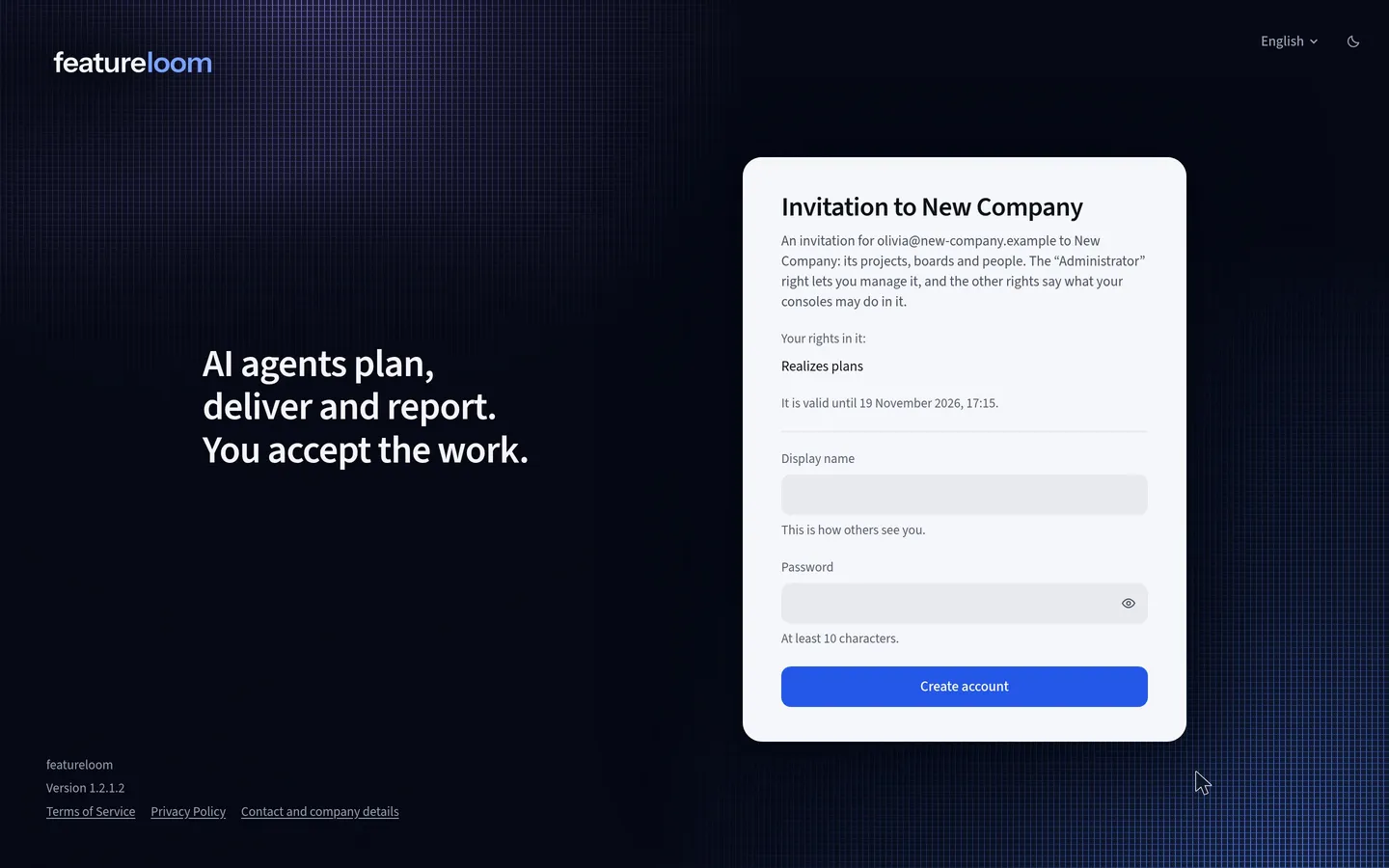
Open the invitation link
The link comes by email or from the administrator who invited you. Open it in your browser. The invitation’s screen names the organization you are joining in its title, and under it shows which email address the invitation is for, the rights you get there and until when the invitation is valid.
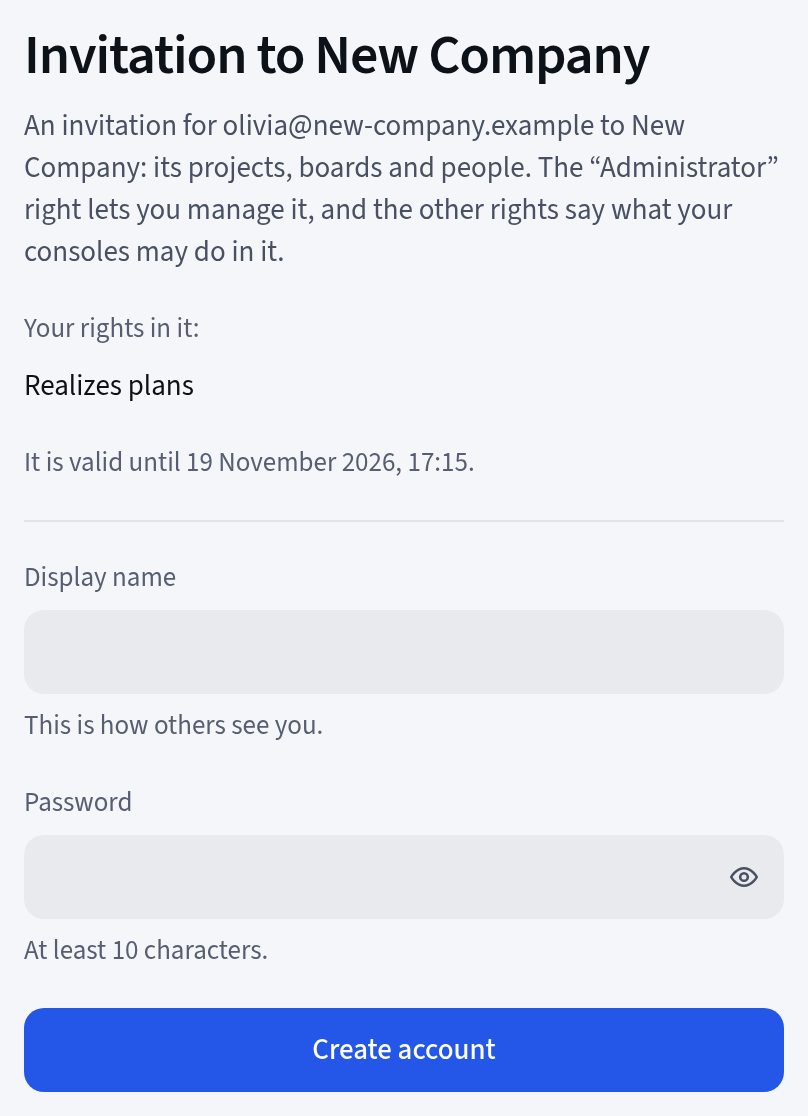
The organization, your rights in it and the invitation’s term The Administrator right lets a person manage the organization. The other rights say what your consoles may do there. In the browser every person works the same.
Create your account
Type a display name, the one others will see, and a password of at least 10 characters. Read the sentence about the Terms of Service above the button and press Create account. featureloom signs you in at once and opens your team’s organization.
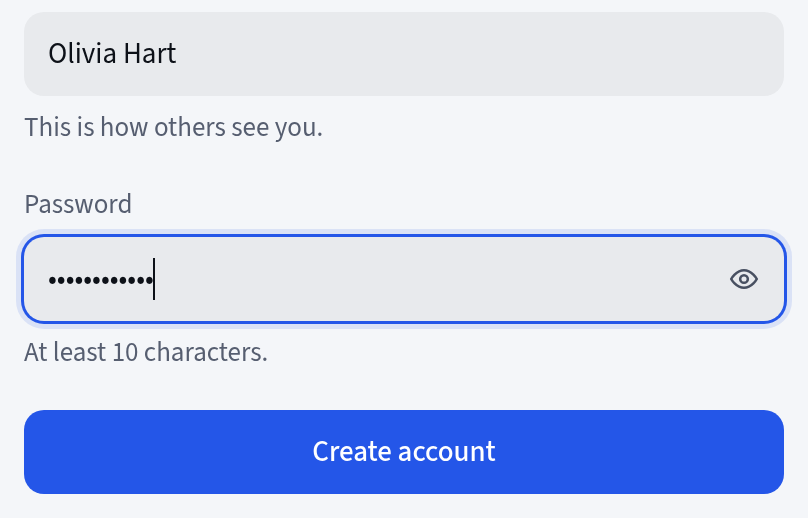
An account created from the invitation Sign in next time
On the Sign in screen, type the email address from the invitation and your password, then press Sign in. A sign-in lasts at most 14 days and ends after 3 days without use. Then featureloom asks you to sign in again.
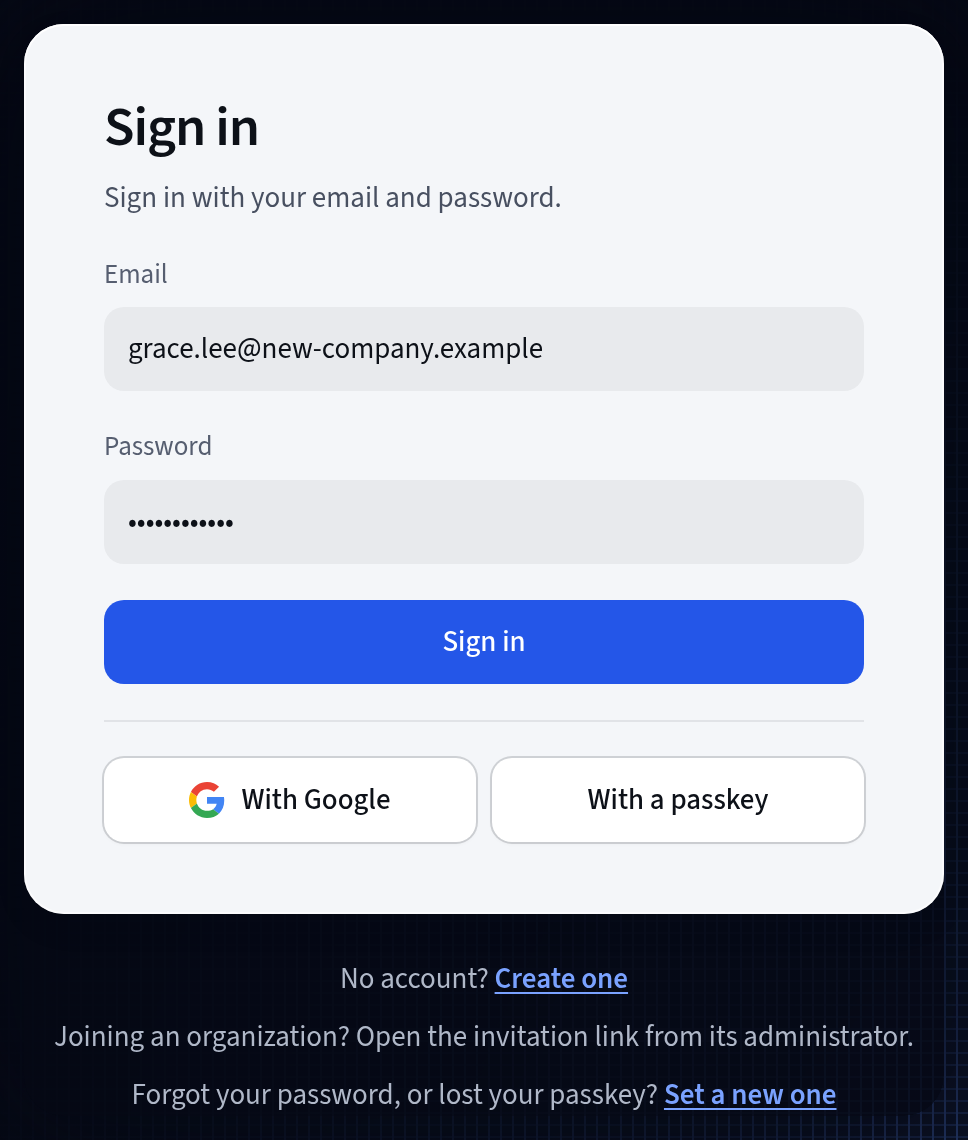
Signing in with the invitation’s address Set a new password when you forget it
Under the sign-in form you find the question Forgot your password, or lost your passkey? Press Set a new one beside it. On the Set a new password screen, type your email address and press Send the link.
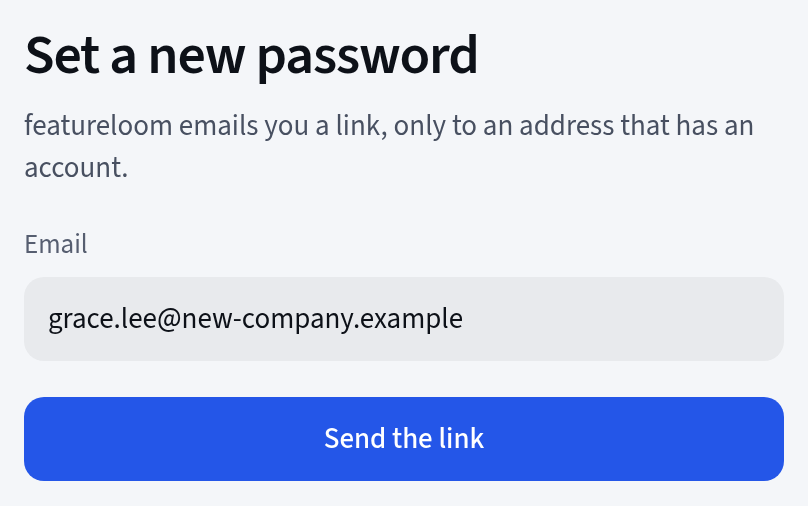
A link to a new password, sent to your address featureloom sends the link only to an address that has an account, and the link works for 24 hours. A new password signs you out on every device, so you then sign in with the new one.
Good to know
- Already have a featureloom account? Sign in, open the invitation link again and press Accept invitation. The new organization appears next to the ones you already belong to.
- When you belong to several organizations, featureloom asks where you want to work after you sign in. You can change the organization at any time: press the project card at the top of the menu, then Switch organization.
- An invitation is addressed to one email address and is valid for two weeks. When it expires, ask the administrator for a new link.
- Can’t see the email with the invitation or with the new password’s link? Check your spam folder.
Updated: November 6, 2026
Next
Connect Claude Code with one command
You are in the organization: connect your console. Working with Codex or Cursor? They have tutorials too.
See the tutorial