Start here · step 2 of 7
Connect Claude Code with one command
One command from the app adds featureloom to Claude Code. From then on, your agent takes plans from your board.
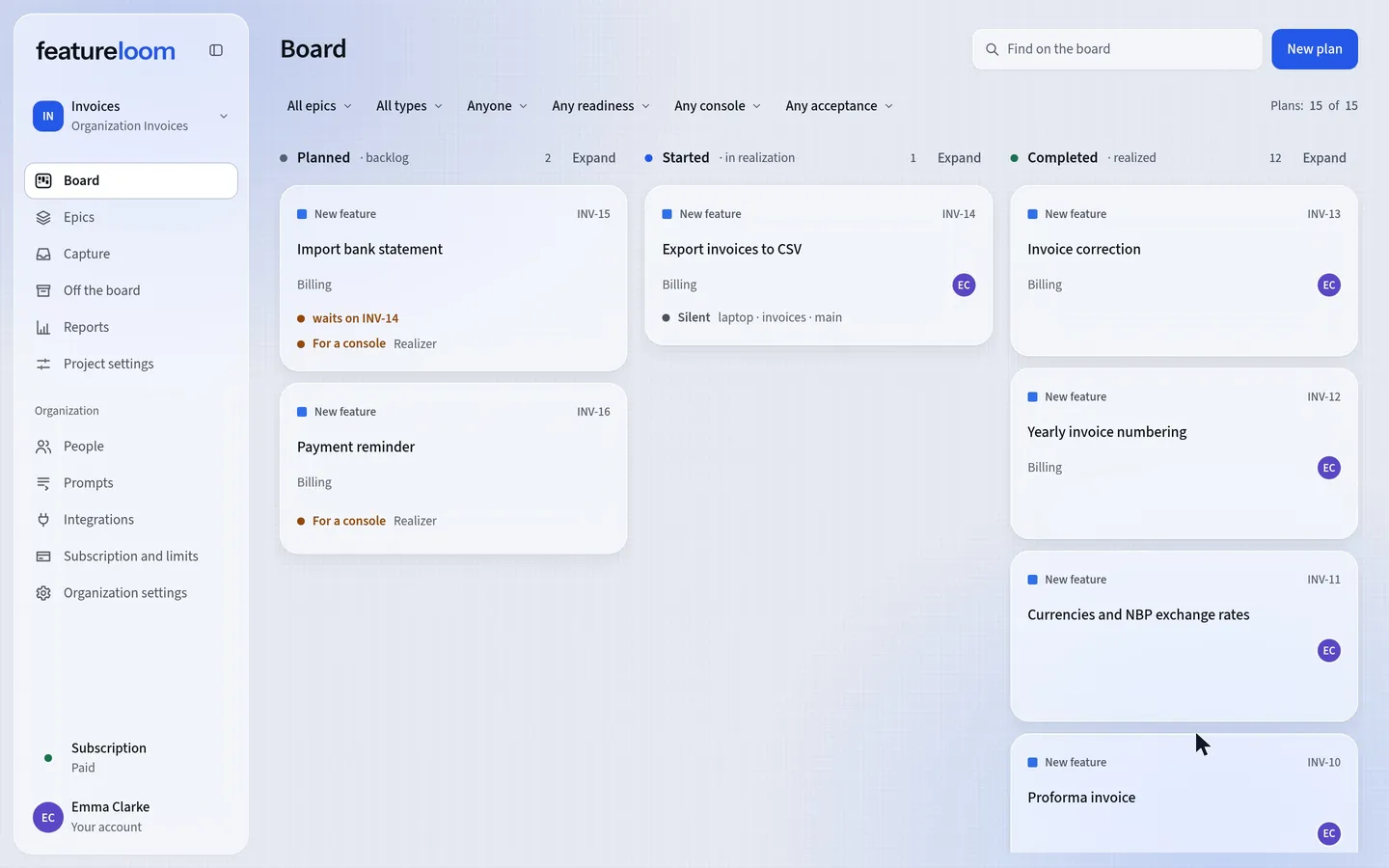 Play the film: Connect Claude Code with one command
Contents
Open Integrations and choose your console
In the menu on the left, open Integrations. On the Your consoles card, press Connect console. The app asks which console you work from: choose Claude Code.
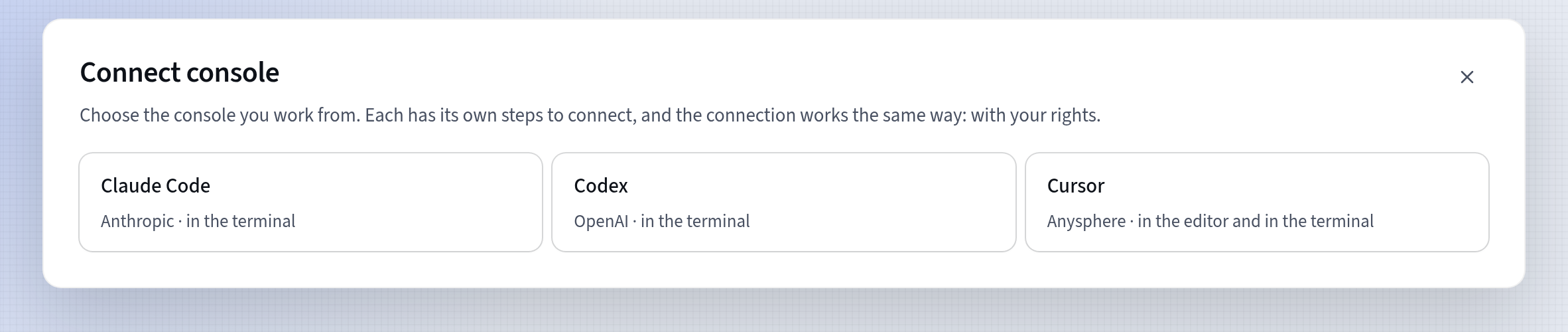
Connect console: choosing the console Copy the connect command
If the window first shows Confirm it’s you, confirm the way you sign in. After your password or a passkey, the window shows the connect command right away. After Google, press Back, then Connect console and Claude Code again. featureloom asks once an hour.
The app shows the connect command, ready for your terminal, with a secret that works like the console’s password. You see it only now, so press Copy right away.
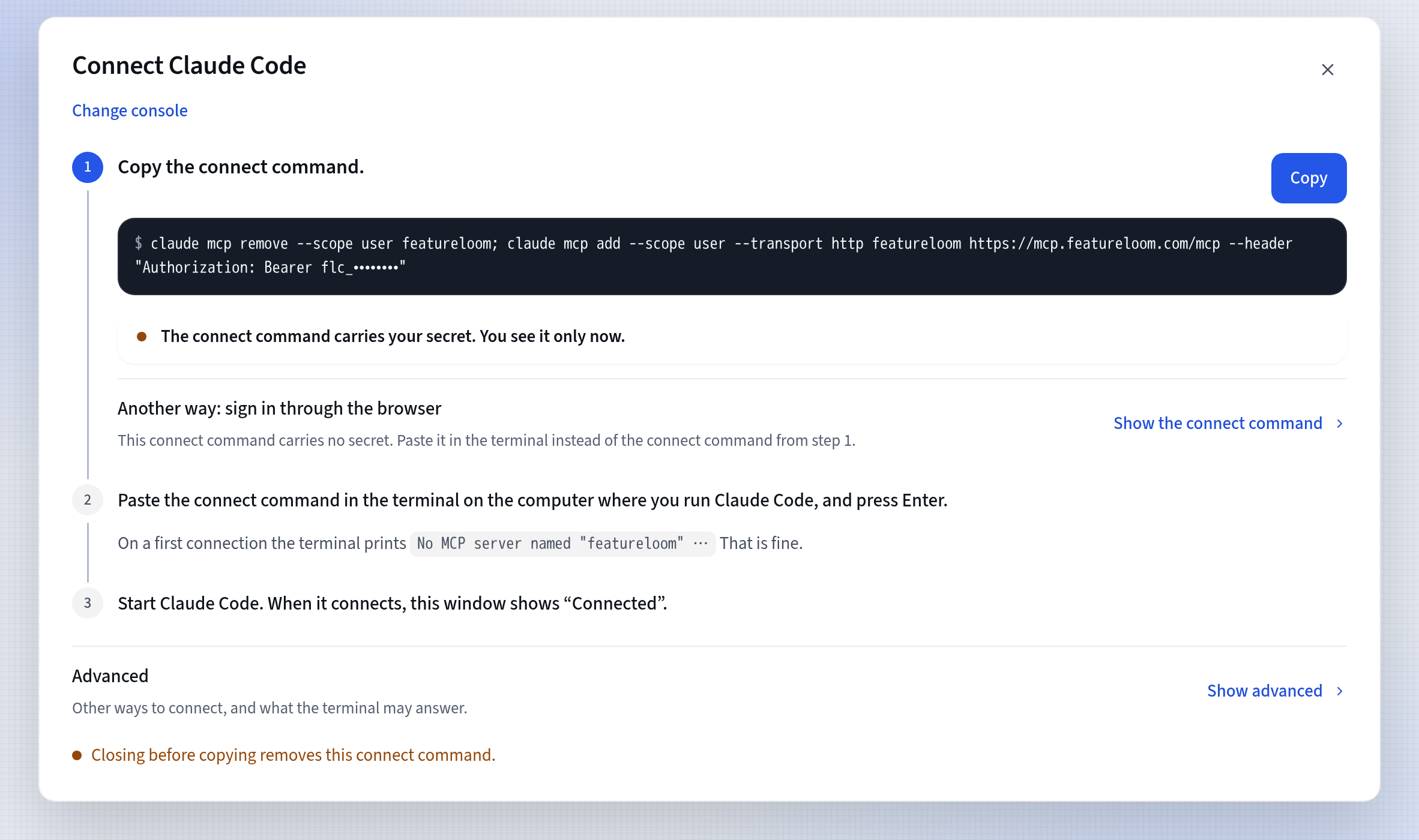
Connect Claude Code: the connect command to copy The connect command holds your secret. Don’t paste it into a chat or a repository.
Paste it in a system terminal
Paste the connect command in an ordinary system terminal, under the same system account that runs Claude Code, not inside the Claude Code window. It adds featureloom as an MCP server:
claude mcp remove --scope user featureloom; claude mcp add --scope user --transport http featureloom https://mcp.featureloom.com/mcp --header "Authorization: Bearer flc_…"The first time you connect, the terminal says there is no featureloom server yet:
No MCP server named "featureloom" in user scope, then that it added one:Added HTTP MCP server featureloom. That is fine.Check the connection
Check the connection in the same terminal. featureloom shows Connected:
claude mcp listfeatureloom: https://mcp.featureloom.com/mcp (HTTP) - ✔ ConnectedIn the app you will see that Claude Code is connected. Right after that, the app suggests the next step: give this console a plan. Open a plan with a prompt, copy the command under its contents and paste it in the console. The console reads the plan, realizes it and reports that on the board. The Open the board button takes you there.

Connected: Claude Code
Good to know
- What the connect command does: claude mcp remove first removes an earlier featureloom server, if there is one. Then claude mcp add adds featureloom to Claude Code as a remote MCP server over HTTP, at https://mcp.featureloom.com/mcp, with your secret in the Authorization header. With --scope user, the server is added for your whole system account, not for one folder.
- Several consoles on one account: in the Connect Claude Code window click Show advanced, then Copy the folder’s connect command, and paste it in the folder where you start that console.
- The connect command stops working after 90 days, or after 14 days without use. A lost or inactive one is replaced with a new one: Reconnect.
- You can have up to 10 consoles at once. You disconnect them in Your consoles.
- The Claude Code integration page shows how Claude Code works with your board and what it may do there.
Updated: November 8, 2026
Next
Your agent writes a plan from a console conversation
Your console is connected: tell your agent what you need, and it creates the plan on your board.
See the tutorial