Agents and consoles · step 5 of 8
Connect Cursor with a secret on a computer with no browser
Cursor CLI on a computer with no browser connects to featureloom with the entry with the secret. The secret works like the console’s password, so you keep it to yourself.
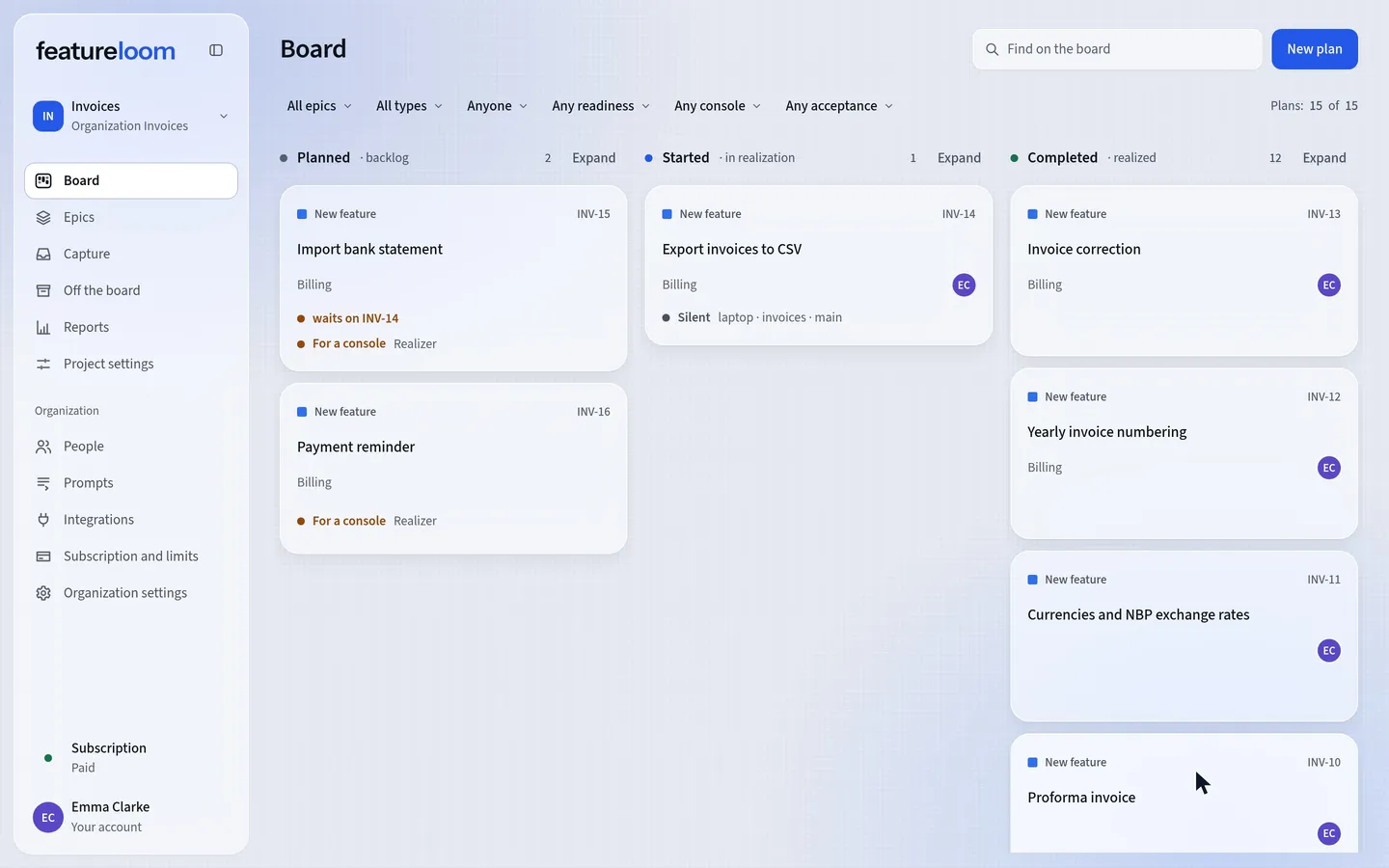 Play the film: Connect Cursor with a secret on a computer with no browser
Contents
Copy the entry with the secret
Open Integrations in the menu. On the Your consoles card, press Connect console and choose Cursor. Under step 1, in In the terminal and in Cloud Agents, press Show the entries.
If the window first shows Confirm it’s you, confirm the way you sign in. featureloom asks once an hour.
At the second entry, Cloud Agents or a computer with no browser: entry with the secret, press Copy the entry with the secret. You see it only now, so copy it right away.
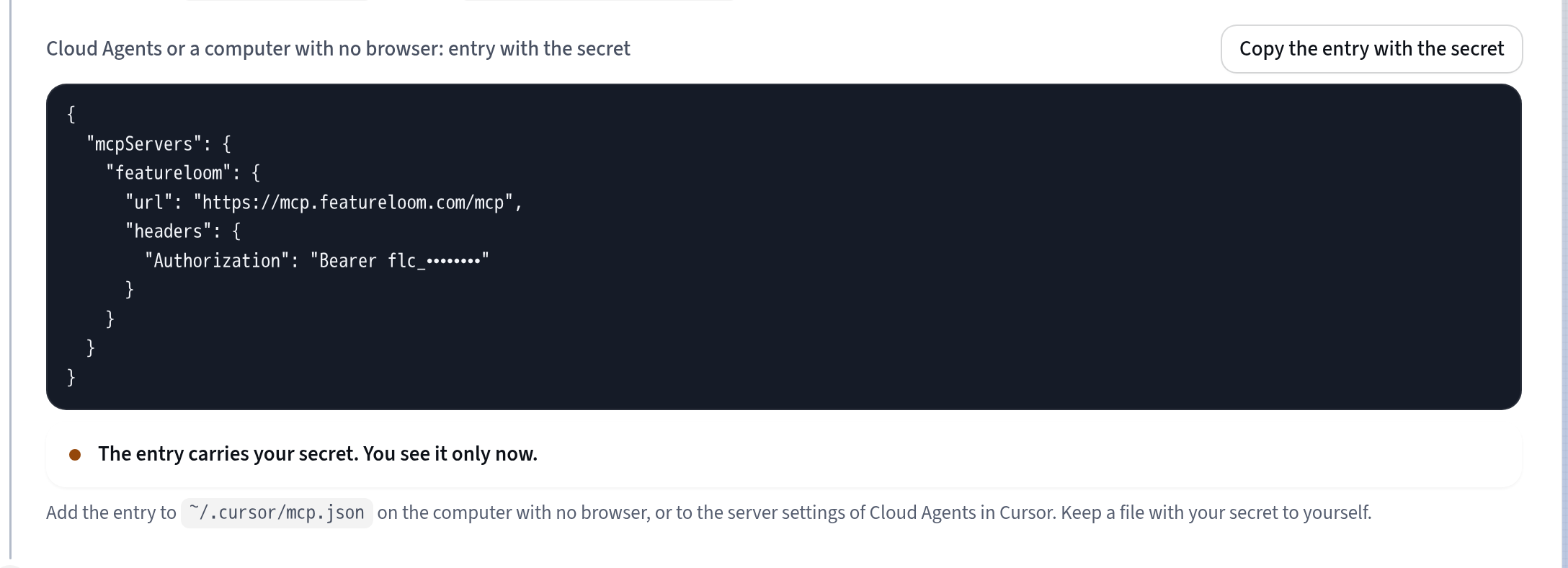
Entry with the secret The entry holds your secret. Don’t paste it into a chat or a repository.
On a computer with no browser, add the entry to Cursor’s file
As the same computer user who runs Cursor CLI, open ~/.cursor/mcp.json in your home folder. If it isn’t there, create it with this entry. If it already lists other servers, add featureloom next to them, inside mcpServers:
{
  "mcpServers": {
    "featureloom": {
      "url": "https://mcp.featureloom.com/mcp",
      "headers": {
        "Authorization": "Bearer flc_…"
      }
    }
  }
}
On Linux and macOS, make the file readable only by you:
chmod 600 ~/.cursor/mcp.jsonDon’t add this entry to .cursor/mcp.json in a project folder. That file goes into the repository with the project, and your secret with it.
Check the connection in the terminal, in your project’s folder, not in your home folder itself: there Cursor CLI reads ~/.cursor/mcp.json as a project’s file and shows not loaded (needs approval). Cursor CLI shows featureloom in its list of servers, with the state of its connection.
agent mcp listfeatureloom: readyGive your console a plan
On the Your consoles card, you see the Cursor console in the state Live.
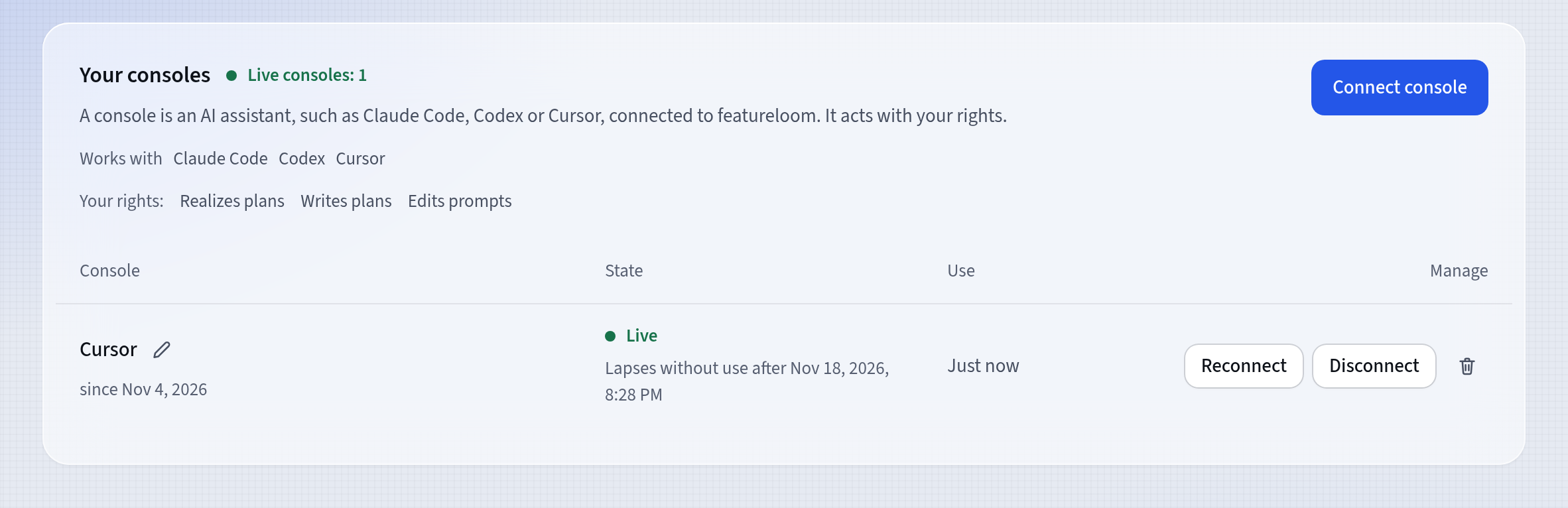
The Cursor console on the Your consoles card Open a plan with a prompt, copy the command under its contents, in Command for a console, and paste it in Cursor CLI. For plan INV-14 the command is:
featureloom realizer INV-14The agent reads the plan, realizes it and reports that on the board.
Good to know
- The secret works for 90 days from issue and expires sooner after 14 days without use. You get a new one with Reconnect on the Your consoles card: it replaces the old one, so copy the entry with the secret again and replace it in Cursor’s file.
- You have up to 10 consoles at once. You disconnect them in Your consoles. Each program connects on its own, so Cursor CLI and the Cursor editor are two Cursor rows.
- On a computer with a browser, you connect Cursor with no secret, as in the tutorials Connect the Cursor editor with one button and Connect Cursor CLI by signing in through the browser.
- The Cursor integration page shows how Cursor works with your board and what it may do.
Updated: November 8, 2026
Next
Your consoles: several at once, Reconnect and Disconnect
Your console is connected: see how to name your consoles, renew a secret and disconnect a console you no longer use.
See the tutorial