Agents and consoles · step 8 of 8
Slack: plan events on a channel
Your team sees on a Slack channel what happens to plans: a new plan, the start of realization, a question on a plan and finished work. An organization administrator connects the channel with one webhook address created in Slack.
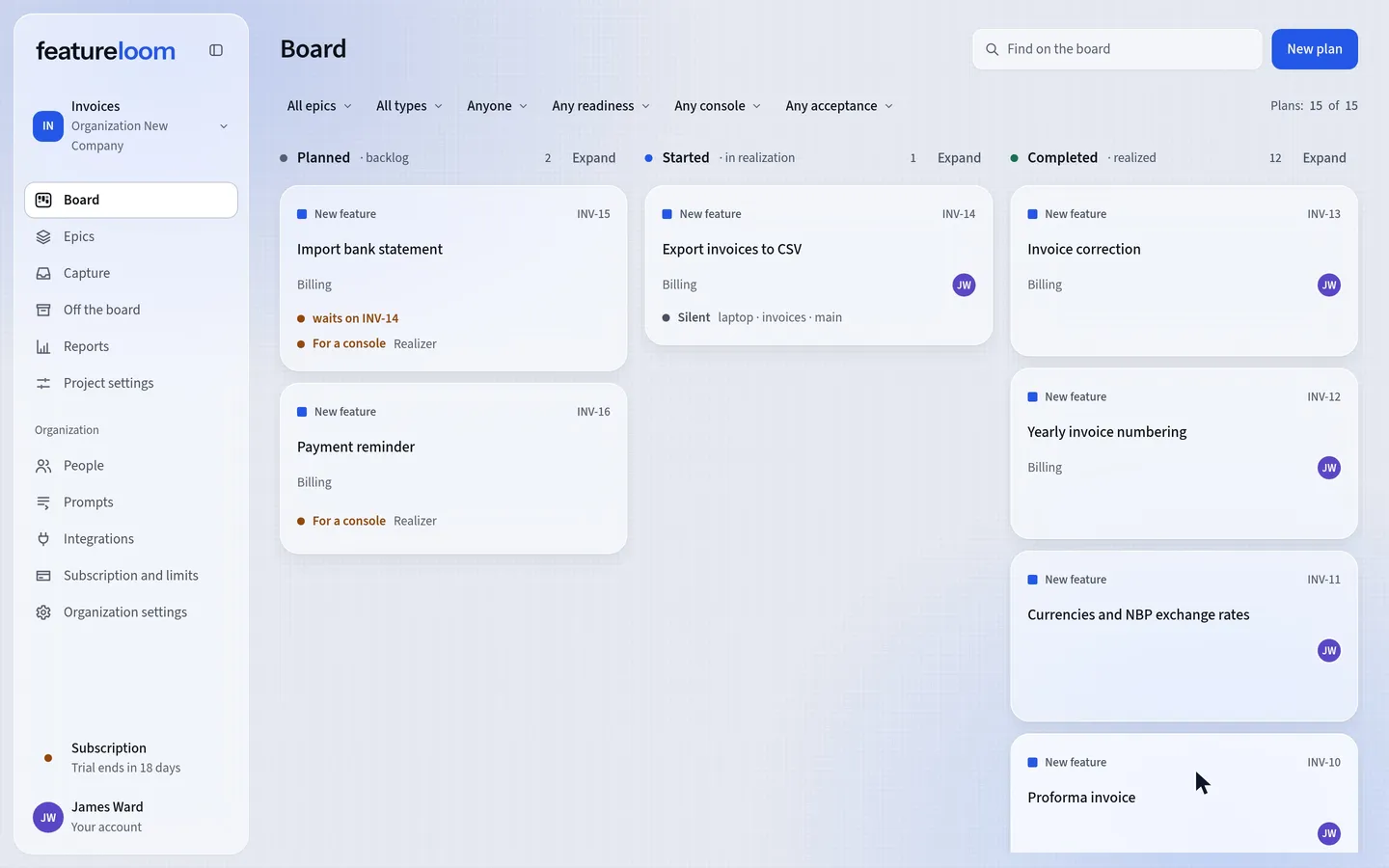 Play the film: Slack: plan events on a channel
Contents
Create a webhook in Slack
A webhook is an address featureloom sends messages to, for one channel. You create it in Slack, in a Slack app of your own, a new one or one you already have. Give a new app a name your team will recognize, featureloom for example: the messages appear on the channel under that name.
In the app’s settings, open Incoming Webhooks, turn on Activate Incoming Webhooks, press Add New Webhook to Workspace, pick the channel and press Authorize. Slack shows an address that starts with
https://hooks.slack.com/services/. Copy it.Slack’s documentation: Sending messages using incoming webhooks
The webhook address is a secret: anyone who has it can post to your channel. Never paste it into a repository or a chat.
Connect Slack in featureloom
Open Integrations in the menu. In the Organization part you find the Slack card with the Connect Slack button. Press it and paste the address into the Webhook address field. featureloom stores the address, and no screen can show it again.
Below the field, under What featureloom announces, there are four switches, all on: A plan is created, A plan enters “in realization”, A plan is marked realized and A plan gets a question. Switch off what this channel does not need and press Connect Slack below the switches. If Confirm it’s you appears first, confirm the way you sign in.
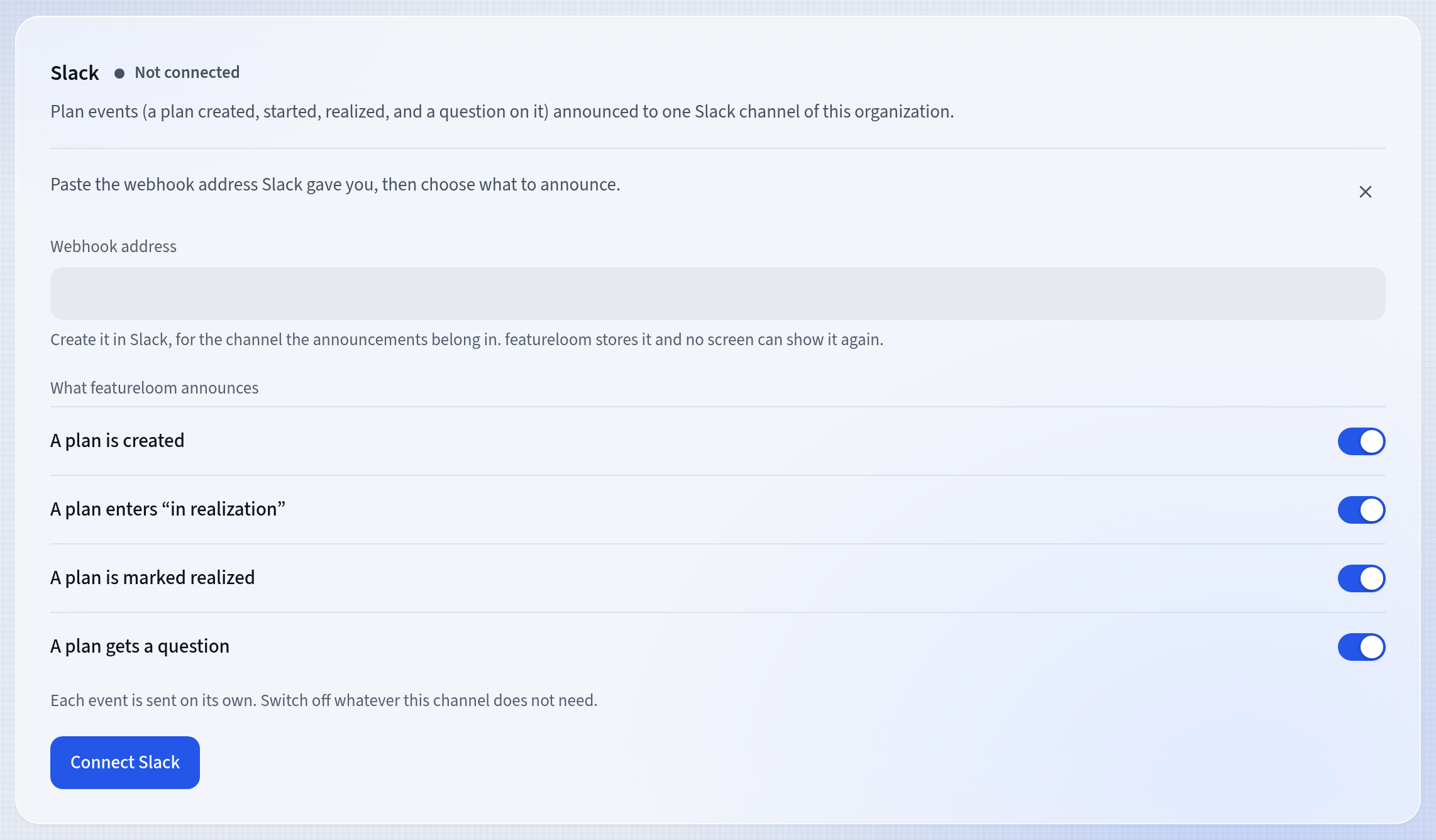
Four events, each with its own switch If the field says That is not a Slack webhook address, copy the address from Slack again, whole.
Send a test message
Once connected, the Slack card shows Connected, and under Stored address the last four characters of the address. No screen shows the whole address again. Press Send test message. When the card says the test message was delivered to Slack, look at the channel: a message from featureloom says the channel is connected. A test sends no plan data.
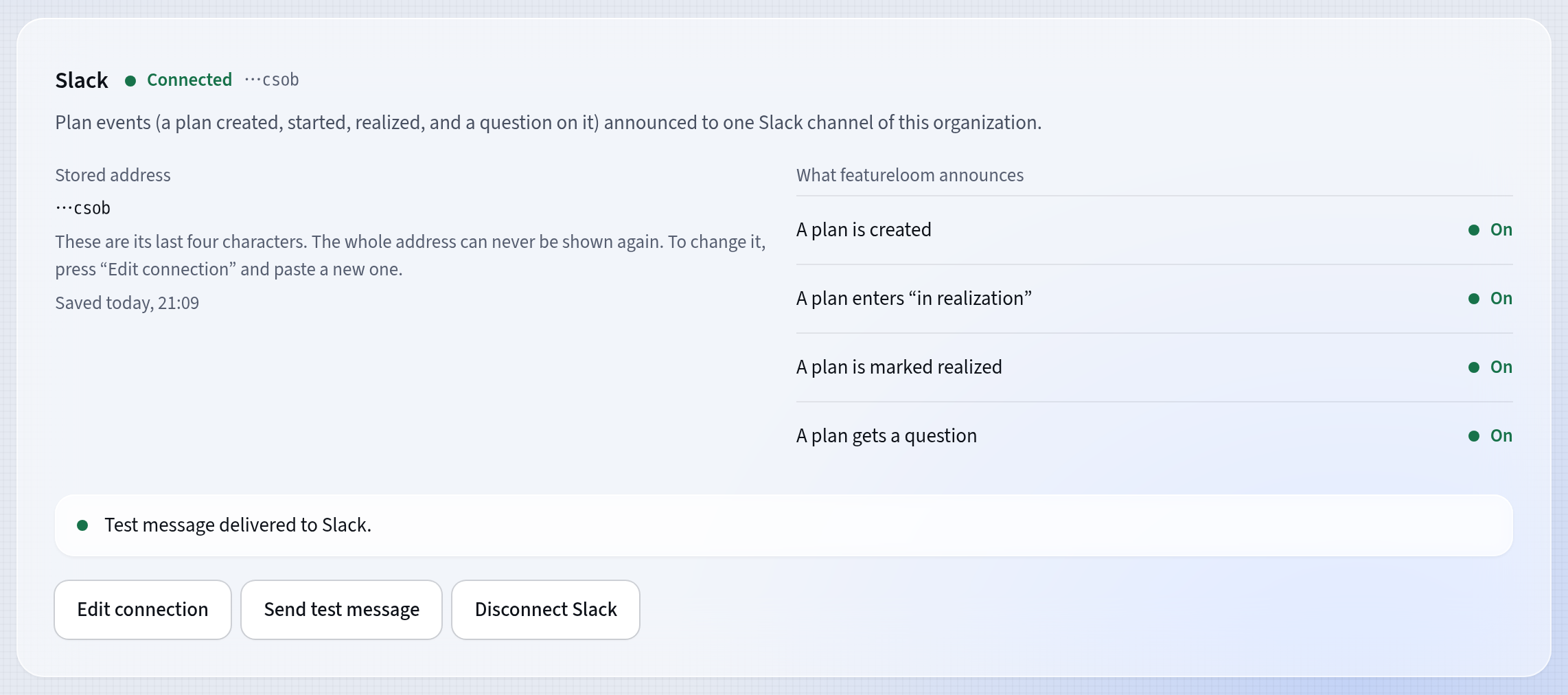
Only the last four characters of the address show If the card says Slack didn’t accept the message, the usual reason is an address removed in Slack. Create a new webhook there and paste it through Edit connection.
What the channel sees
Each event that is on sends its own message. A message names the plan, its project in brackets, who did it, and a link to the plan in featureloom. An agent’s work is signed by the person and their console, Emma Clarke · Claude Code for example, and an automation’s work by its name. The plan’s content never goes to the channel.
A message about a question carries the question itself on a second line, up to 300 characters. When realizing a plan unlocks plans that were waiting for it, the realization message names them on an Unlocked line: up to ten by name, the rest as a count.
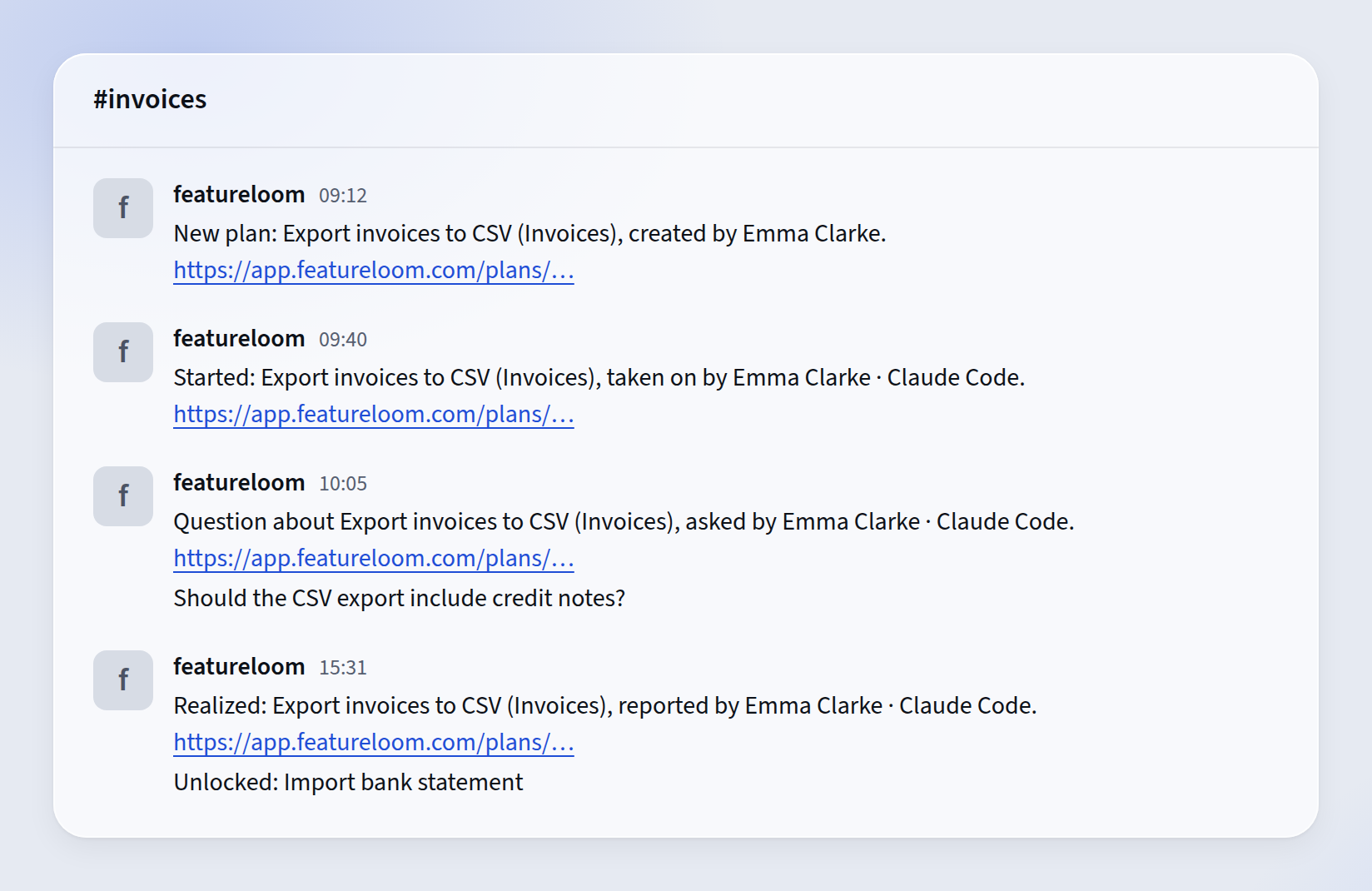
One event, one message Change the settings or disconnect Slack
Edit connection opens the same form. Leave the Webhook address field empty and the stored address stays as it is. Paste a new one to replace it, when the announcements should go to another channel for example. Press Save changes.
Disconnect Slack stops the announcements at once. The card asks you to confirm: press Disconnect, or Keep it if you change your mind. Nothing can show or bring back the stored address, so connecting again needs a new webhook created in Slack.
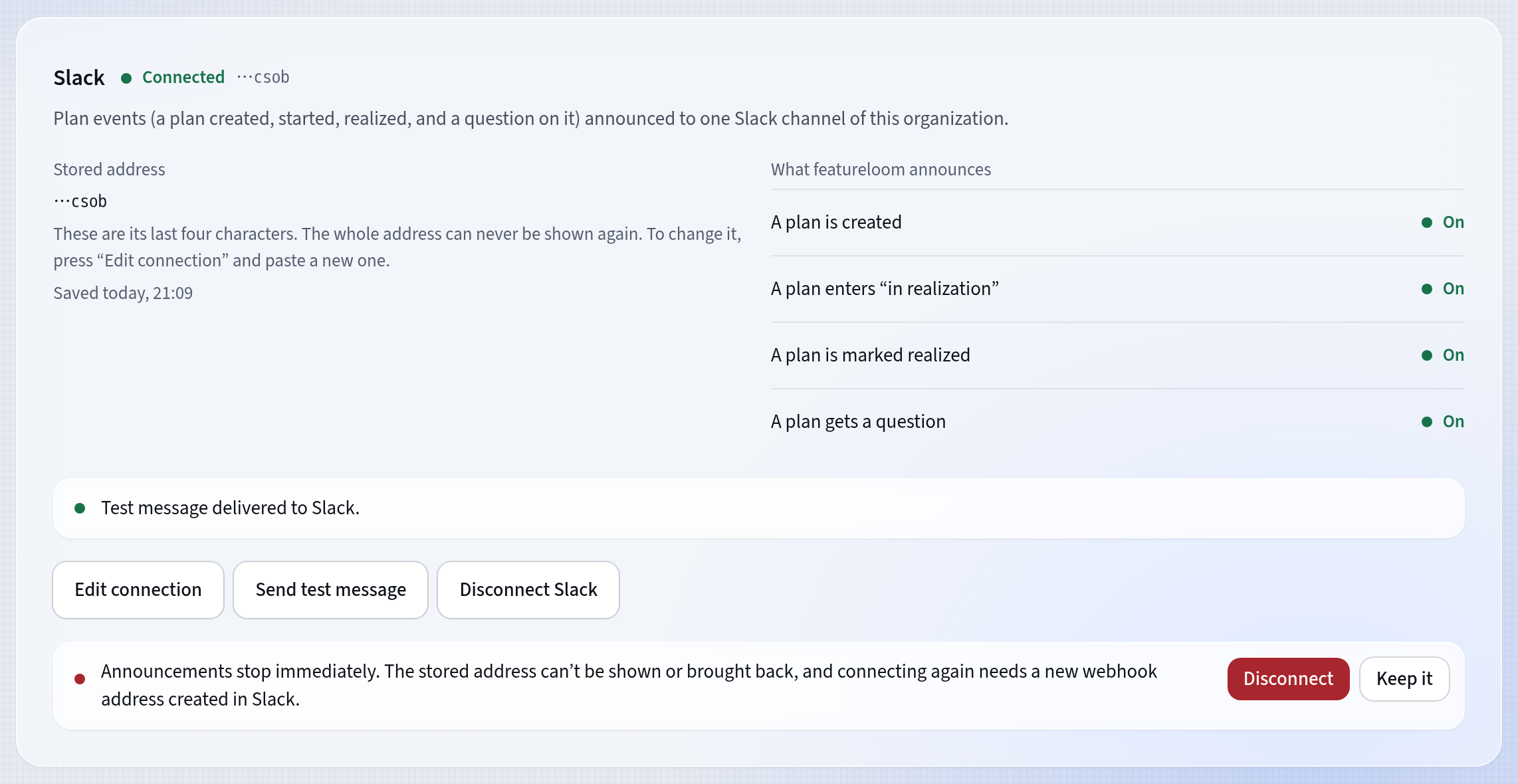
Disconnecting stops the announcements at once
Good to know
- Only the organization’s administrators see and change the Slack card.
- An organization has one channel for announcements. You choose the channel in Slack when you create the webhook, so another channel means a new webhook.
- You can create a webhook for a private channel only if you are a member of that channel.
- Messages are in the organization’s language, the same for everyone on the channel.
- Moving a card into a column with that state announces a start or a realization too. Moving plans while a column is deleted announces nothing.
- Announcements never hold up work: a change on the board is saved even when Slack does not answer. A message Slack did not accept then is not sent again.
- Deleting a plan in featureloom does not delete messages already posted to the Slack channel.
Updated: November 5, 2026
Next
Tutorials
All featureloom tutorials are in one place.
See the tutorials