Agents and consoles · step 6 of 8
Your consoles: several at once, Reconnect and Disconnect
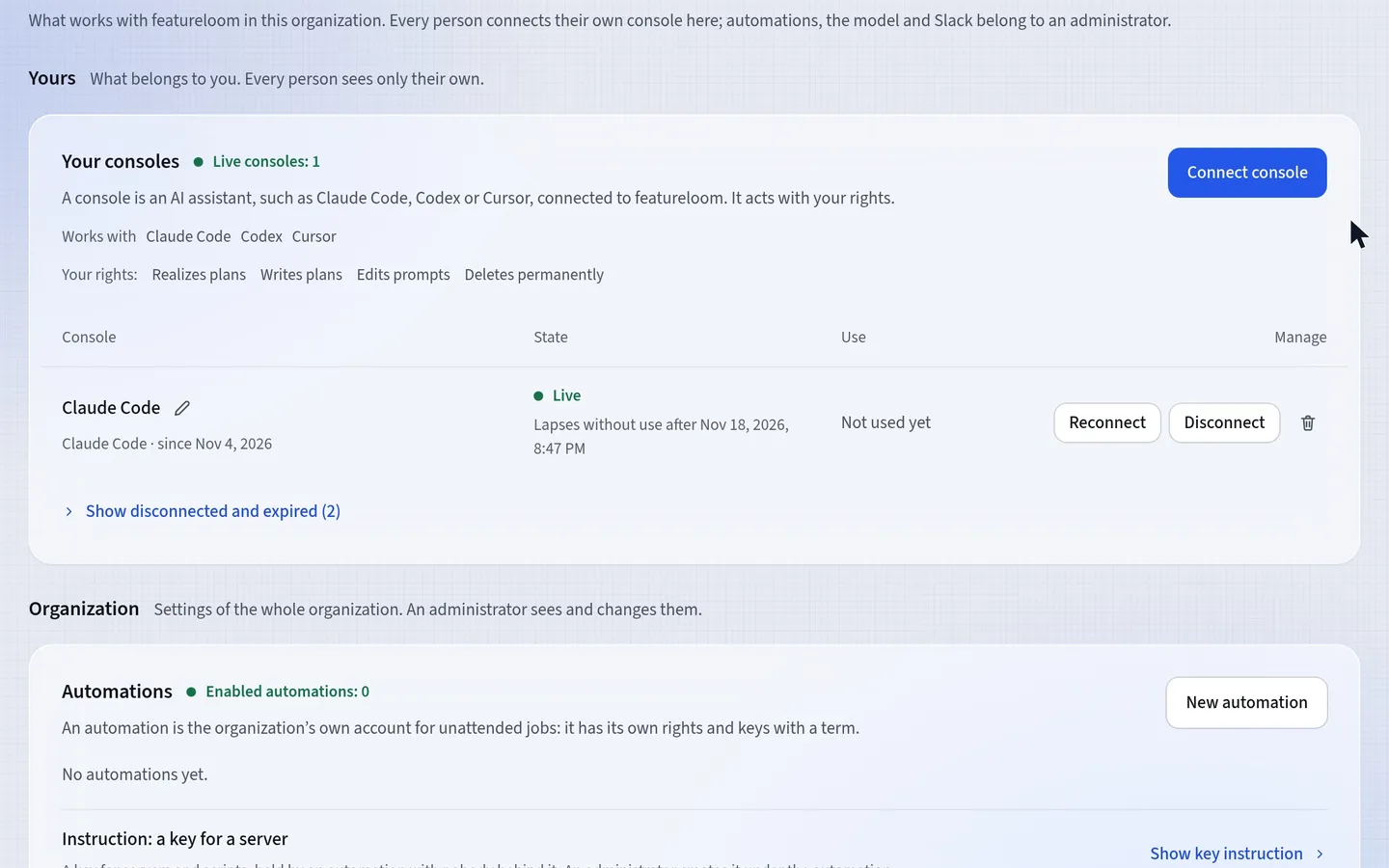
On the Your consoles card you see each of your consoles in the organization: its name, its state and its term. There you also give a console a new connect command or disconnect it.
 Play the film: Your consoles: several at once, Reconnect and Disconnect
Contents
Connect several consoles under one system account
The default connection is one console for every folder on your system account: agents in each folder sign plans with the same name. The advanced connection gives one folder its own console, so you can tell agents apart. In the menu, open Integrations, press Connect console on the Your consoles card and choose Claude Code. In the window, press Show advanced and copy the command with Copy the folder’s connect command.

A connect command for one folder only Paste it in an ordinary system terminal, in the folder you run that console in, not inside the Claude Code window. The
--scope localoption saves the connection for that folder only.claude mcp remove --scope local featureloom; claude mcp add --scope local --transport http featureloom https://mcp.featureloom.com/mcp --header "Authorization: Bearer flc_…"Change the Server name in the console field when your account on this computer already has a featureloom server, for example one connected to another organization. The command then uses the new name.
Give the console a name
A new console gets its program’s name, for example Claude Code, and a second one of the same kind Claude Code 2. On the Your consoles card, press the pencil icon beside the name, type a name such as backend in the Console name field and press Save. The new name shows at once beside every signature of that console on the plans.

The name your signatures carry Check its state and term
Each row says whether the console is live, expired or disconnected, and when it was last used. A connect command with a secret works for 90 days from its issue, and lapses sooner when the console does no work for 14 days. Under the state you see whichever date comes first: Expires or Lapses without use after.

The state, term and use of each console 7 days before the term ends, featureloom reminds you by email.
Give the console a new connect command: Reconnect
When you lose the connect command, when it expires or when it ends up somewhere it should not be, press Reconnect in the console’s row. If the window first shows Confirm it’s you, confirm the way you sign in. The window gives you a new connect command for the same console, and the old one stops working at once. Paste the new one as you did the first: the console stays the same, with its signatures.

A new connect command for the same console A console connected by signing in through the browser renews by signing in again: type
/mcpin it and sign in once more.Disconnect or delete a console
Disconnect cuts the console off at once, after you confirm. The plans keep a record of what it did, but a disconnected console cannot be connected again: when you need it once more, connect a new one. Only a console that has done nothing yet has the bin icon beside it: press it to delete the console entirely.

Disconnecting keeps the record of its work
Good to know
- You have up to 10 live consoles in one organization. When you connect an eleventh, featureloom disconnects the one you haven’t used for the longest time.
- Always start a console with a folder’s connect command in that same folder. Started in another one, a subfolder included, it does not see the connection.
- The connect command holds your secret: never paste it into a chat or a repository. A console acts with the rights of the person it belongs to, so every person connects their own consoles.
- You show your disconnected and expired consoles on the Your consoles card with Show disconnected and expired.
- Which networks your consoles connected from in the last 90 days, you can check on the Your account screen, in its Console workplaces part. The organization’s administrator does not see it.
Updated: November 5, 2026
Next
An automation: an account for jobs on a server, with its own key
Your consoles are in order: give the jobs no person runs an account of the organization’s own, with a key.
See the tutorial