Agents and consoles · step 1 of 8
Connect a console by signing in through the browser, with no secret
On a computer with a browser, you connect Claude Code with a command that holds no secret: you confirm the connection by signing in through the browser. On a server with no browser, use the ordinary connect command with a secret.
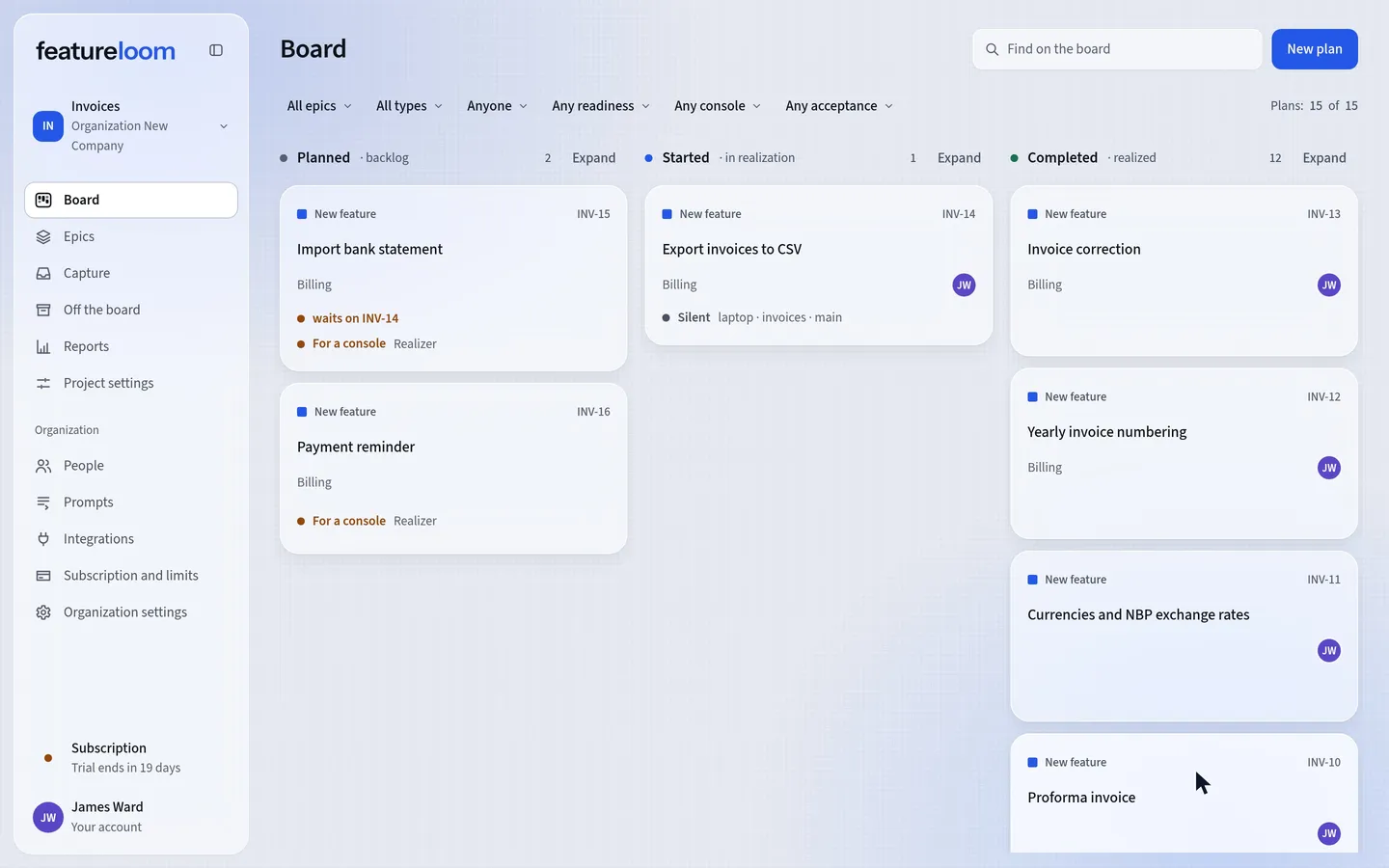 Play the film: Connect a console by signing in through the browser, with no secret
Contents
Find the sign-in connect command
Open Integrations in the menu. On the Your consoles card, press Connect console and choose Claude Code.
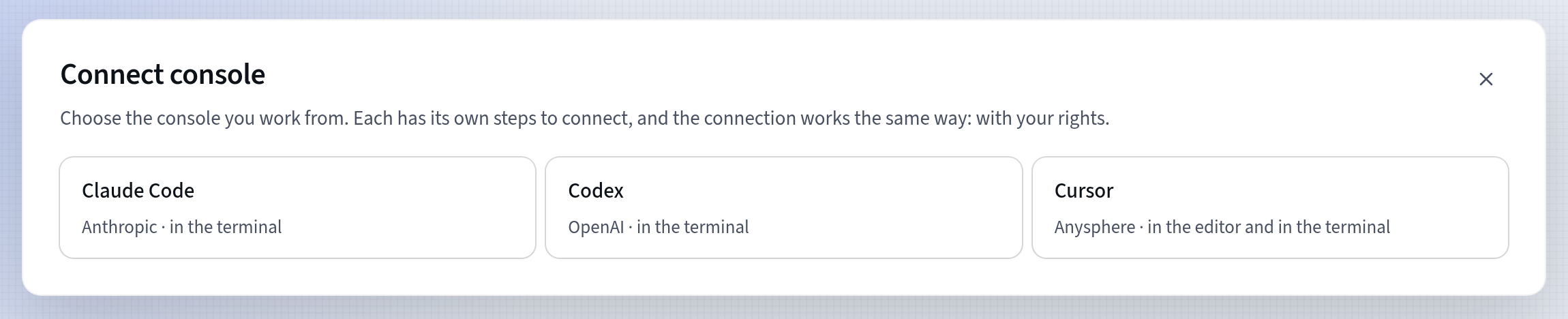
Choosing the console The window shows a connect command with a secret, but this time you don’t need it. Under step 1, in “Another way: sign in through the browser”, press Show the connect command and copy it with Copy the sign-in connect command.
If the window first shows Confirm it’s you, confirm the way you sign in. The connect command with a secret, if you don’t copy it, is removed when you close the window.
Paste it in a system terminal
Paste the connect command in an ordinary system terminal, under the same system account that runs Claude Code, not inside the Claude Code window. There is no secret in it: it adds featureloom to Claude Code as an MCP server and gives only its address.
claude mcp remove --scope user featureloom; claude mcp add --scope user --transport http featureloom https://mcp.featureloom.com/mcpOn a first connection the terminal prints
No MCP server named "featureloom" …. That is fine.Sign in from Claude Code
Start Claude Code and type
/mcpin it. Choose featureloom and start the sign-in. Claude Code opens featureloom in the browser on the same computer.If featureloom asks, sign in to your account. On the Connect a console screen, you see what the console will be able to do in the organization: it has the same rights as you. If you belong to more than one organization, first choose the one to connect it to. Press Connect.
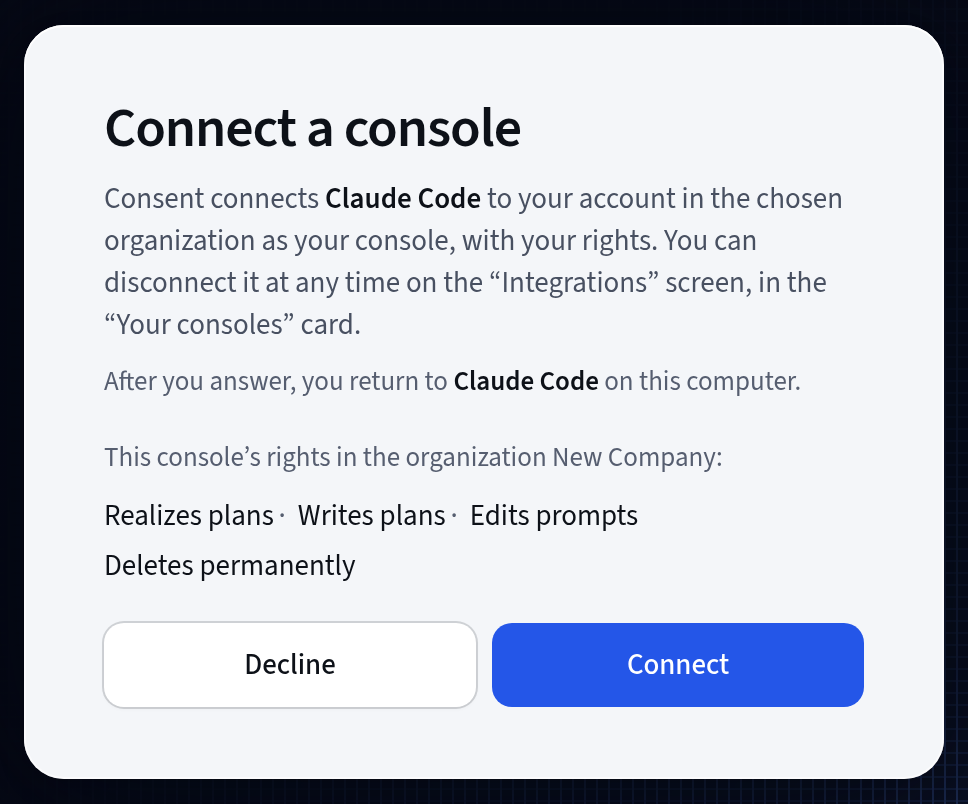
The console gets your rights The browser goes back to Claude Code, and the console is connected.
On a remote computer you reach over SSH, no browser opens. There the simplest way is the connect command with a secret, as in the tutorial Connect Claude Code with one command. You can also type
claude mcp login featureloom --no-browserin that computer’s terminal. It gives you a sign-in address: open it in the browser on your own computer, and after your consent copy the address the browser stops at and paste it into the terminal. You have about 5 minutes for that.Check the connection
Check the connection in the system terminal. featureloom shows Connected.
claude mcp listIn the app, on the Your consoles card, you see the new console marked signed in through the browser.
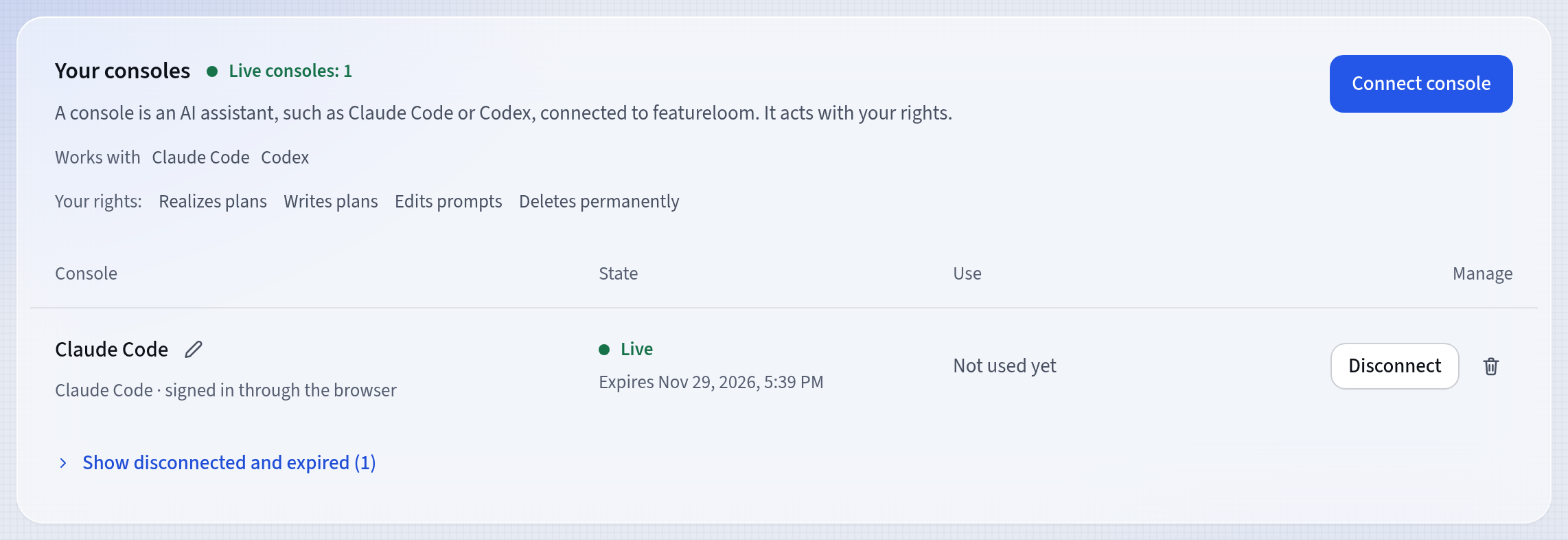
The new console, signed in through the browser Connect several consoles under one system account
One ordinary sign-in connect command links every folder under your system account as one console, and all the agents then sign plans with the same console name. To tell apart agents working in different folders, add featureloom in each one’s folder separately: with
--scope localand a header that gives the console a name. For example, in the folder of the backend console:claude mcp add --scope local --transport http featureloom https://mcp.featureloom.com/mcp --header "X-featureloom-Console: backend"Give every console a different name in the header, and sign in from each folder separately with
/mcp. Without different names the consoles would share one sign-in and sign each other out.Don’t name this header Authorization. Claude Code then treats it as a secret and won’t sign the console in through the browser.
Good to know
- A console connected by signing in acts with your rights in the organization you chose. You disconnect it on the Your consoles card. After that, the next sign-in makes a new console.
- A sign-in lasts 90 days from your consent, and ends sooner if the console doesn’t work for 30 days. Then sign in again with `/mcp`.
- You have up to 10 consoles at once, those connected by signing in included. When you run out of room, featureloom disconnects the one you haven’t used for the longest time.
- Codex also connects with no secret, through its own sign-in connect command. The tutorial Connect Codex with one command shows how.
- Another program that connects to MCP servers and supports OAuth sign-in connects at the same address: `https://mcp.featureloom.com/mcp`.
- The MCP tools page lists the tools a console gets and the right each one needs.
Updated: November 6, 2026
Next
Connect Cursor CLI by signing in through the browser
You connect Cursor CLI by signing in through the browser too, with an entry with no secret in Cursor’s file.
See the tutorial