Agents and consoles · step 3 of 8
Role prompts: your team’s process as console commands
A prompt is one of your team’s rules or procedures, in markdown. A console fetches it with one command, and with a plan key it gets the whole plan too.
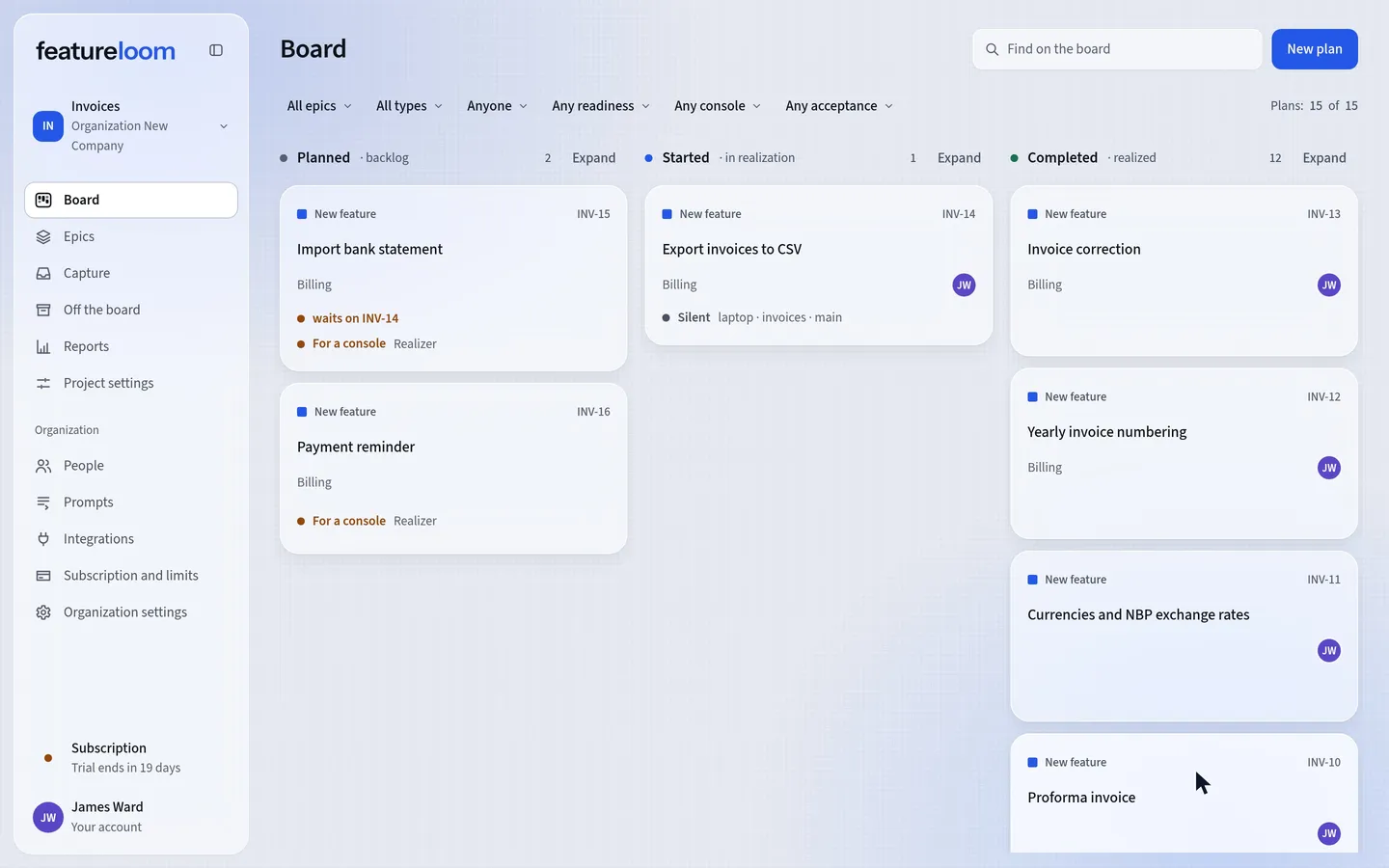 Play the film: Role prompts: your team’s process as console commands
Contents
Write a prompt
Open Prompts in the menu and press New prompt. In Name, type a name people in the organization will see, How we work for example.
In Command name, type the word a console knows the prompt by: lower-case letters, digits and hyphens. Leave it empty and featureloom makes it from the name, here: how-we-work.
In One sentence for consoles, say what the prompt is for. Write the prompt in markdown: a console receives it whole, word for word. Then press Create prompt.
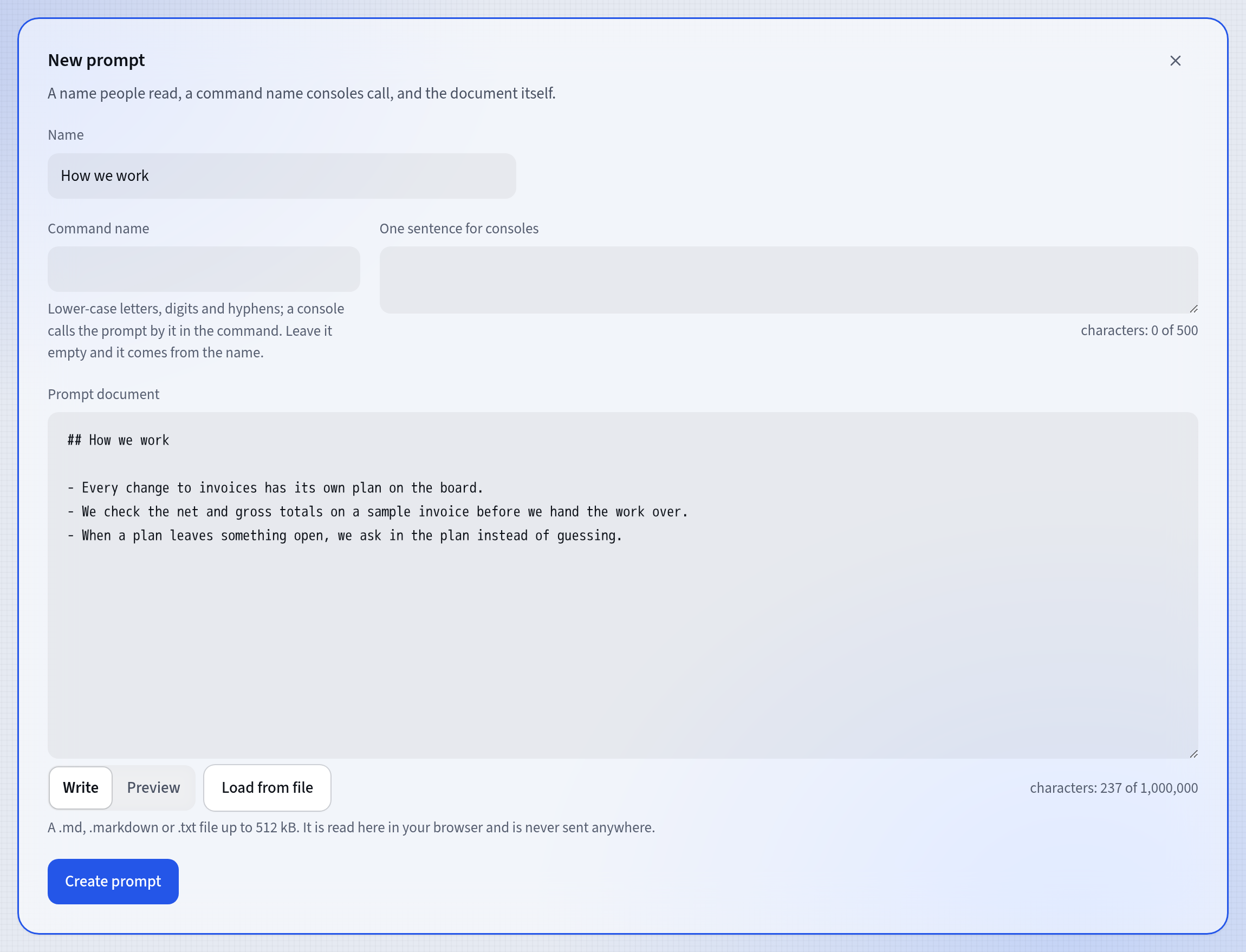
A new prompt The prompt gets a key, P-3 for example, and belongs to the whole organization, not to one project. Every person, console and automation in the organization can read it.
Give a console the prompt with one command
On the prompt’s screen, in the Console card, press Copy command and paste it into a console connected to featureloom, and the console fetches the prompt.
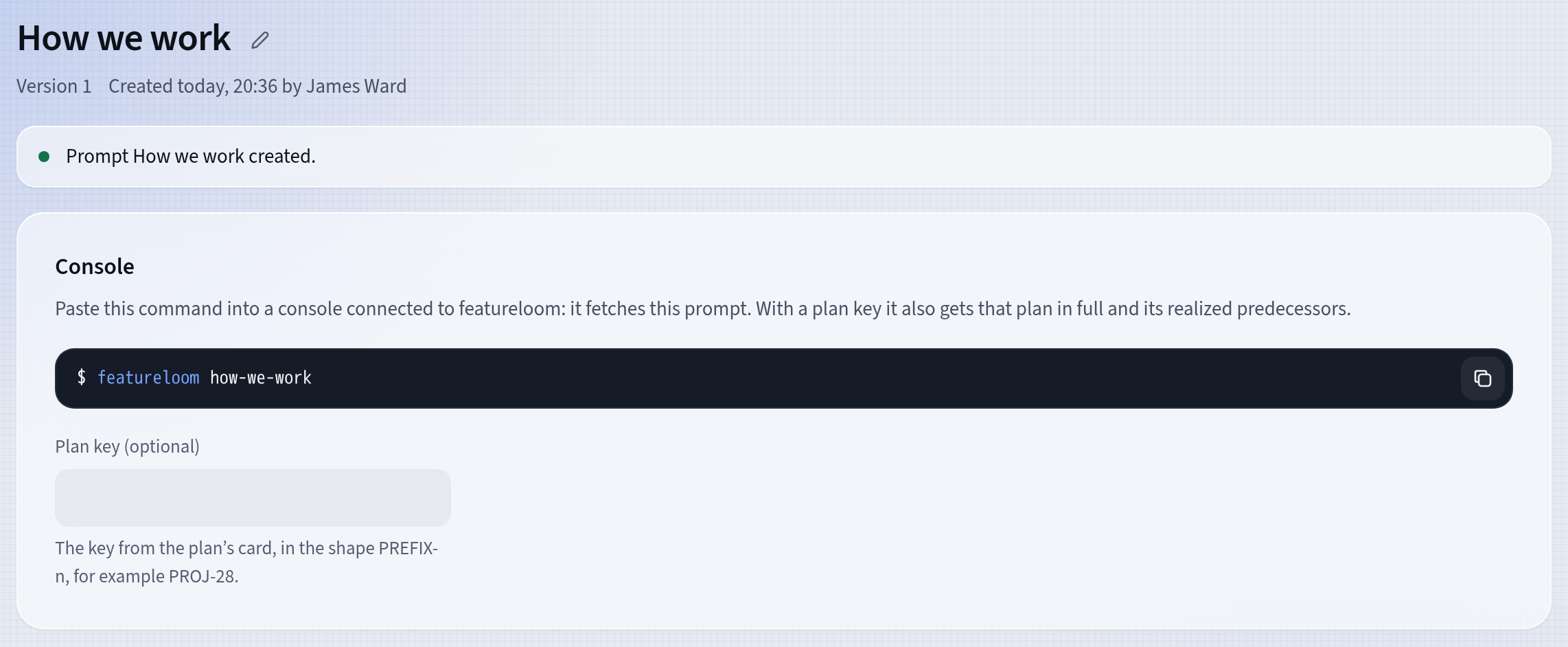
The Console card featureloom how-we-workIf you give a plan key in Plan key (optional), the console gets, along with the prompt, that whole plan and the realized plans it waited on.
featureloom how-we-work INV-14Every new organization has the prompts Realizer and Planner. The command
featureloom realizer INV-14gives your agent the plan INV-14 to realize.Give the prompt to a plan or a type
On a plan’s screen, in the line of properties, choose in Console’s prompt the prompt a console should realize this plan with. The Command for a console then appears below the table of contents, ready to copy.
A plan with a prompt waits for a console. The line of properties then says waiting for a console, and its card on the board shows For a console and the prompt’s name. The Console filter above the board, set to For a console (waiting), shows all such plans.
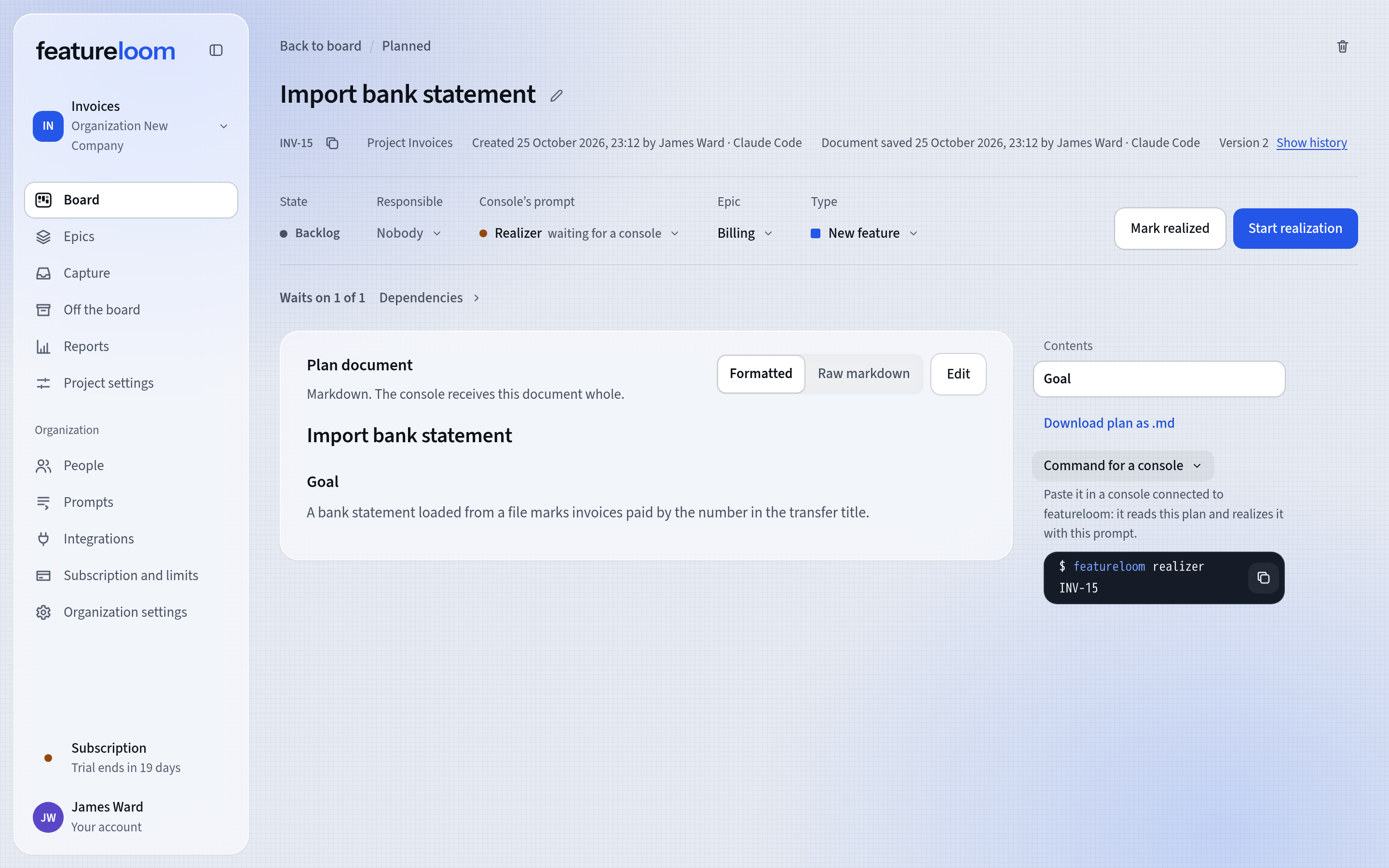
A plan with a console’s prompt A prompt can also go to a plan type. An administrator does that on the Organization settings screen, in the Plan types tab. A plan without a prompt of its own then gets its type’s prompt. If the plan has its own prompt, that one comes first.
Change a prompt and keep its versions
Press Edit document, change the text and press Save document. In Version note you can describe the change briefly, in up to 200 characters.
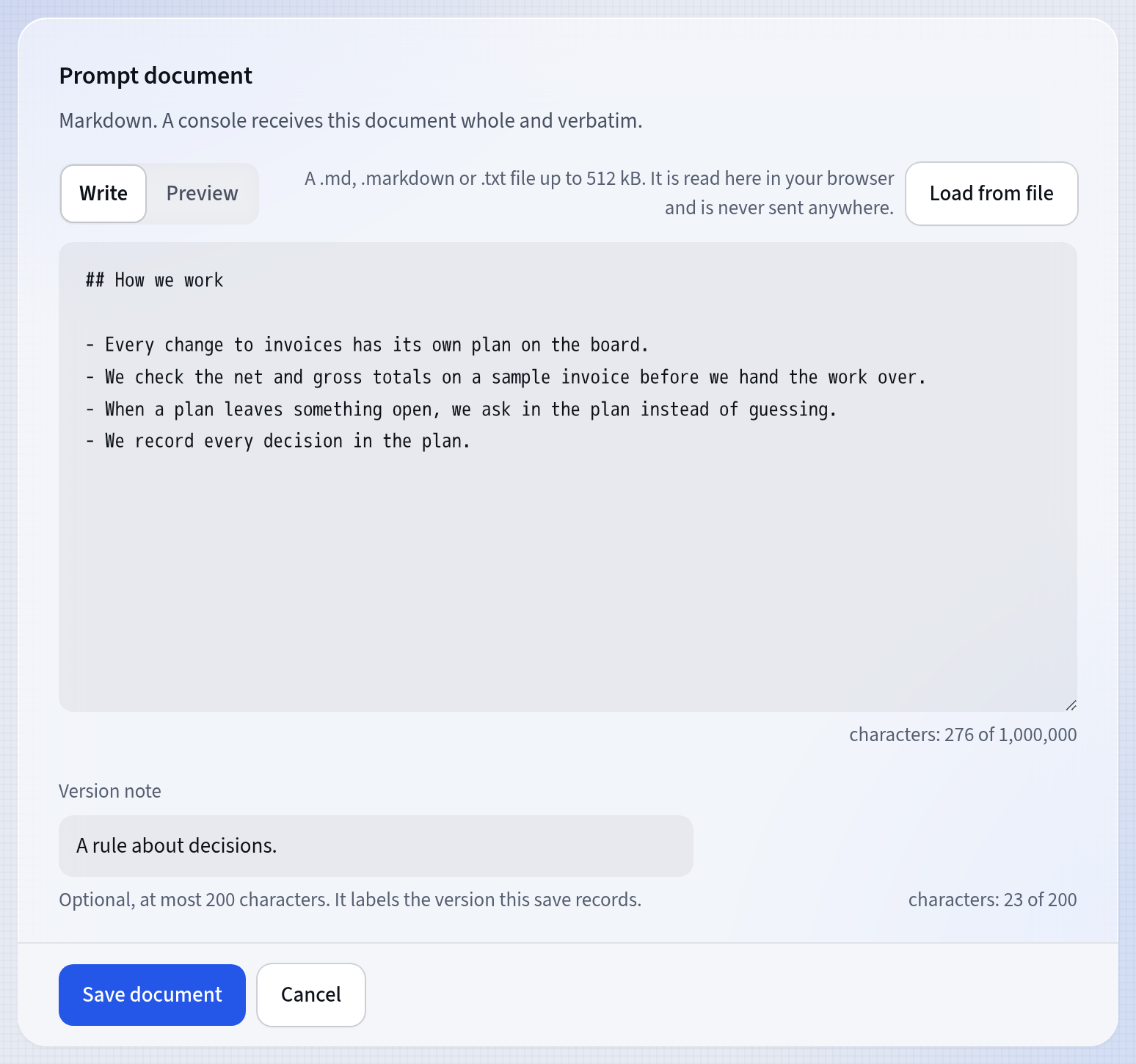
Changing a prompt Every save makes a new version. In the History card, press Show history to see the versions, newest first. featureloom keeps the last hundred versions, plus the oldest one and the one from a day ago, until an administrator clears the history. That is why the version numbers may have gaps.
Restore this version opens the older text in the editor. Once you save it, it becomes a new version.
If somebody saves the prompt while you are editing it, featureloom overwrites nothing: you load the current text and apply your change to it.
Check who can change prompts
A person in the app or an agent in a console session creates and edits prompts: the agent saves a prompt with the save_prompt tool, and every change is a new version. Only an administrator changes the command name, in the Settings card, and only an administrator can delete a prompt.
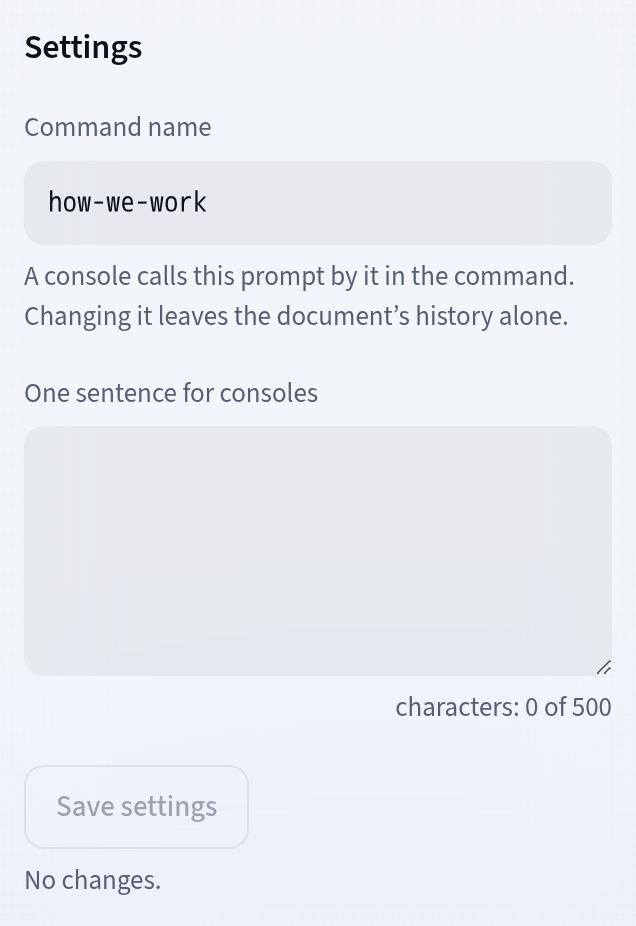
The prompt’s settings A console has the rights of the person it belongs to. With Edits prompts it saves new versions of prompts, always with a note, and the history shows that a console saved them. With Deletes permanently it can delete prompts, but only while its person is an administrator.
Good to know
- featureloom doesn’t run prompts itself: it keeps them and hands them to the console that asks.
- Changing the command name changes the command itself: the old one stops working, and the prompt’s history stays as it is.
- A deleted prompt goes with its history, and its key is never used again. Plan types that had it are left without a prompt.
- A prompt can be as long as a plan document. The counter under the editor shows the character limit.
- When you move a console’s plan out of the backlog yourself, featureloom first asks: Take over a console’s plan?
Updated: November 5, 2026
Next
The agent’s questions and your answers
When the plan doesn’t settle something, your agent asks in the plan, and you answer on the plan’s screen.
See the tutorial