Account and data · step 1 of 2
Your account, password and signed-in devices
One account serves you in every organization. On the Your account screen you set the name others see, change your password and check which browsers the account is signed in on.
 Play the film: Your account, password and signed-in devices
Contents
Open Your account and set your name
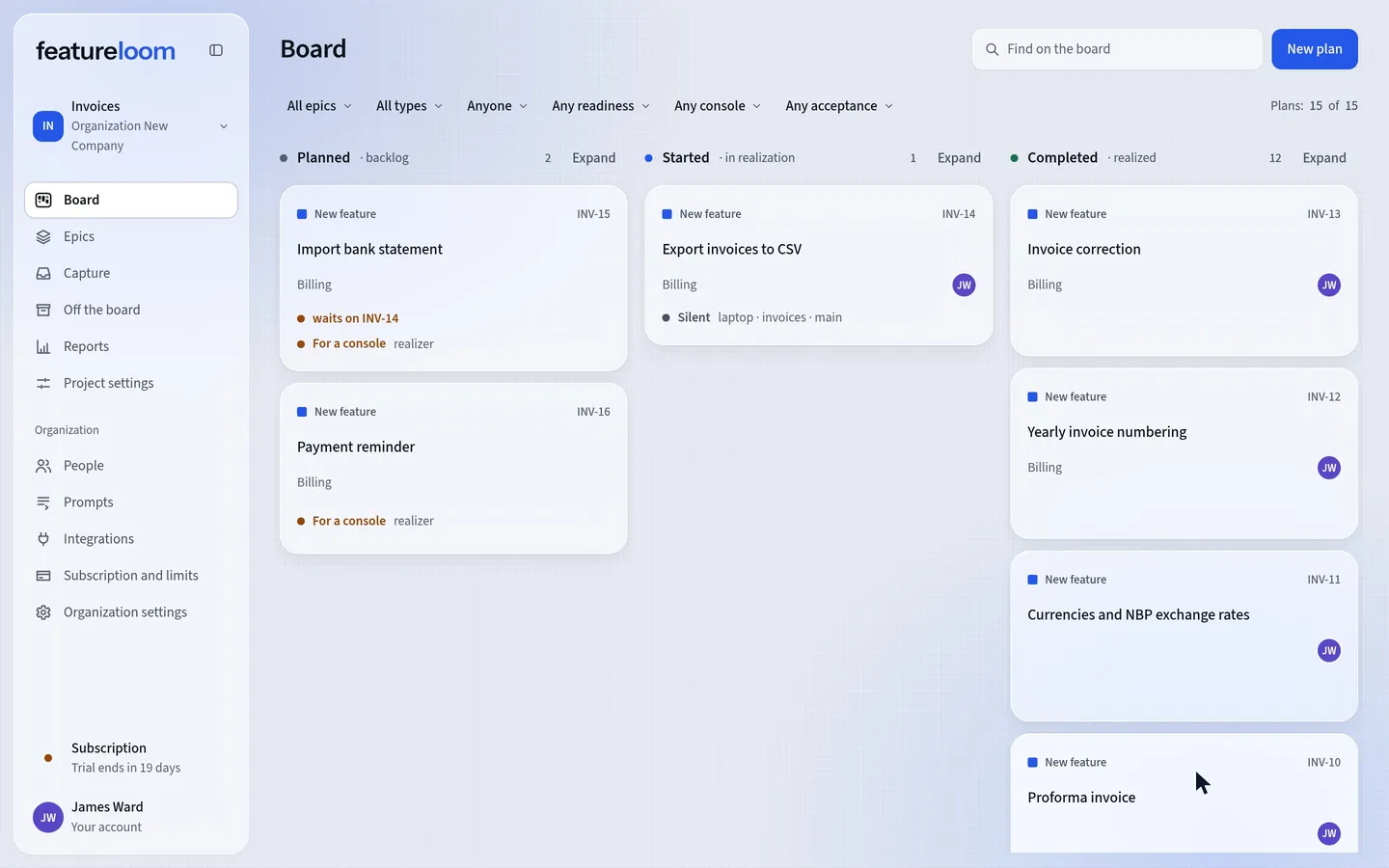
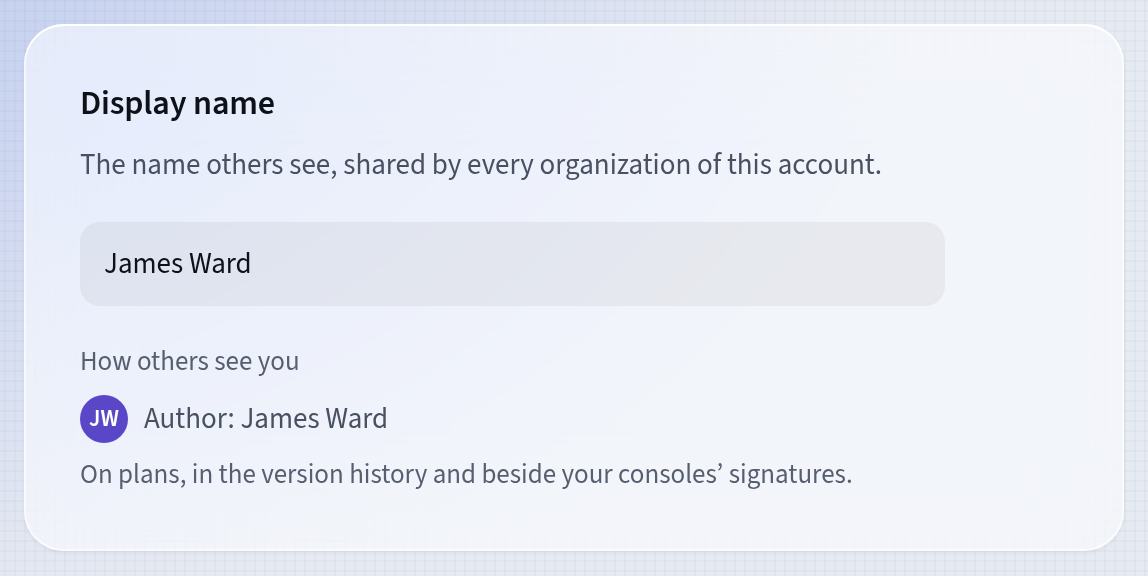
Press your name in the menu on the left and choose Your account. In the Display name part, type the new name and save it with the tick that appears in the field, or with Enter. This name is shared by all the account’s organizations: it shows on plans, in the version history and beside your consoles’ signatures.
One name for every organization Change your password
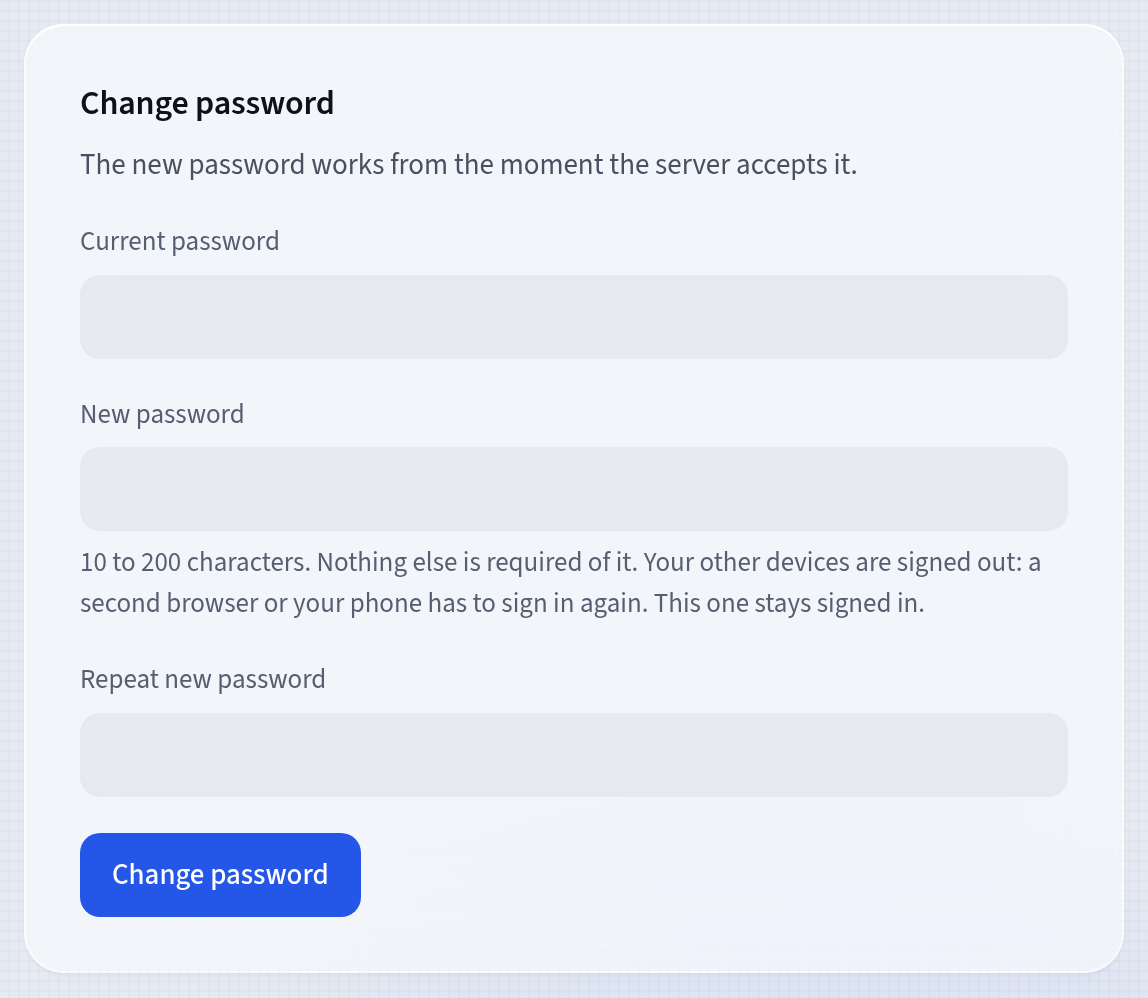
In the Change password part, type your current password, then the new one and repeat it. A password has 10 to 200 characters. Press Change password. Your other devices are signed out, and the one you change the password on stays signed in.
A new password signs other devices out Check your signed-in devices
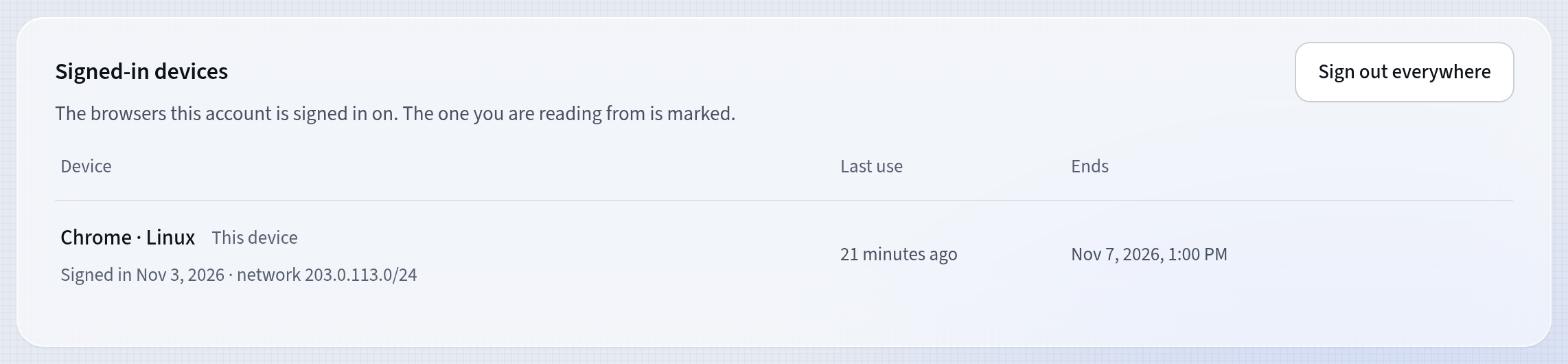
The Signed-in devices part lists every browser the account is signed in on: with the day it signed in and the network it came from. This device marks the browser you are reading from. Sign out on another browser’s row signs it out once you confirm.
Every browser signed in to the account Sign out everywhere
Sign out everywhere signs the account out on every device, this one included. After you press Sign out now, you sign in again.
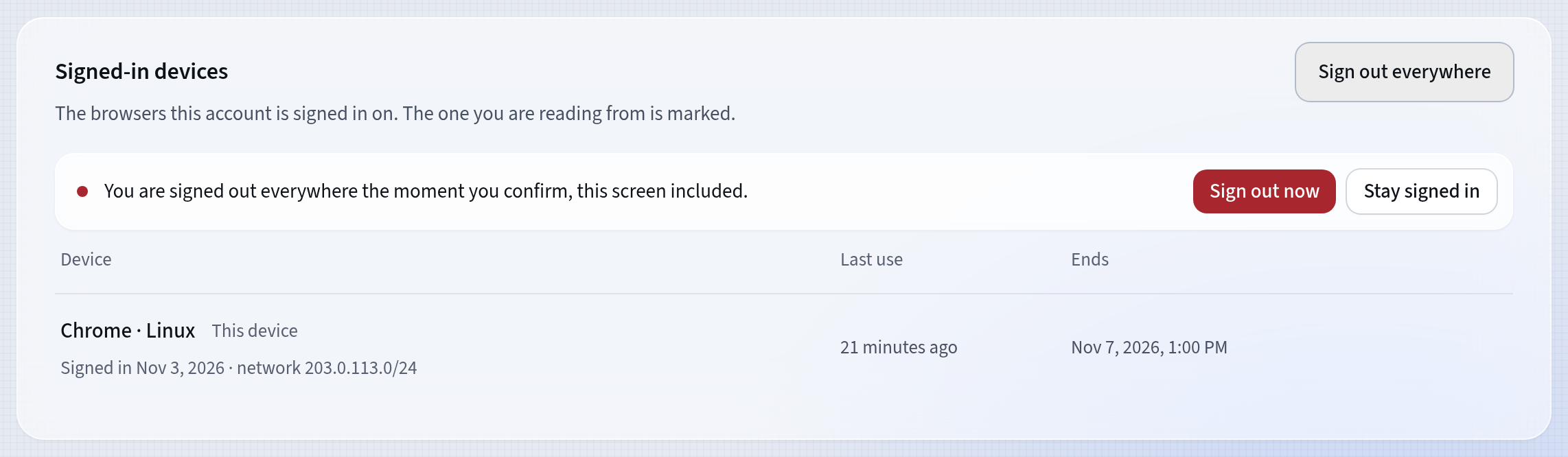
Signing out on every device
Good to know
- A sign-in in the browser lasts at most 14 days and ends after 3 days without use. If it expires while there is unsaved text on the screen, featureloom lets you copy it before you go to sign in.
- When the account signs in on a browser other than those of the last 90 days, featureloom sends you an email about it.
- The Console workplaces part shows which networks your consoles connected from in the last 90 days. The organization’s administrator does not see it.
- The Organizations part lists the account’s organizations. Leave ends your access at once once you confirm, and an administrator can invite you again.
- Forgot your password? You set a new one from the sign-in screen, through a link sent by email.
Updated: November 5, 2026
Next
Export the organization as one ZIP file
Your account is in order: see how an administrator downloads all of the organization’s data as one file.
See the tutorial