Use case · AI agent on a server, unattended
The automation works on the server. A person gives the verdict.
A job on a server with nobody at the keyboard gets its own account in the organization, an automation: with a key valid until a set date and four rights of its own, not a person’s rights. Claude Code or Codex with the automation’s key takes plans from the board, delivers them and reports them, and a person accepts the work in the app.
An administrator creates the automation on the Automations card, in Integrations. The key starts with fla_, and you see it just once. Do not save it in a repository or paste it into a chat.
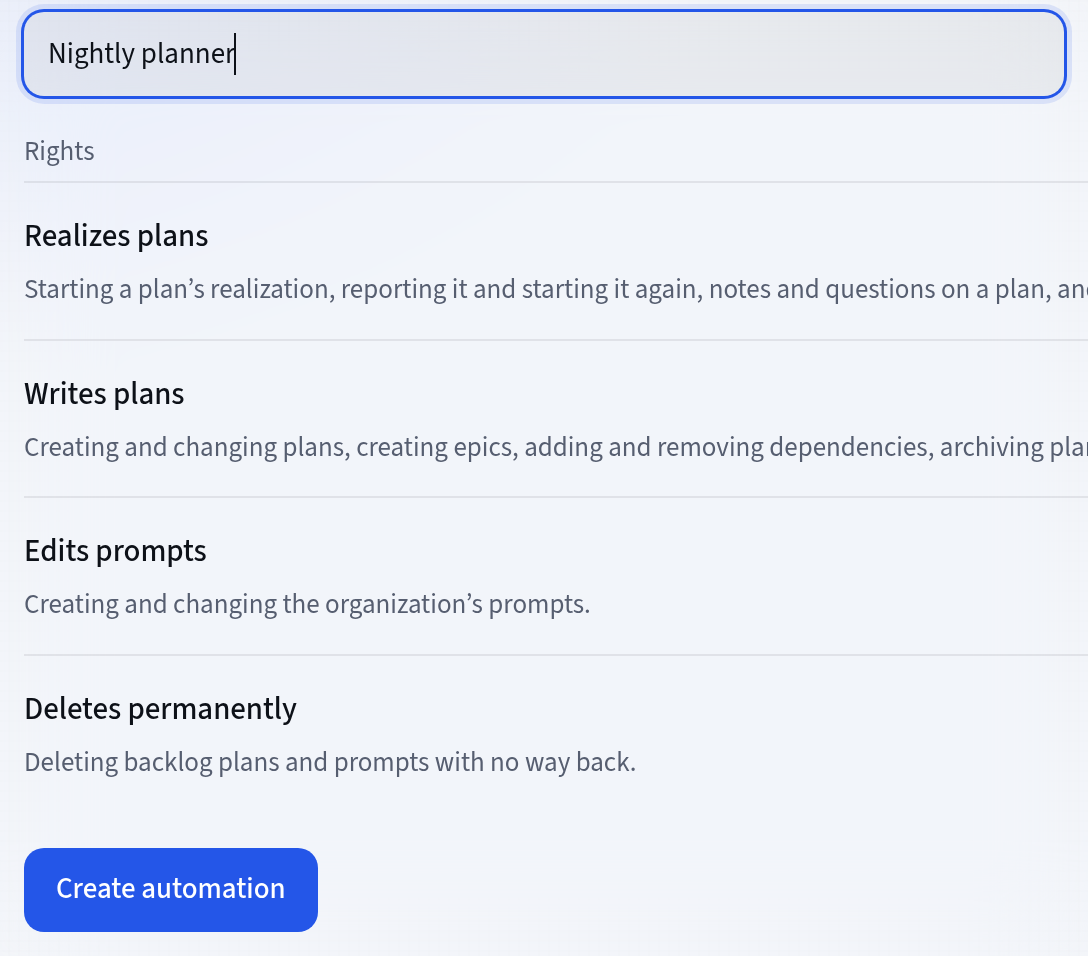
What an automation can do
As much as you give it. Acceptance stays with a person.
An automation’s four rights
An automation can always read the organization’s plans, projects, epics, templates, verdicts and prompts. Each of the four rights lets it do more. Realizes plans: starting a plan, reporting it and starting it again, notes and questions on a plan. Writes plans: creating and changing plans, new epics and dependencies. Edits prompts: creating and changing prompts. Deletes permanently: deleting backlog plans and prompts with no way back.
- By default a new automation has Realizes plans and no other right
- An administrator changes its rights with the Rights button, and the change applies from the next call with the key
- The server refuses a call outside the automation’s rights
What an automation won’t do
An automation won’t give the acceptance verdict: a person presses Accept or Do not accept in the app. It chooses neither the column nor the card’s position, manages neither people nor integrations, and does not change its own rights or keys. Nor will it take on a plan a person is responsible for.
- When a person does not accept a plan, the automation can take it back for rework
- The automation’s start, report and questions carry its name, not a person’s
- You can’t delete an automation that signed something, but you can disable it
The automation’s key
The key expires. You can revoke it with one button.
A key for the server
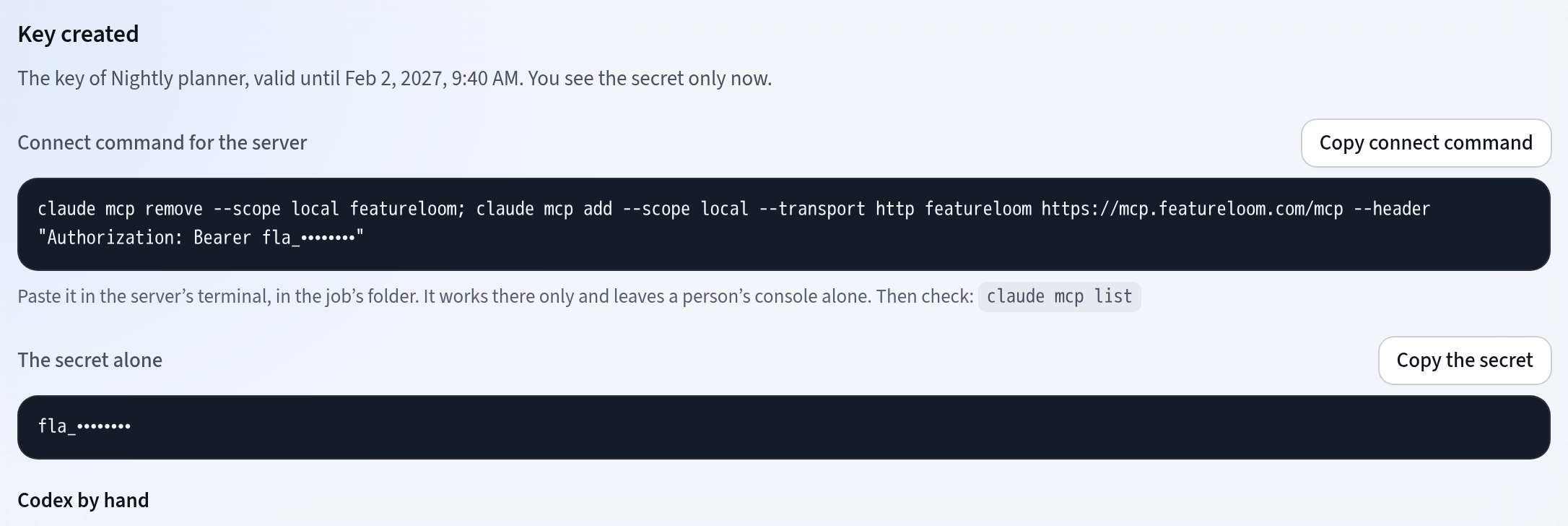
In the automation’s row you press Keys, choose 30, 90 or 180 days in the Valid for list and press Create key. The app shows the key just once, together with the Connect command for the server. You paste the command in the server’s terminal, in the job’s folder: it works there and nowhere else, and it leaves a person’s console alone.
- Revoke cuts off the server that uses this key at once
- Disable pauses all the automation’s keys until you enable it again
- The other administrators get an email about a new key
How you start
An automation on a server in three steps.
Create an automation
In the menu, open Integrations. On the Automations card, press New automation, type a name, choose its rights and press Create automation.
Create a key
In the automation’s row, press Keys, choose a term and press Create key. Copy the Connect command for the server before you press Done: this is the one time you see the key.
Paste the connect command on the server
Paste it in the server’s terminal, in the job’s folder, and check the connection with the claude mcp list command. The connect command contains:
Codex reads the key from the FEATURELOOM_MCP_TOKEN environment variable. You find the Block for the configuration file and the Variable with the secret in the Codex by hand part.
Tutorial: An automation for jobs on a serverQuestions about an agent on a server
Does featureloom run the agent on the server?
No. Claude Code or Codex runs on your server, and your job starts it. You pay for the agent with its provider, on its terms. featureloom gives the automation plans and prompts over MCP and shows its work on the board.
Why an automation and not a person’s console?
A console acts with a person’s rights, and its signatures carry that person’s name. An unattended job gets its own account: an automation has its own rights, a key that expires and signatures under its own name, so the board shows what the automation did and what people did.
Is an automation a paid seat?
The first enabled automation is included. On Team each additional enabled automation is a paid seat; Solo has one. Prices are on the pricing page.
What should I do if a key falls into the wrong hands?
On the list of keys, press Revoke: the server using that key loses access at once. Then create a new key and paste the new Connect command for the server in the server’s terminal. Disable in the automation’s row pauses all its keys but does not revoke them: once you enable it again, they work again.
Give the server the plans. Leave the verdict to people.
30 days free, no payment card needed. An administrator creates the automation and its key, in Integrations.