Account and data · step 3 of 5
The organization’s name, logo and language
An administrator sets the organization’s name, logo and language in one place, and the Teams tab shows how projects are grouped.
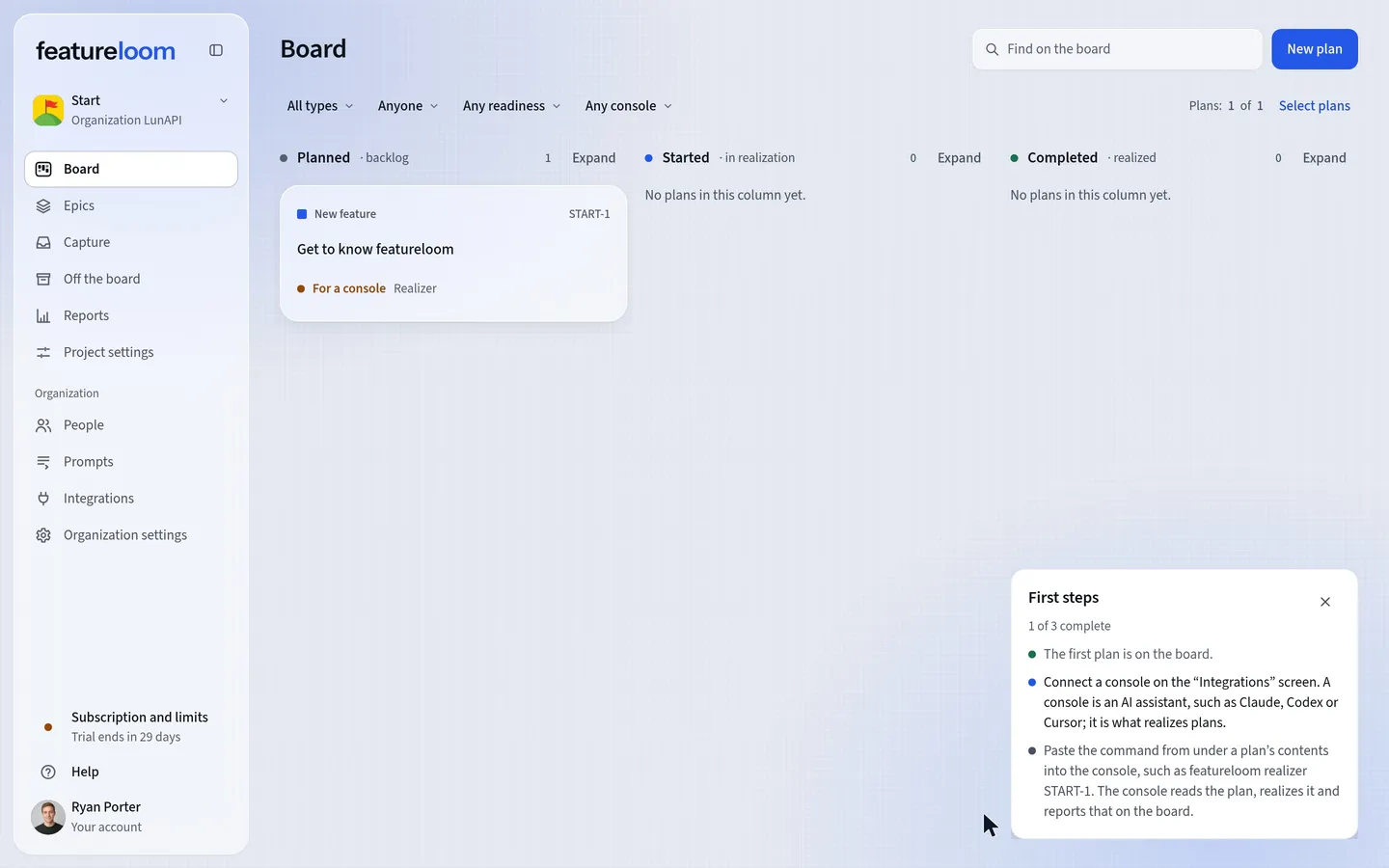 Play the film: The organization’s name, logo and language
Contents
Open Organization data
In the menu, open Organization settings and go to the Organization data tab. This tab belongs to an administrator; the other tabs are open to everybody.
Rename the organization
The organization’s name shows in the menu, in the organization choice and in emails. Change it in the Organization name field and save it with the Save name button at the field’s end: the change applies at once. Emails already sent and exports already downloaded keep the old name.
Add a logo
Under the name, press Add logo and choose an image file: JPEG, PNG or WebP. Adjust the crop opens in the same place. Move the image and set the zoom: the square shows what others will see.
Only Save logo saves it. People in the organization see the logo where they choose an organization, and Change logo and Remove logo are in the same place afterwards.
Set the organization language
Under Organization language, choose a language from the list and press Save language. featureloom shows its own additions in this language: the titles of notes, questions and acceptance, new projects’ columns, the plan template and Slack announcements.
The change applies to new texts only. Plans already saved stay as they are, and each person keeps their own language on screens and in emails.
Check the teams
In the Teams tab, every project belongs to a team. A team sorts projects and does not limit access: everybody in the organization sees and works on every project. A new organization has one team, Team, with the project Start.
You rename a team in its row, and New team creates another. Where there is more than one, the window the project card in the menu opens lists them over the projects, under Team, and the team chosen decides which projects are listed.
Good to know
- Only an administrator deletes a team. Deleting it takes every project in it and can’t be undone.
- In a read-only organization the name and the language can’t be changed, and the logo can only be removed.
- The same tab also holds Data export and closing the organization. The export is in the tutorial Export the organization as one ZIP file.
Updated: November 21, 2026
Next
Export the organization as one ZIP file
Your organization has its name, logo and language: see how an administrator downloads all of its data as one file.
See the tutorial