Account and data · step 2 of 5
Turn on two-step sign-in: an authenticator code or a passkey
A second step after your password protects your account even when someone learns the password: an authenticator code on your phone or a passkey on your device. An administrator of an organization with more than one person always signs in this way, and an organization can require it from everyone.
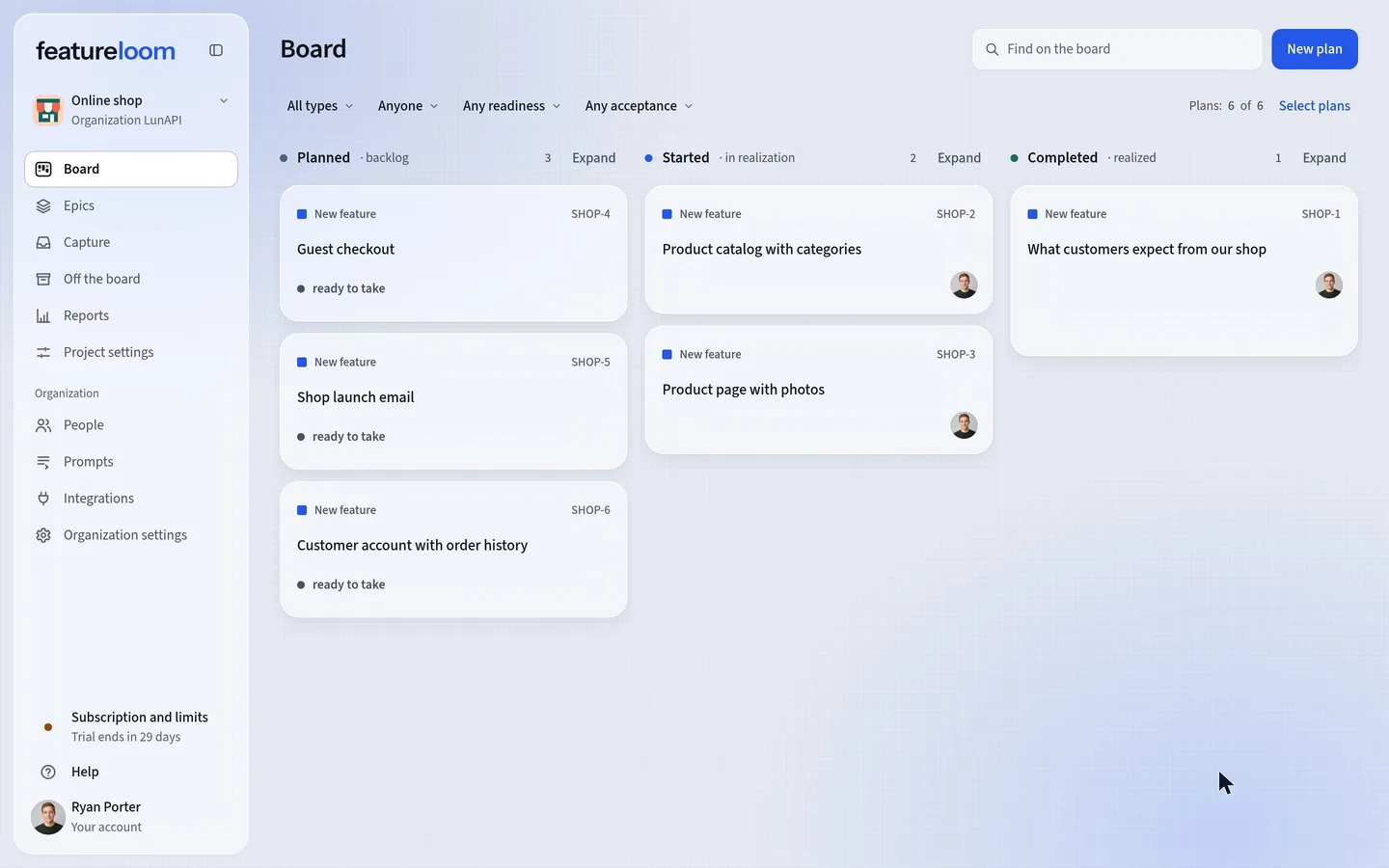 Play the film: Turn on two-step sign-in: an authenticator code or a passkey
Contents
Turn on an authenticator code
Press your name in the menu on the left and choose Your account. In the Two-step sign-in part, press Turn on authenticator code. You need an authenticator app on your phone, for example Google Authenticator.
If Confirm it’s you shows first, confirm the way you sign in.
Scan the QR code with that app, or type the setup key into it. Then type the 6 digits the app shows now and press Turn on code. Under the key you see until what time the QR code works.
The code isn’t right? Check that your phone’s clock is right and type the code the app shows at this moment.
Keep your recovery codes
Once the code is on, 10 recovery codes appear in the same place. Each signs you in once with no phone at hand. They are shown only now, so press Copy codes or Download file and keep them somewhere safe.
Tick I have saved these codes somewhere safe, then press Done. Until the box is ticked, Done stays inactive.
Recovery codes open your account. Don’t paste them into a chat or a repository.
Sign in with the code
The next time you sign in with your password or with Google, featureloom asks for the code. On the Two-step sign-in screen, type the 6 digits from the app in the Code field. With no phone at hand, type one of your recovery codes, in the form xxxx-xxxx-xxxx-xxxx.
After a wrong code the screen shows how many attempts are left, and once they run out the sign-in ends and you start it again.
Or add a passkey
A passkey is created on this device and confirmed by your fingerprint, your face or the device PIN. It is a second step in itself, so signing in with it asks for no code.
On the Your account screen, in the Ways to sign in part, press Add passkey. Name it, for example MacBook or Phone, so you know it later, and confirm the way your device asks.
Require two-step sign-in from every person
This step is for an administrator. In the menu, open Organization settings and the Security tab. In the Two-step sign-in part, turn on Require from every person.
Every person with no authenticator code and no passkey gets an email and 7 days, from the next time they open featureloom, to set one up. Then they see only the screen to secure their account.
On the People screen, the row of a person with no second step reads Two-step sign-in: off, and Two-step sign-in overdue means the time is up. Turning the requirement off first asks whether it’s you, and turns nobody’s code off.
Good to know
- With no switch at all, two-step sign-in is required of an administrator account in an organization with more than one person. Once an invited person accepts the invitation, the administrator gets an email and 7 days from the next time they open featureloom, and the Secure your account banner shows the date. In LunAPI, for example, Ryan’s account starts requiring it once Emma accepts his invitation.
- Change app moves the code to another app. The old code keeps working until you confirm the new one, and new recovery codes come with it.
- The New recovery codes button creates new codes, and the old ones stop working. The new ones are shown only once.
- While your account requires two-step sign-in, the code can be changed but not turned off.
- No phone with the app and no recovery codes left? Open the Write to featureloom screen, give this account’s email address and describe the matter. The reply reaches that address as an email with a button that opens the support request. The featureloom operator resets two-step sign-in only after a message written in the request opened with that button.
- Your name, password and signed-in devices are in the tutorial Your account, password and signed-in devices.
Updated: November 22, 2026
Next
The organization’s name, logo and language
Your account is secured: see where an administrator renames the organization, adds its logo and sets its language.
See the tutorial