Projects and plans on the board · step 6 of 7
Columns, types and the plan template
Three settings decide what your board’s columns mean, what you call the kinds of work and what a plan generated from material looks like.
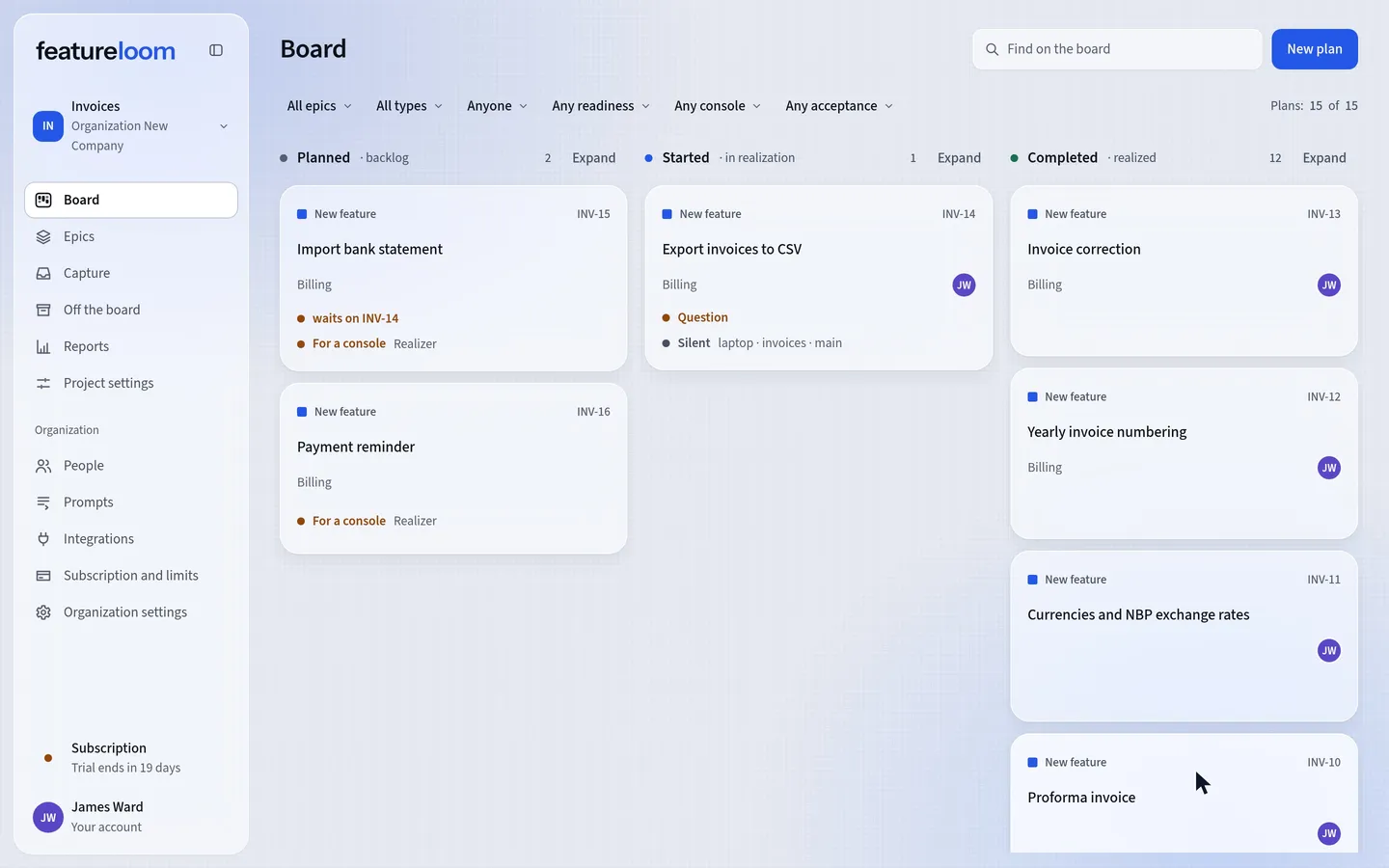 Play the film: Columns, types and the plan template
Contents
Lay out the board’s columns
Open Project settings in the menu and go to the Columns tab. Columns belong to the project: every project has its own, and their order is yours.
Here you rename each column and move it one place at a time. Each one also shows how many plans it holds. To add a column, press New column, type a name and press Create column. The new column appears at the end of the board.
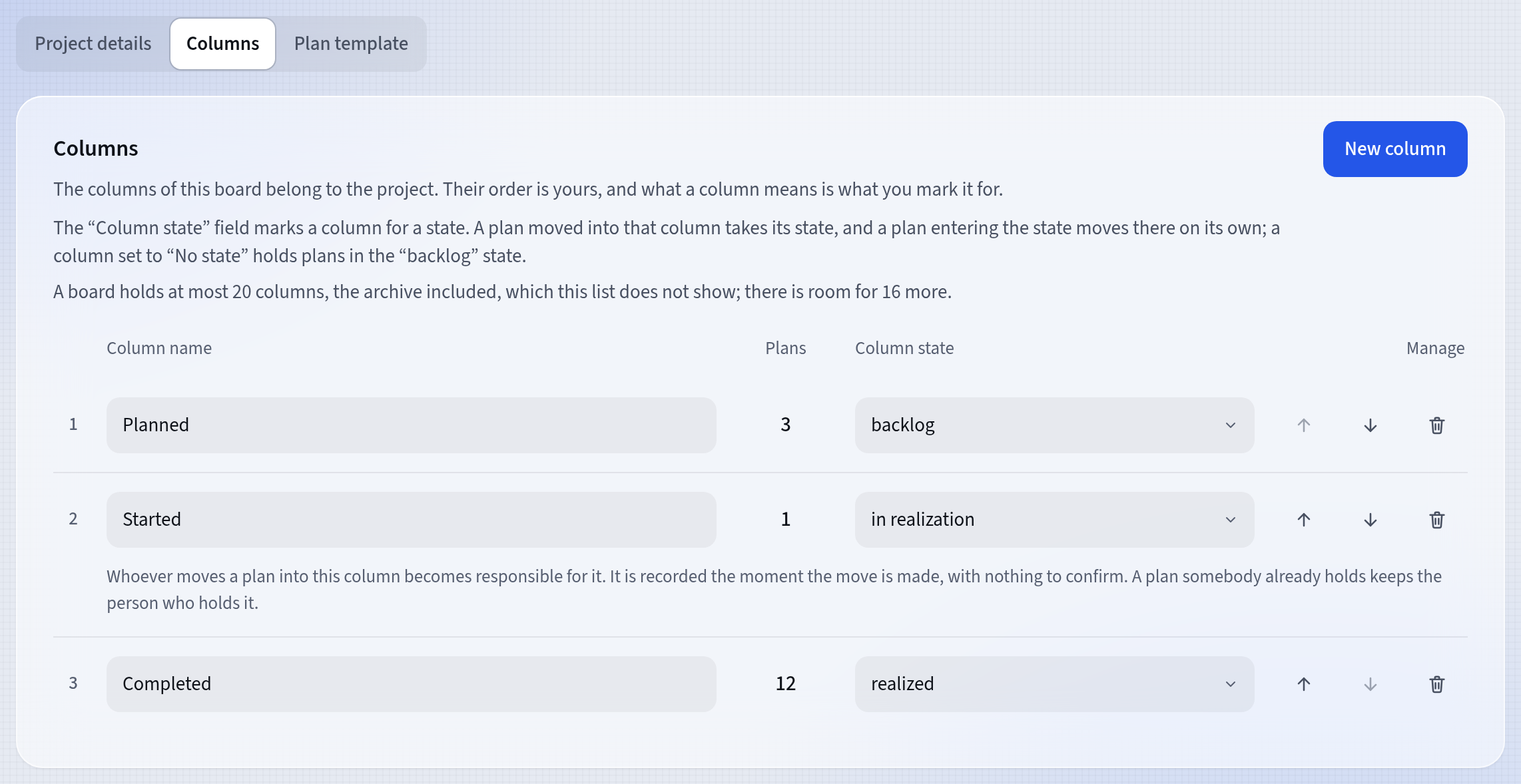
The project’s columns A board holds at most 20 columns, counting the archive, which isn’t on this list. You can’t delete the last column.
Mark columns with a state
In the Column state field you choose which plan state a column marks: backlog, in realization or realized. A plan moved into such a column gets its state, and a plan that gets that state some other way moves there on its own.
A column set to No state is only for sorting, and the plans in it are in the backlog state. If no column has a certain state, no plan can get it. The screen shows such a state above the list.
The column with the in realization state also decides who is responsible for a plan. If nobody was yet, it is the person who moved it there, and when a console takes it, the person the console belongs to.
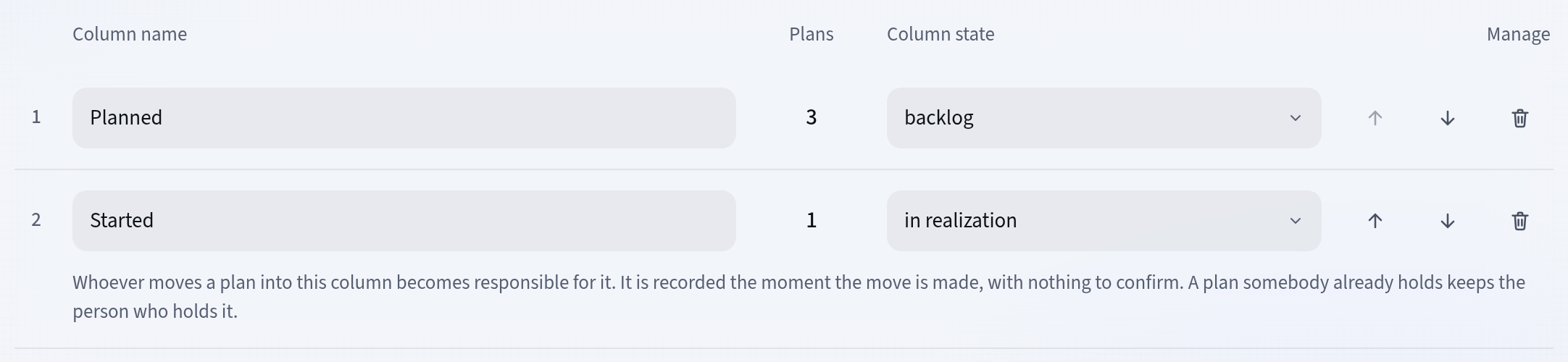
Column state Name the kinds of work with types
Plan types are shared by the whole organization. You find them on the Organization settings screen, in the Plan types tab. Every new organization starts with three: New feature, Improvement and Bug.
Every plan has exactly one type. On the card it shows as a colored bar, always with its name beside it. One type is the default, and every new plan gets it. To change that, press Make default on another type.
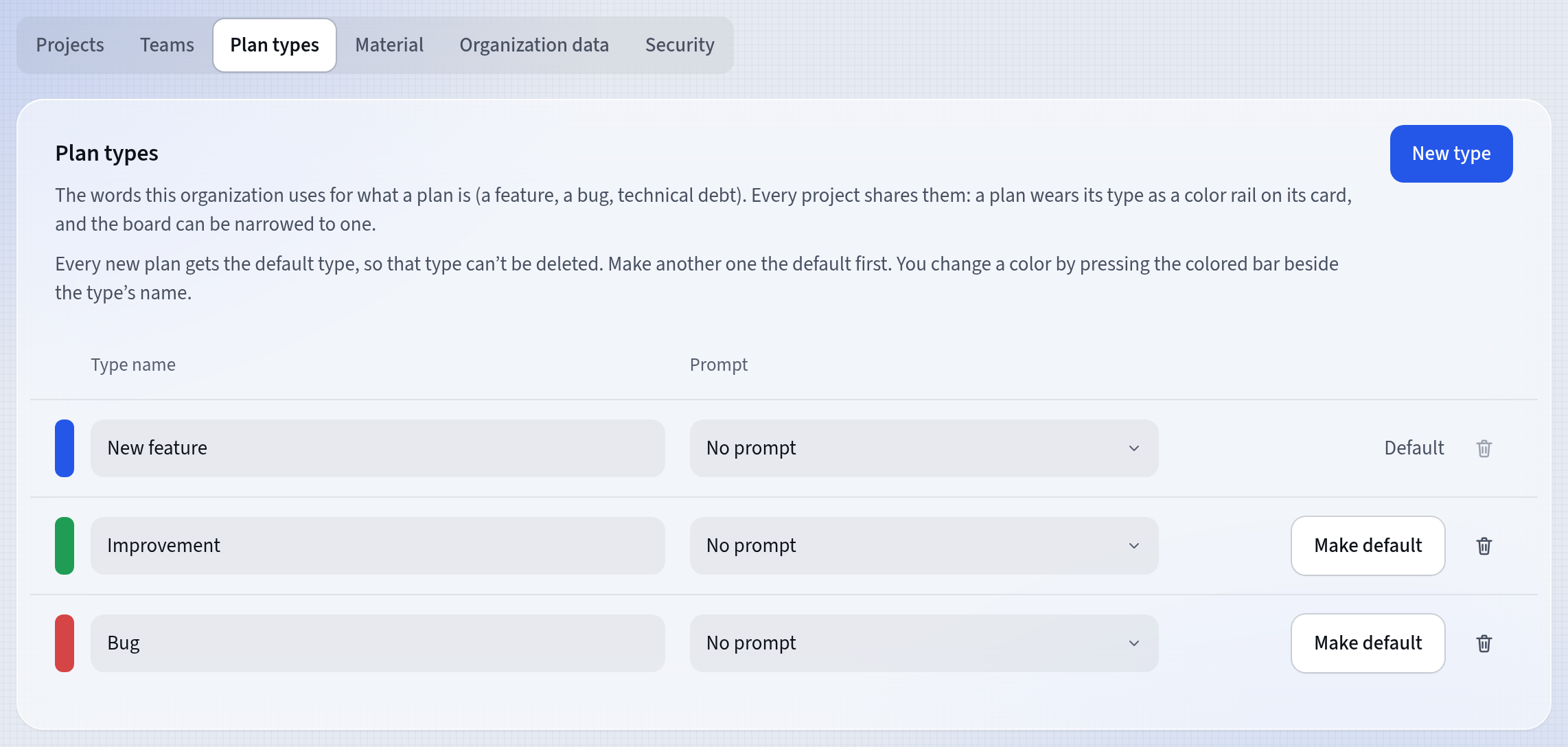
Plan types A type can have its own prompt, which a console uses to realize plans of that type. A plan without a prompt of its own then gets the type’s prompt and waits for a console in the backlog.
An administrator creates, changes and deletes types. Everybody else only sees the list.
Adjust the plan template
On the Project settings screen, open the Plan template tab. featureloom uses this template when it generates a plan from a session’s material, and agents use it when they write plans in a console.
Until you save a template of your own, the project uses the built-in one, in the organization’s language. The sentence above the box says which template is in use.
Under the box are three placeholders: the session’s material, the project name and the organization name. Press one and it goes in where the cursor is. featureloom accepts no other placeholders and won’t save a template that has one.
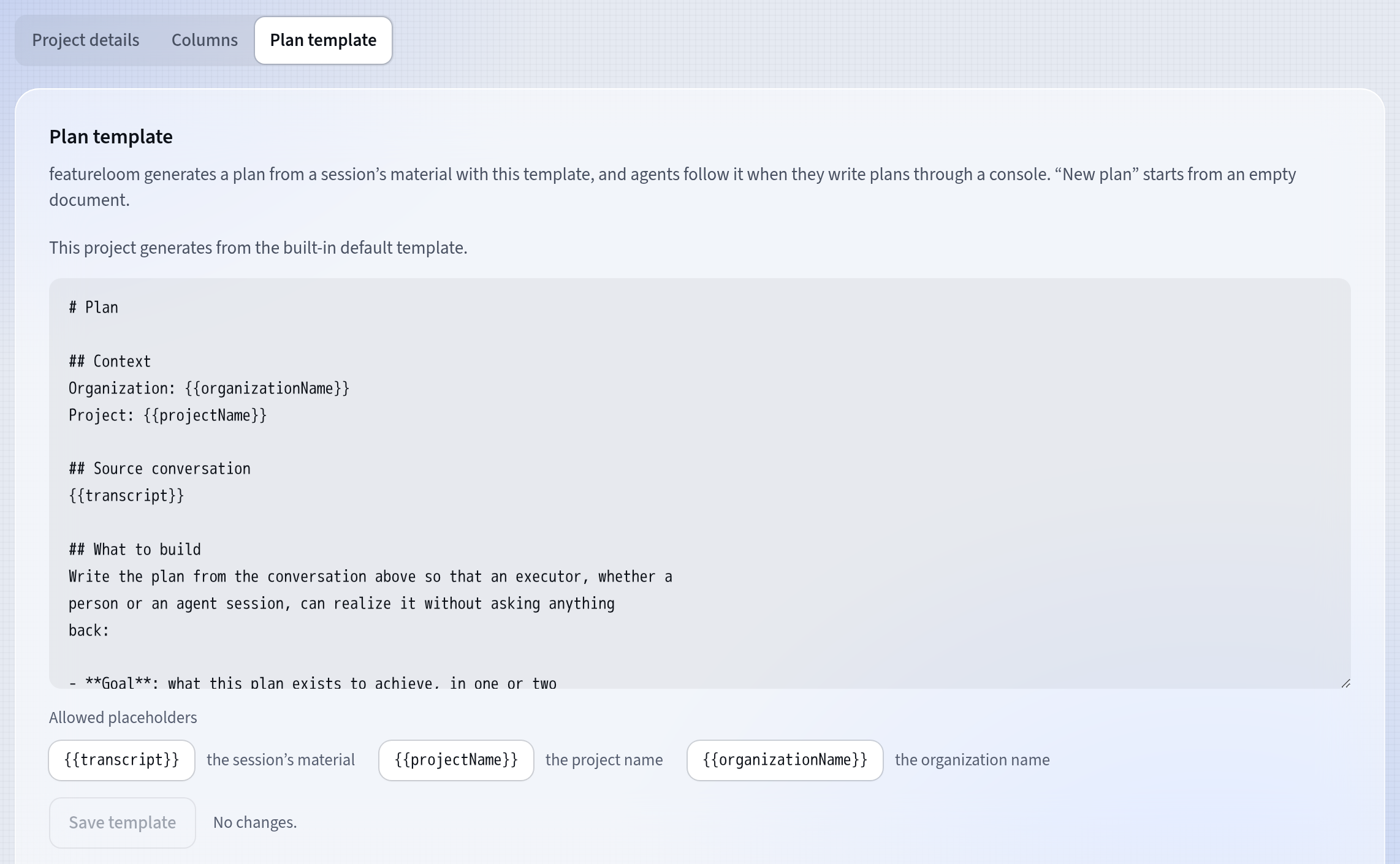
The plan template Save template replaces the whole template. Every save that changes something is a new version in the history: in the History card, press Show history, and at an older version, Restore this version. Its text goes into the editor, and you save it like any other change.
Good to know
- Anyone in the organization changes the columns and the plan template. Only an administrator changes plan types.
- When you delete a column that holds plans, featureloom asks where to move them. They go to the end of the column you choose and get its state.
- When you delete a type some plans have, you choose the type they get instead. You can’t delete the default type: make another one the default first.
- A plan you start with New plan begins with an empty document. The template is for plans generated from material and plans agents write.
- You change a particular plan’s type on its screen, in the Type field of its line of properties.
- The kanban entry explains the method behind the board: columns as the stages of the work and cards that move on with it.
Updated: November 8, 2026
Next
Off the board: Set aside and Archive
A plan you don’t want to see on the board can be set aside or archived. Nothing is deleted.
See the tutorial