Projects and plans on the board · step 5 of 7
Epics and Order: what to take first
An epic groups plans, a dependency says what waits on what, and the Order screen shows which plan to start with.
 Play the film: Epics and Order: what to take first
Contents
Create an epic
Open Epics in the menu and press New epic. Type a name in New epic name, say what it is about in Description (a note for people), and press Create epic.
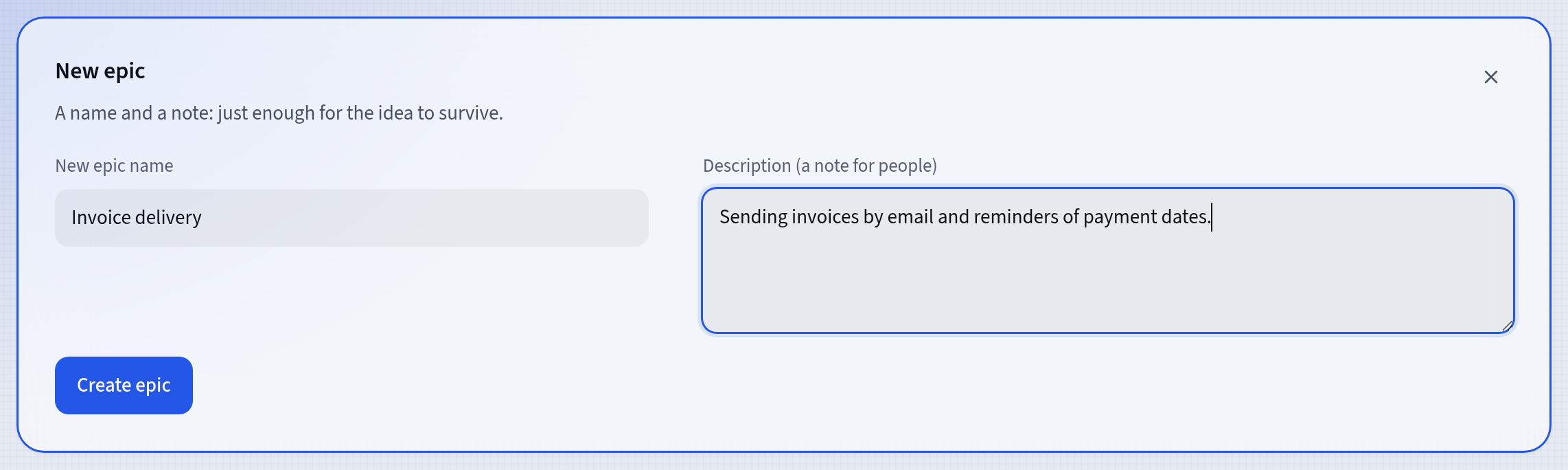
A new epic The epic belongs to the project chosen in the menu. When the Epics screen shows All projects, the form asks which project to add it to.
An epic’s state follows from its plans: Idea while it has none, Outlined while all of them are in the backlog, Realized once all of them are realized, and In realization otherwise.
File plans under the epic
You file a plan under an epic with the Epic field: in the New plan window or in the line of properties on the plan’s screen.
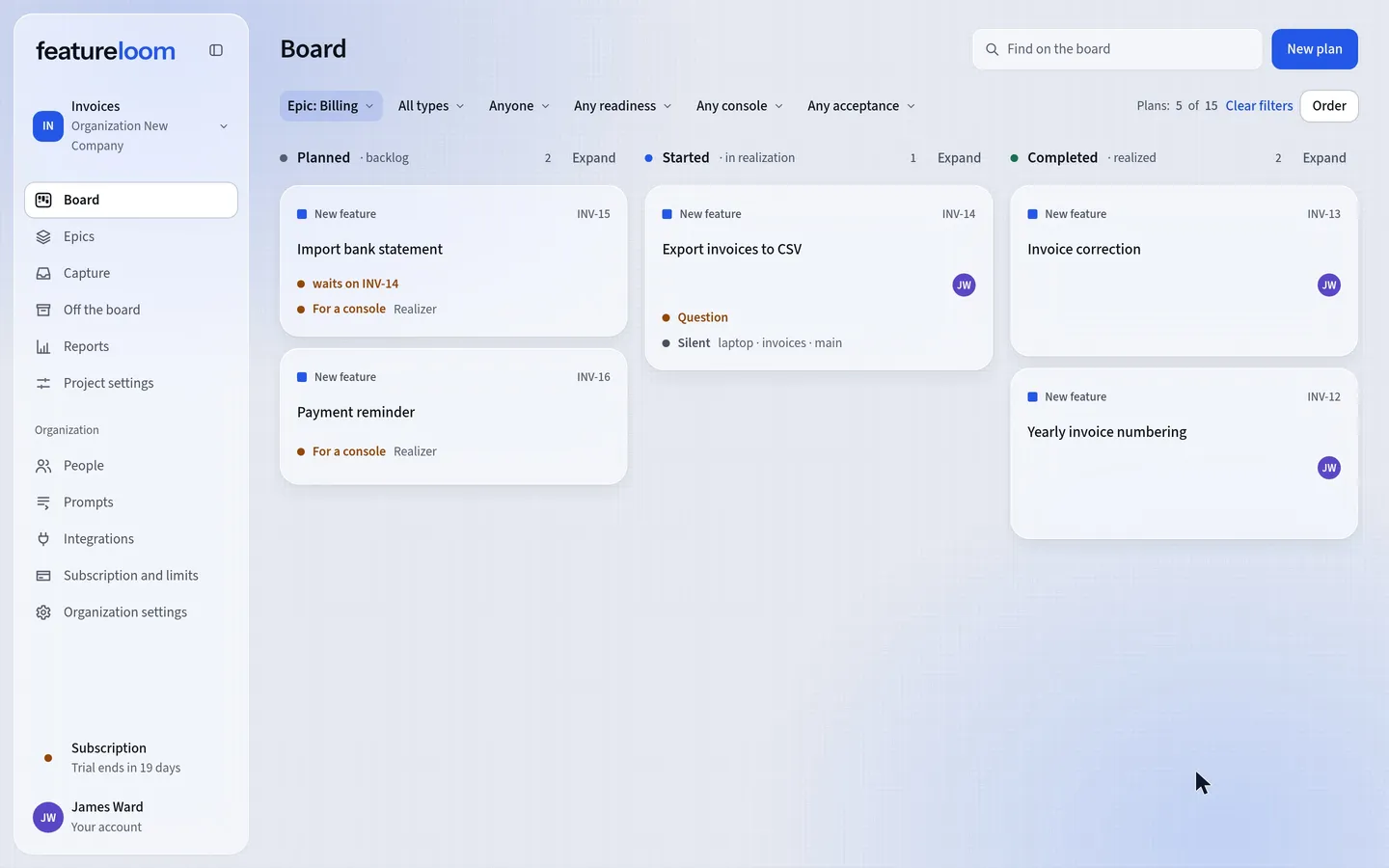
The filters above the columns narrow the board to one epic. The Show on the board button on an epic’s screen does the same; you open that screen by pressing the epic’s name in the Epics list.
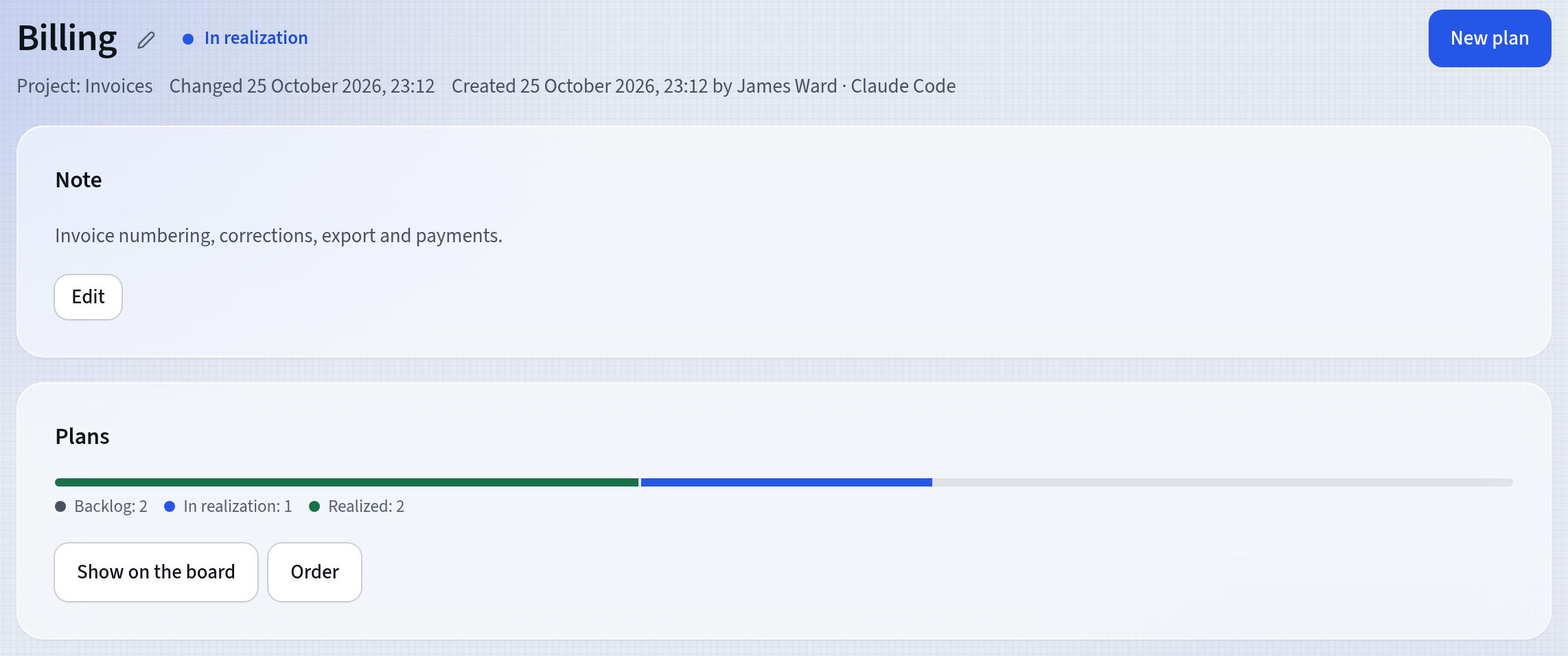
The epic’s screen Record what waits on what
On the plan’s screen, under the line of properties, unfold Dependencies and press Add dependency. Choose the kind, Waits on…, Unlocks… or Related to…, then find the other plan by name or key.
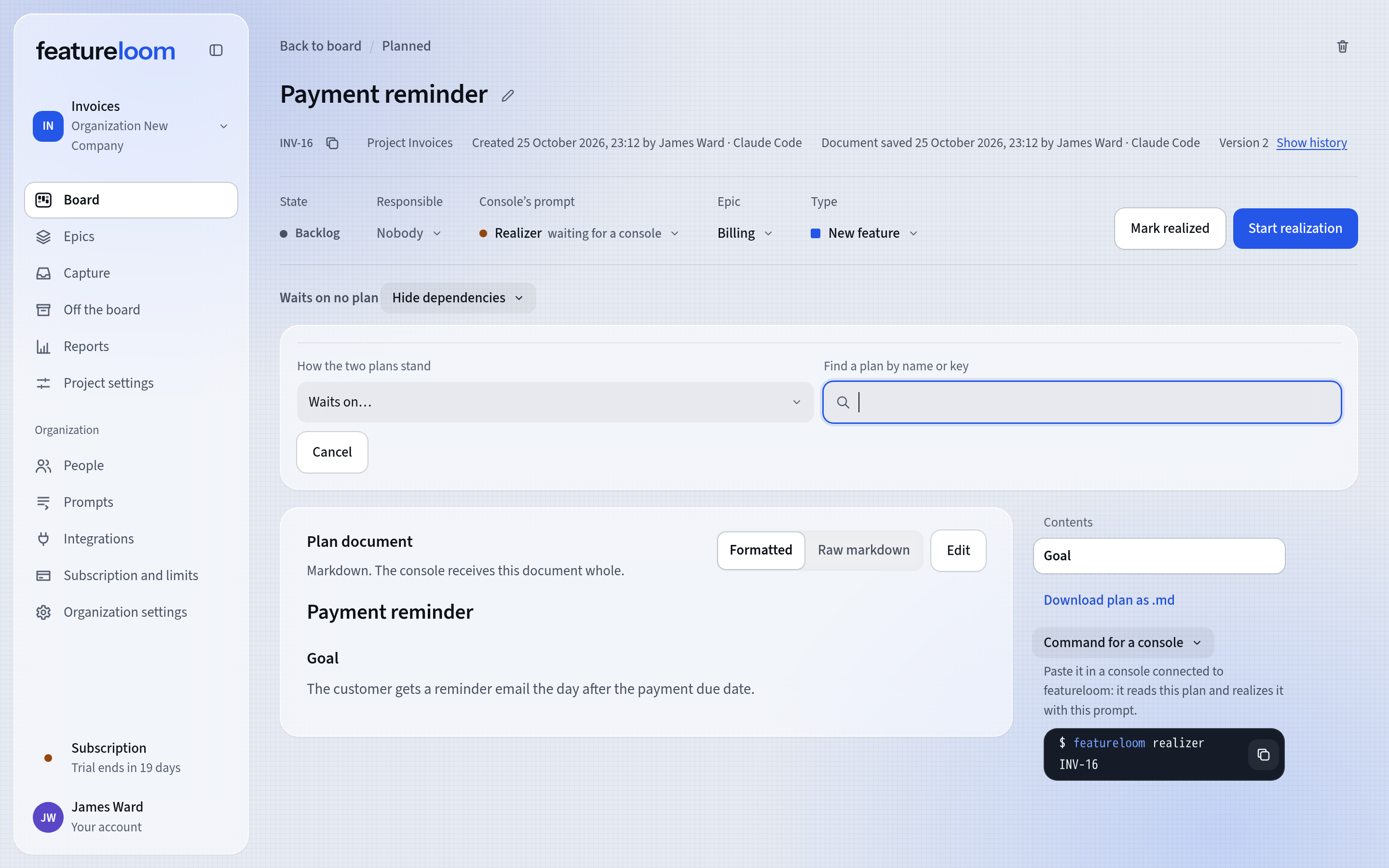
Adding a dependency For example, the plan INV-15 Import bank statement waits on INV-14 Export invoices to CSV. The card of INV-15 then says waits on INV-14.
featureloom accepts no dependency that would make two plans wait on each other, and no plan that waits on itself.
Open Order
Narrow the board to the epic with the filter and press Order beside the filters.
The screen’s columns are steps. Realized lists the keys of the finished plans on one line, and Show unfolds their cards. Ready to start shows the plans that wait on nothing, and After those the plans waiting on the step before; further steps follow. Plans of other projects the epic waits on are above the steps, under From other projects.
An arrow from plan A to plan B means that B waits on A, so A comes first. The blue thread in the legend is the longest chain: the longest path to the end of the epic. The plan marked Bottleneck unlocks the most others, so it is the one to start with.
Point at a card or click it, and featureloom lights up the plans it waits on and the plans it unlocks. A plan’s name opens the plan.
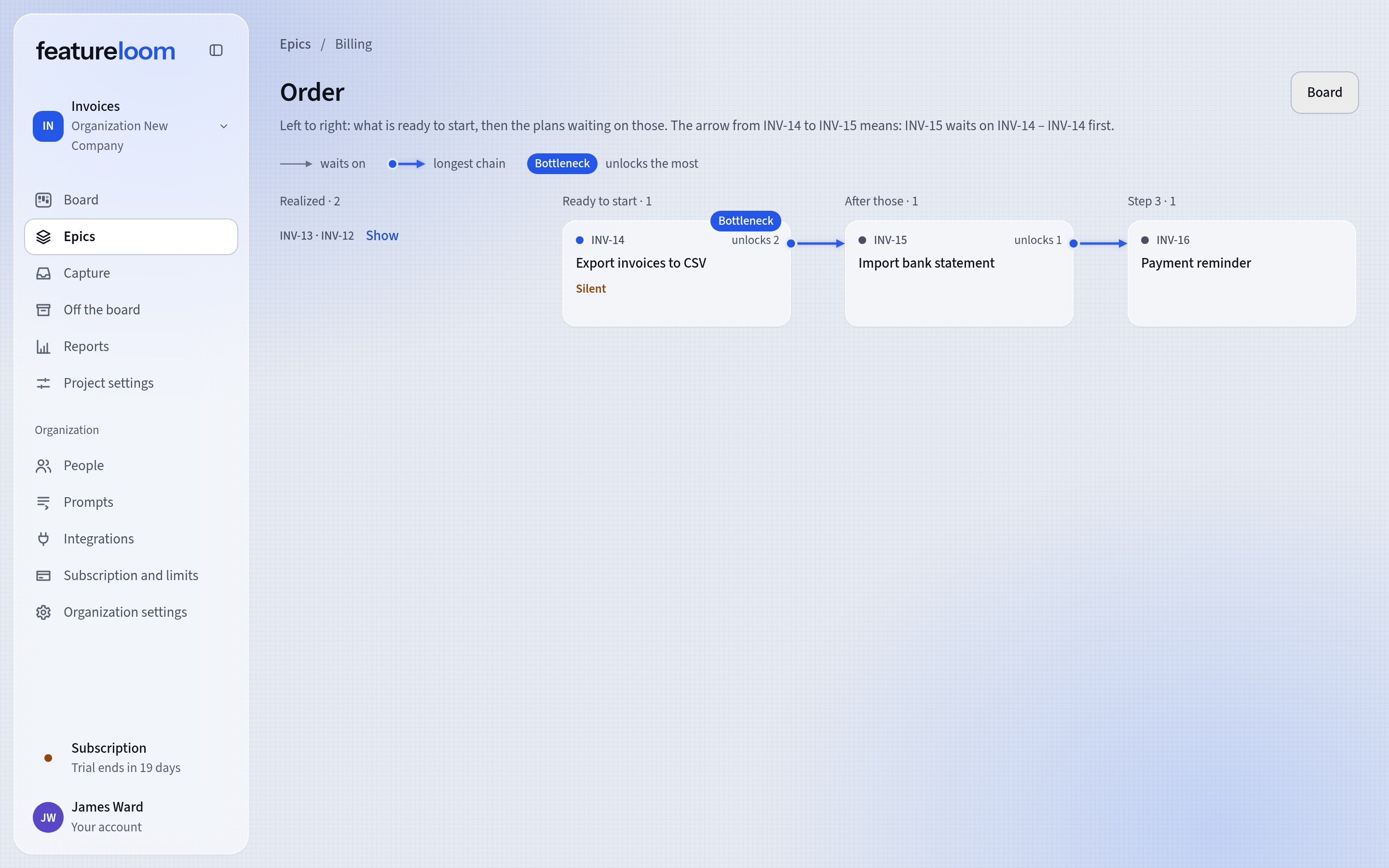
The epic’s order Your agent takes plans in turn
When you send the command with the Realizer prompt and no plan key, your agent asks featureloom for the next plan (
next_plan). It gets the first plan, in board order, in the column marked with the backlog state that waits on nothing and that nobody else is responsible for.featureloom realizerSo the order of the cards in that column matters: drag the plan that should go first higher up.
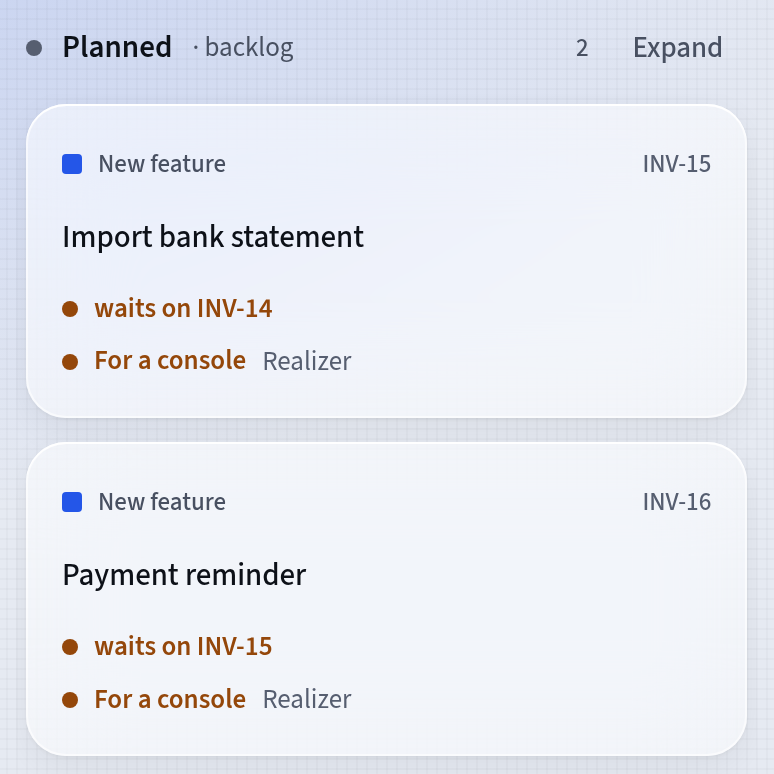
Order in the backlog A console won’t start a plan that waits: the server refuses and names the keys of the plans it still waits on. You aren’t blocked: in the app you can start such a plan yourself.
Good to know
- An epic can wait as an idea: a name is enough, and you add plans later.
- Related to… is a loose link: it blocks no plan.
- A dependency can lead to a plan in another project of the organization. Order shows such a plan under From other projects.
- An agent with the Writes plans right records dependencies too (`add_link`). The Planner prompt does it when it breaks a meeting down into plans.
- An administrator deletes an epic. Its plans stay on the board in their columns and only lose the epic.
Updated: November 5, 2026
Next
Columns, types and the plan template
The settings that keep a board in order: columns and their states, plan types and the template featureloom generates plans with.
See the tutorial