Projects and plans on the board · step 1 of 7
Create a project and its board
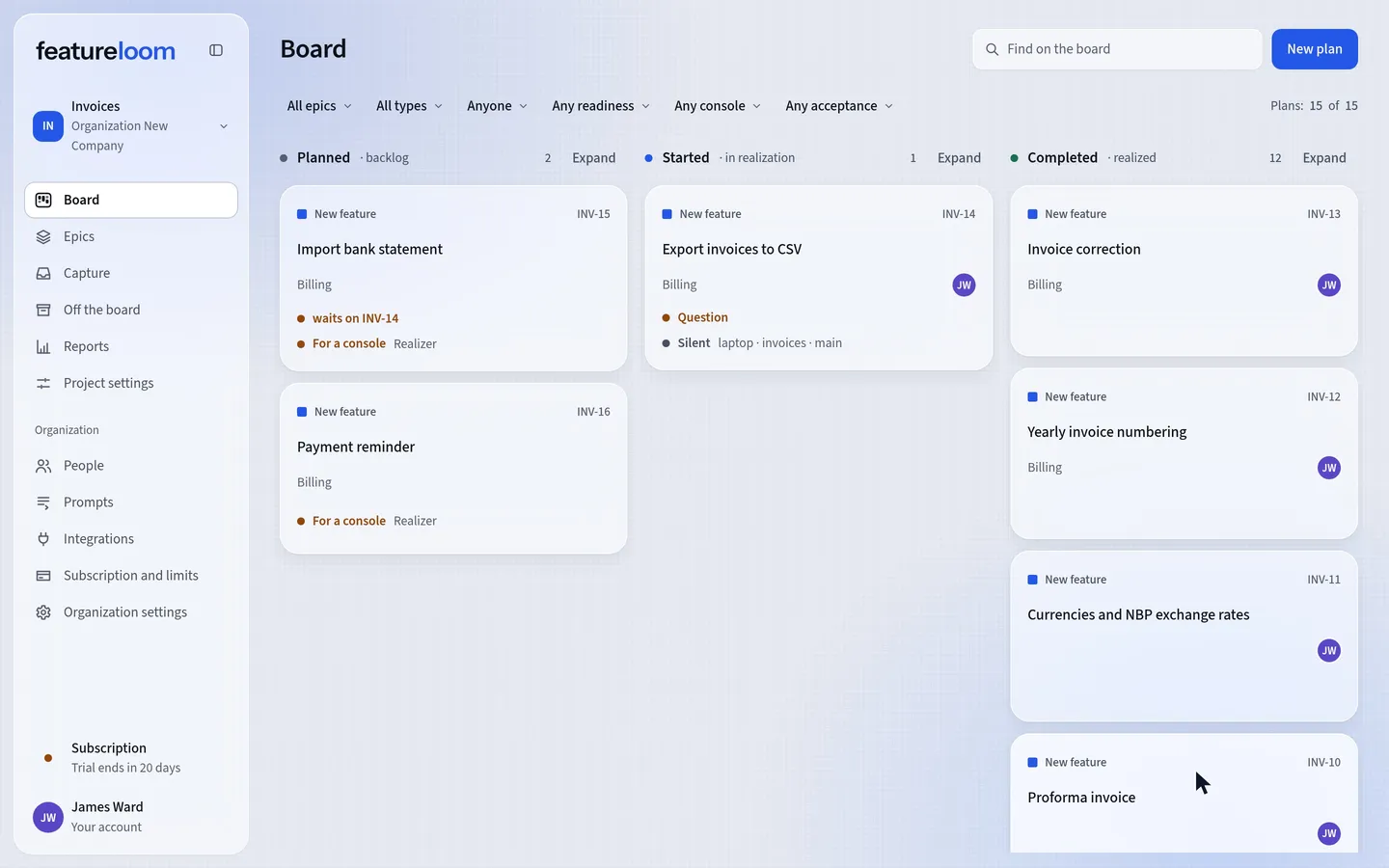
A new project gets a board of its own, its own plan keys and its own settings.
 Play the film: Create a project and its board
Contents
Open the new project form
Press the project card in the menu. In the Organization, team and project window, below the list of projects, choose New project.
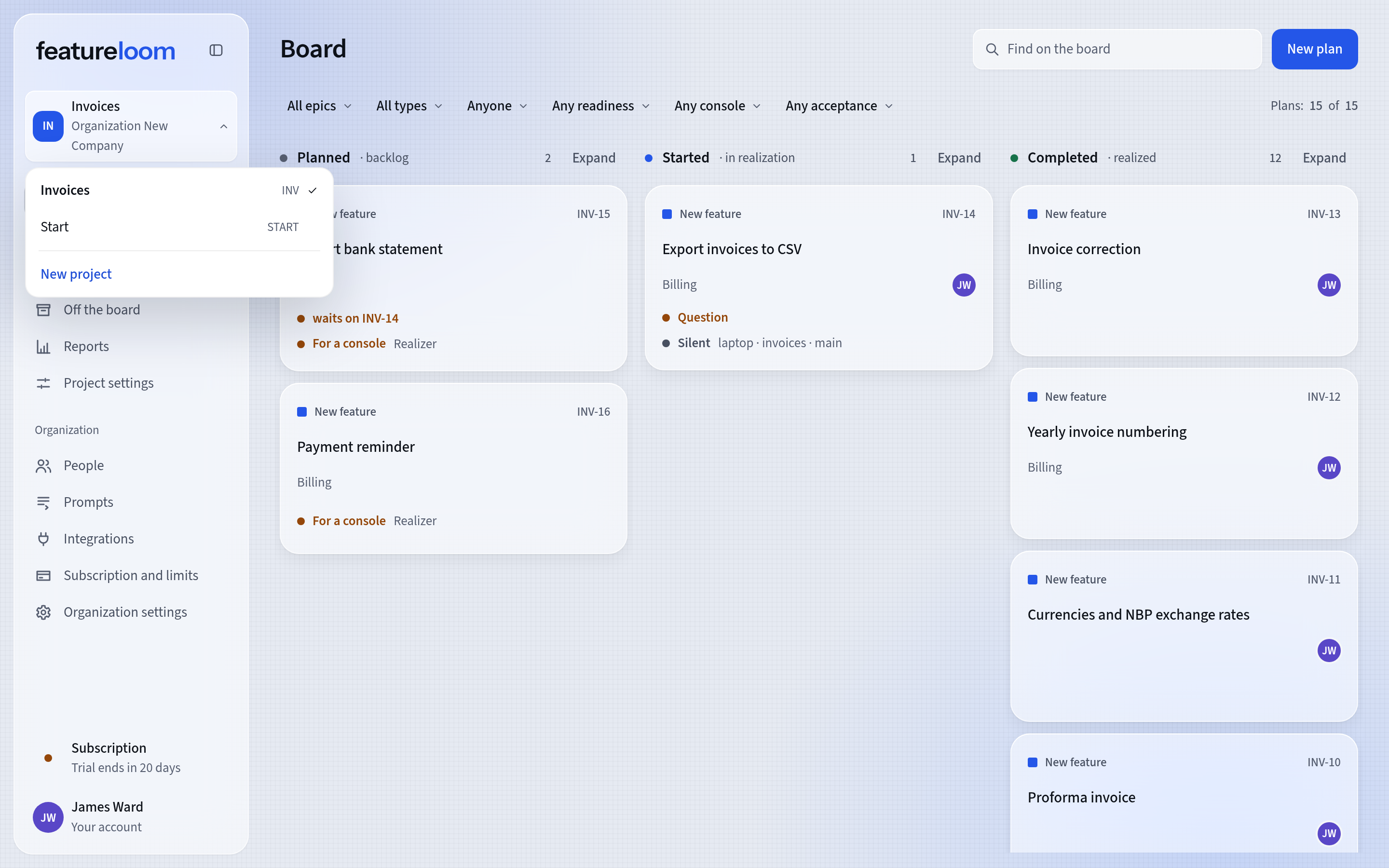
The project card in the menu The form opens on the Organization settings screen, in the Projects tab, where you also see every project of the organization.
Name the project and choose its key prefix
Type a name in New project name. The key prefix opens the key of every plan, INV in INV-14 for example: two to six characters, a letter first, then letters or digits. Leave it empty and featureloom makes one from the name.
Where the organization has more than one team, also choose a team in Team it belongs to. Then press Create project.
You can change the prefix only while the project has no plan. Once it has plans, the prefix is part of their keys and can’t be changed.
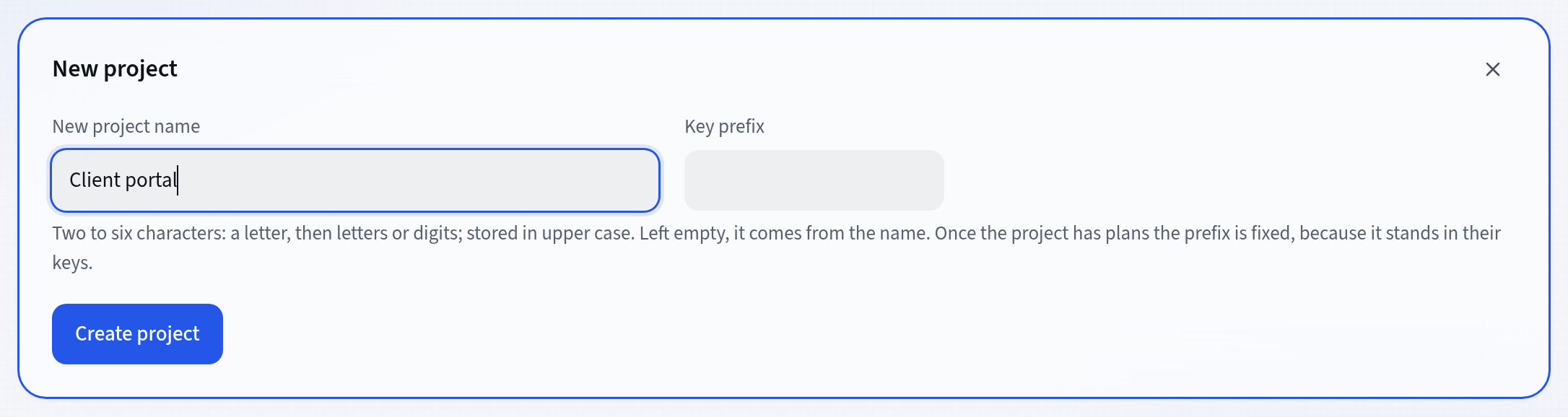
A new project in the Projects tab Open the board
featureloom confirms the project and tells you the keys its plans will get. Press Open the board.
The new project’s board is still empty and says This project has no plans yet. Add material takes you to the Capture screen, where you generate a plan from a session’s material, and New plan opens the window where you write a plan from scratch.
The columns Planned, Started and Completed appear with the first plan. Each is marked with a plan state: backlog, in realization and realized. A new plan lands in Planned by default.
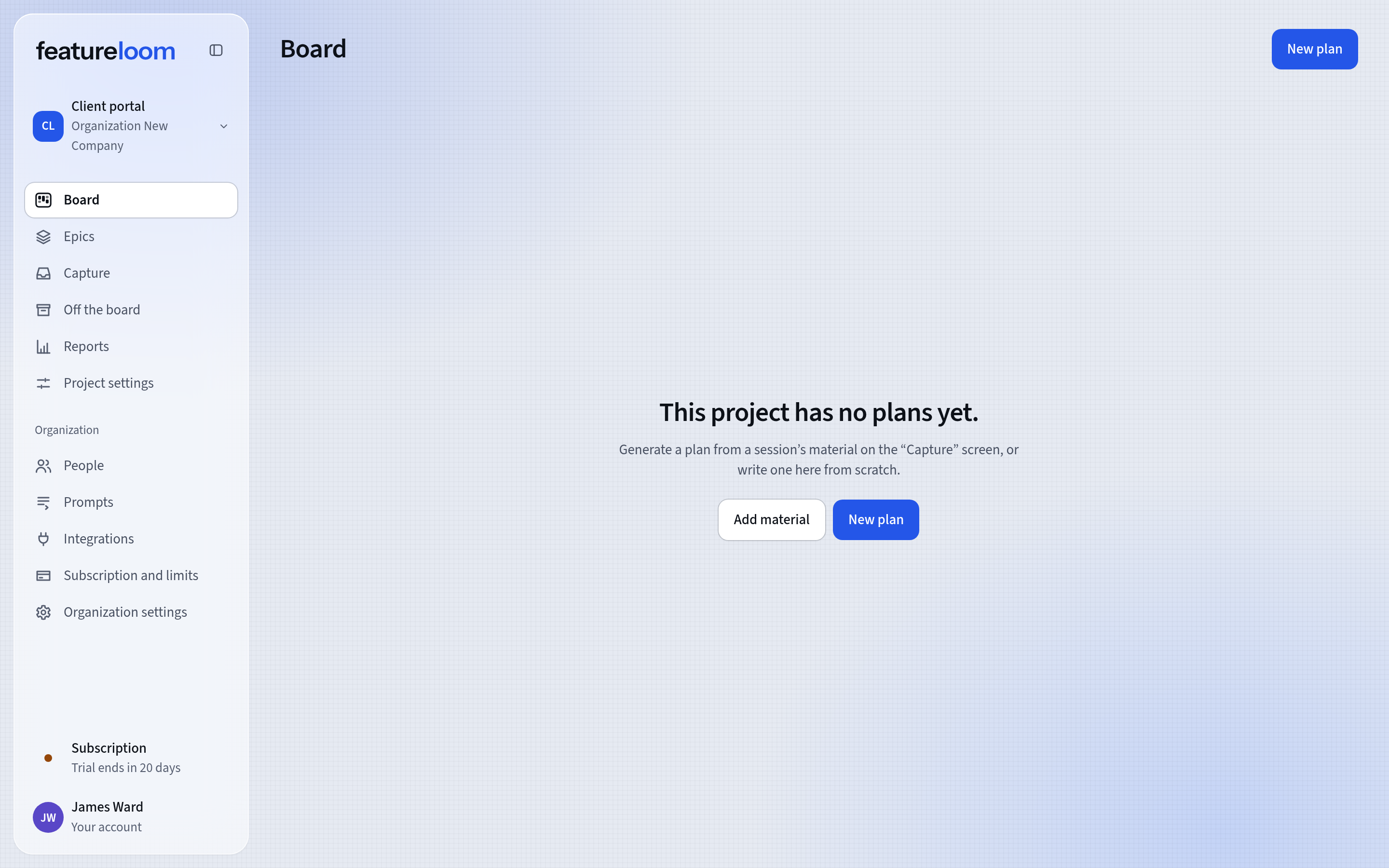
A new board before its first plan Move cards between columns
You drag a card within its column or into another one. Moving it into a column marked with a state changes the plan’s state.
Whoever moves a plan into the column marked in realization becomes responsible for it, if nobody was.
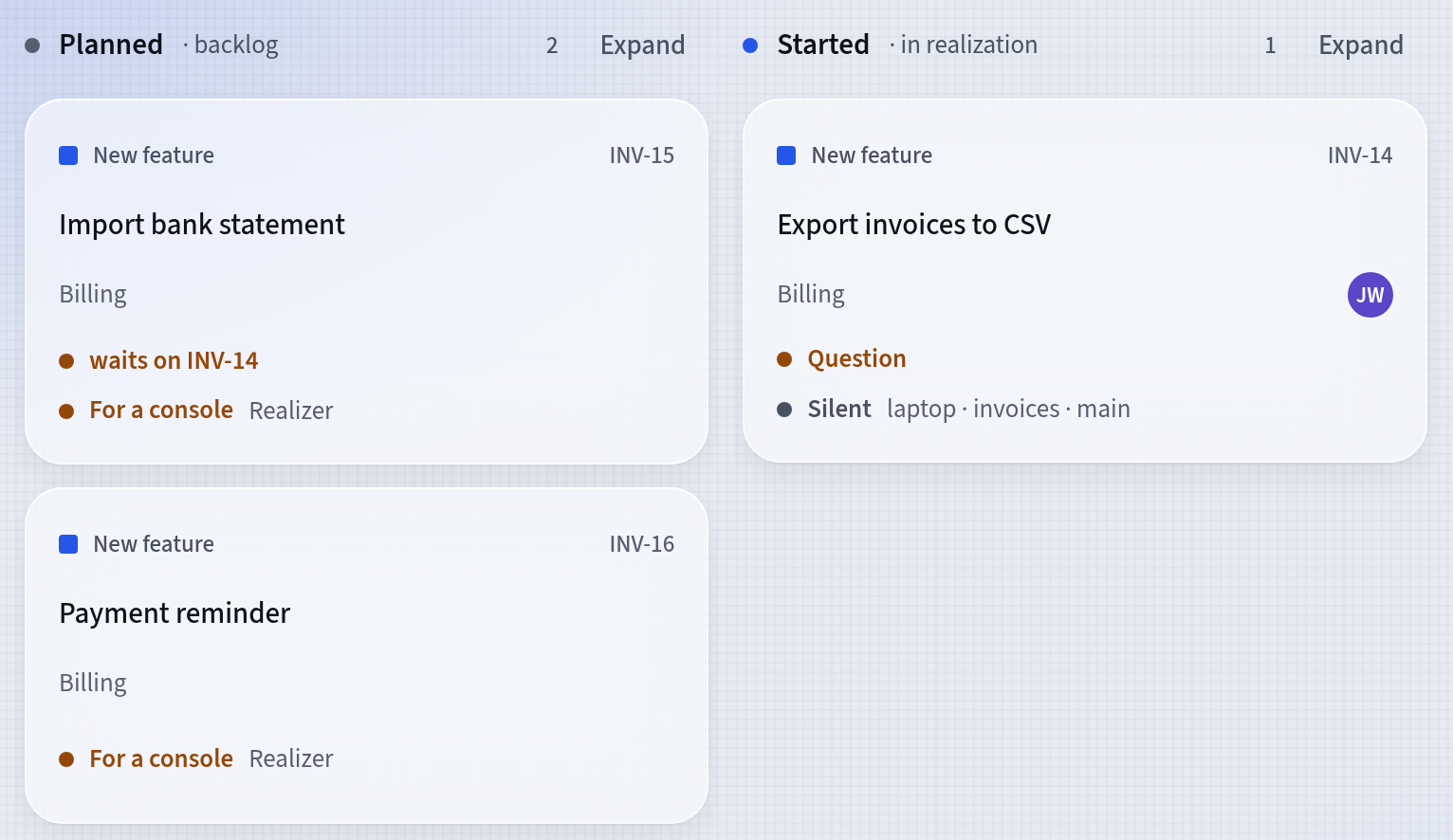
Columns with their states Without a mouse: Space picks the card up, the arrow keys choose a place, Space drops it, and Escape puts it back.
Adjust the project’s settings
Open Project settings in the menu. The screen has three tabs.
Project details: the name, the key prefix, the color and Archive after (days). A realized plan moves to the archive on its own after that many days, 14 by default; 0 turns that off.
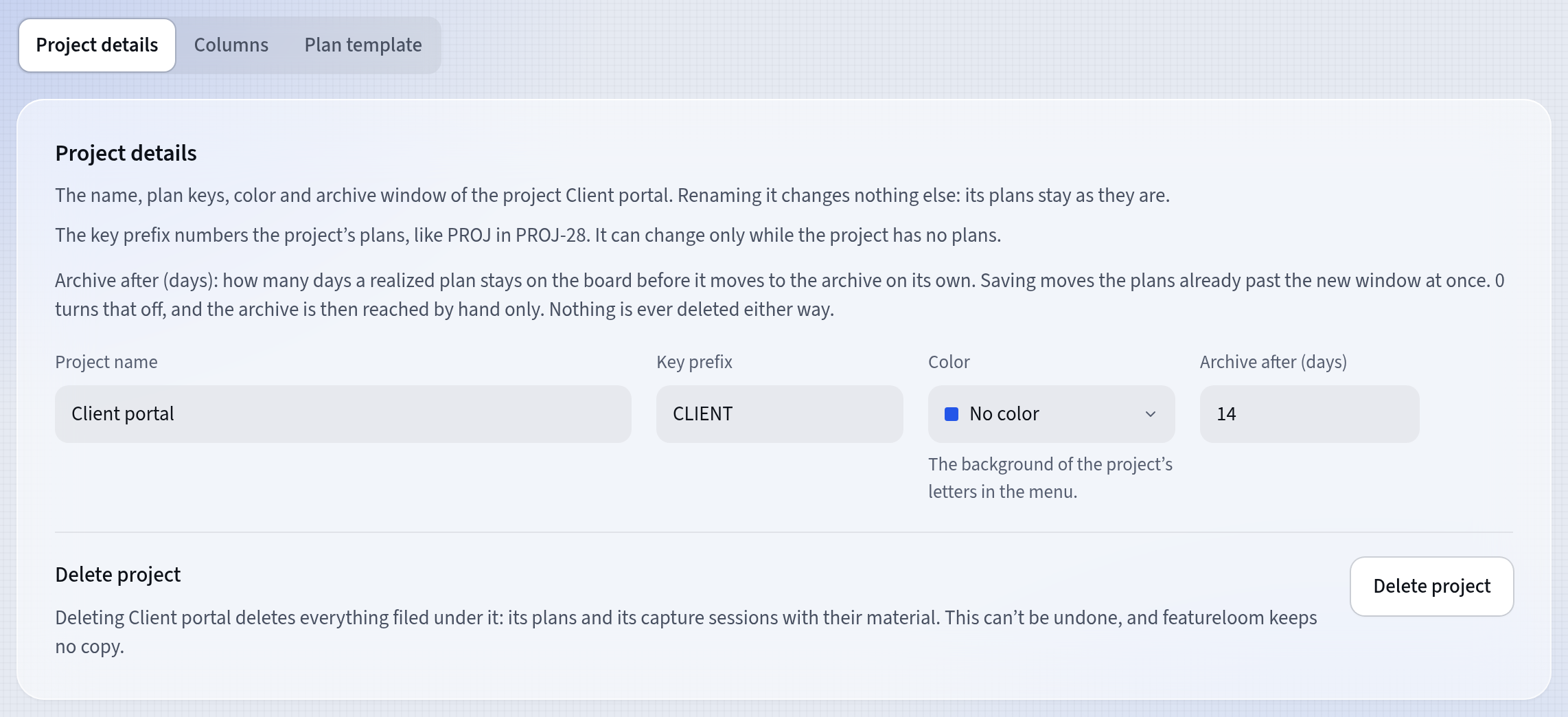
Project details Columns: names, order and the Column state field, which marks a column with a state. A board holds at most 20 columns, the archive included.
Plan template: the form featureloom generates a plan from material in. Until the project saves its own, the built-in template applies.
Good to know
- Every new organization already has the project Start with the plan START-1 Get to know featureloom.
- A new project’s columns are named in the organization’s language. In a Polish organization they are Planowane, Podjęte and Zakończone.
- The archive is not a column on the board. You find archived plans in the menu, on the Off the board screen.
- A team sorts projects and doesn’t limit access: everybody in the organization sees and works on every project. You create teams on the Organization settings screen, in the Teams tab.
- An administrator deletes a project, in the Project details tab. Deleting it takes the project’s plans and capture sessions with it and can’t be undone.
- Each project’s board is a kanban board: every plan is a card that moves from column to column as the work moves on.
Updated: November 8, 2026
Next
Write a plan yourself and keep its document
The first plan on your new board: a markdown document, a type, an epic and a history of versions.
See the tutorial