Projects and plans on the board · step 3 of 7
A plan from pasted text or a PDF or Word document
Turn text, a PDF or a Word document into a plan built on your project’s template, with no agent and no writing from scratch.
 Play the film: A plan from pasted text or a PDF or Word document
Contents
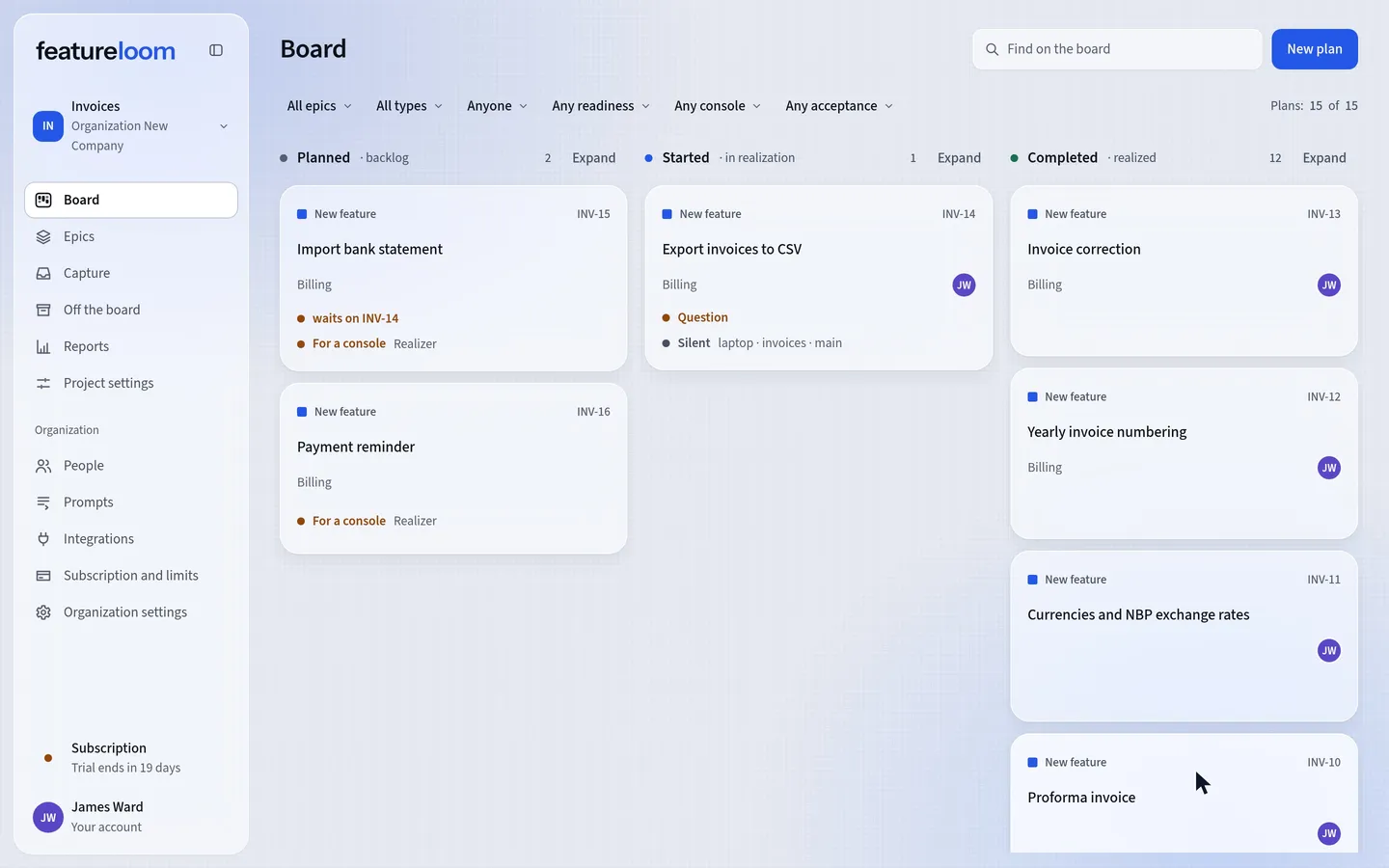
Choose the project and open Capture
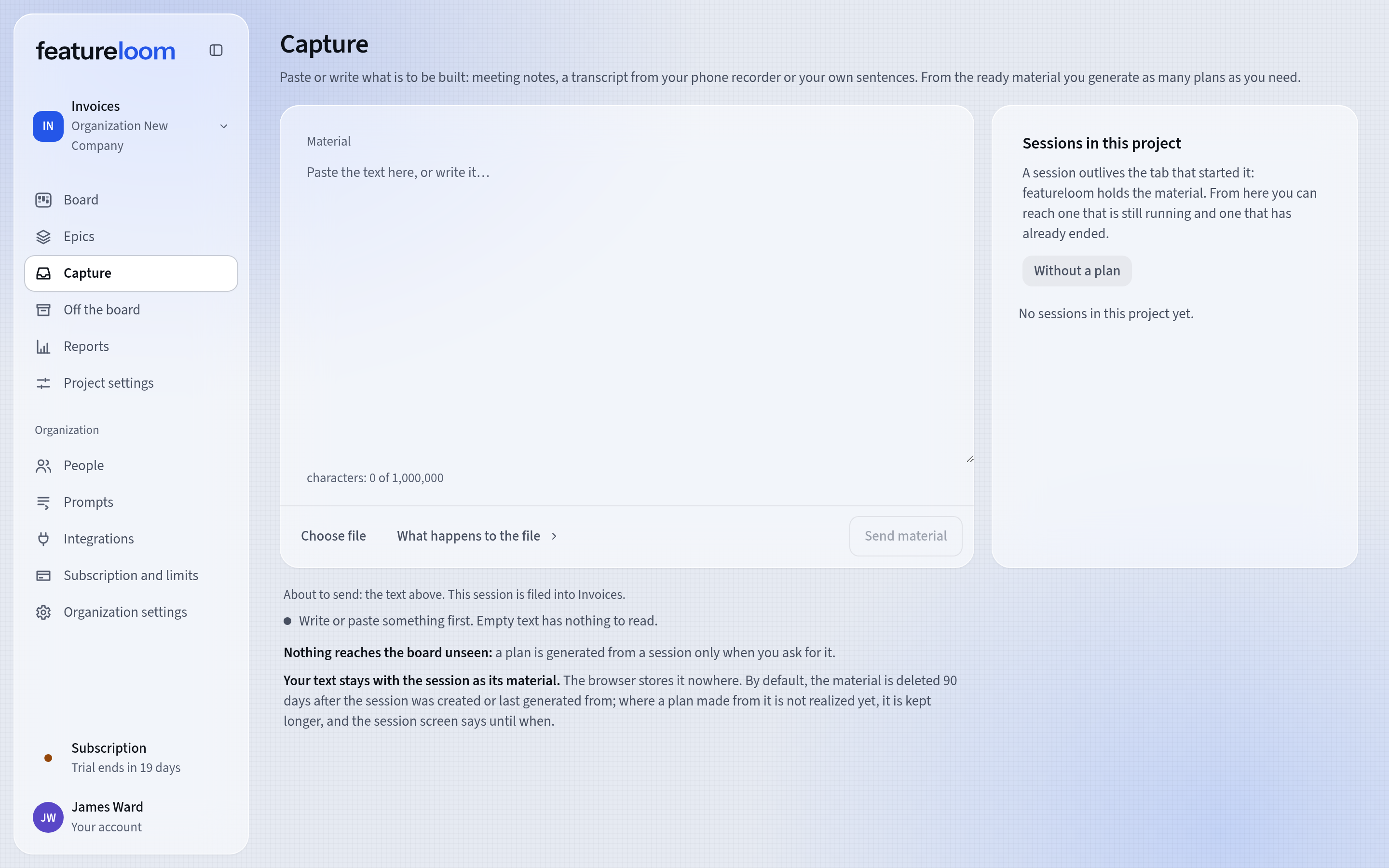
The material goes to the project chosen in the menu, so choose the project first. Then open Capture in the menu. The screen says which project the session goes to.
The Capture screen Paste text or choose a document
Paste or type the text in the Material field and press Send material.
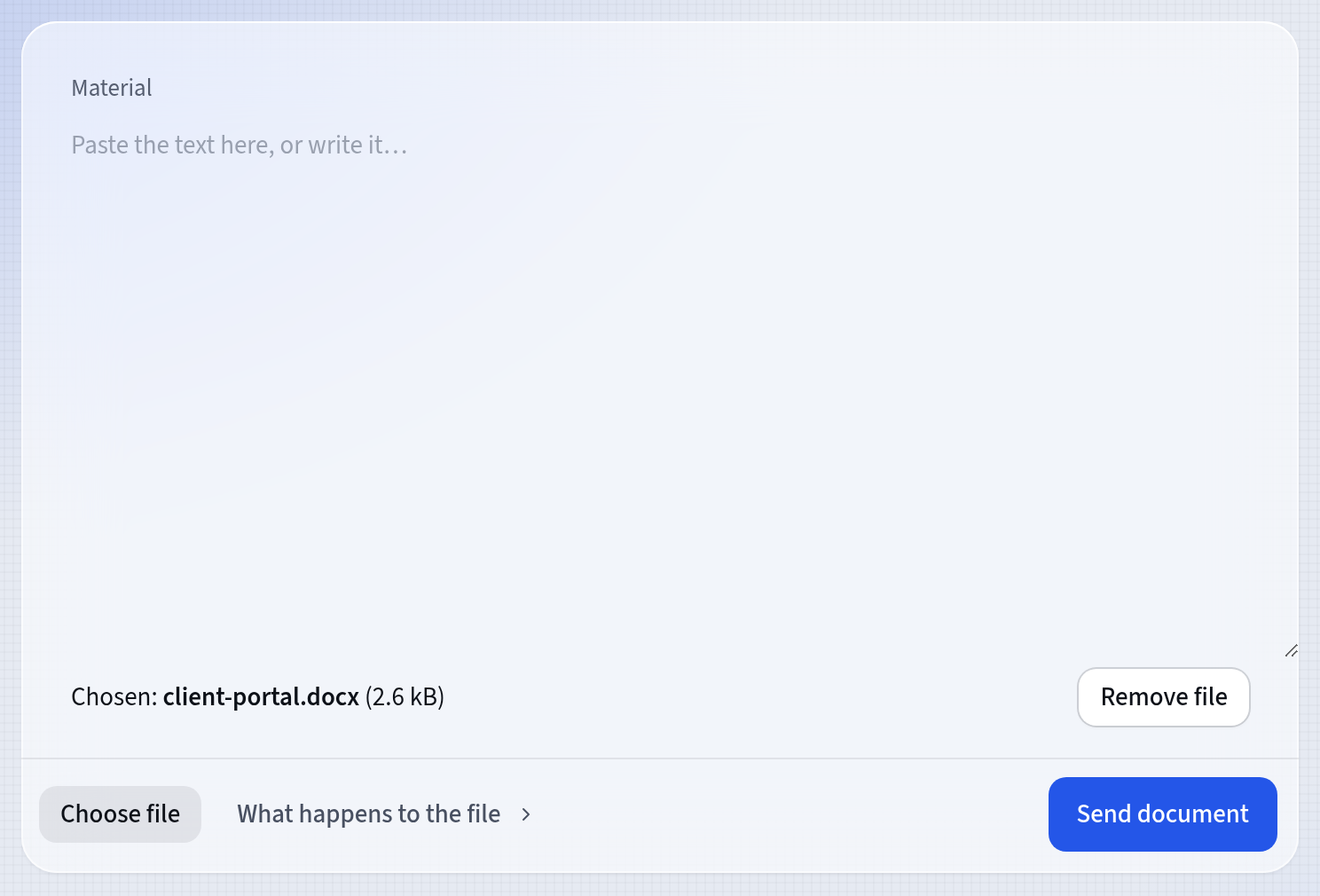
You send a document from the same card. Press Choose file under the Material field, pick a PDF or Word (.docx) file, then press Send document. Unfold What happens to the file, beside Choose file, for the largest file size allowed.
One send is text or a document, never both at once. Once you choose a file, the text in Material waits until you remove the file.
featureloom reads the text out of the document, and that text becomes the session’s material. The file is on the server only while it is read and is not kept.
Text in the Material field Wait for Material ready
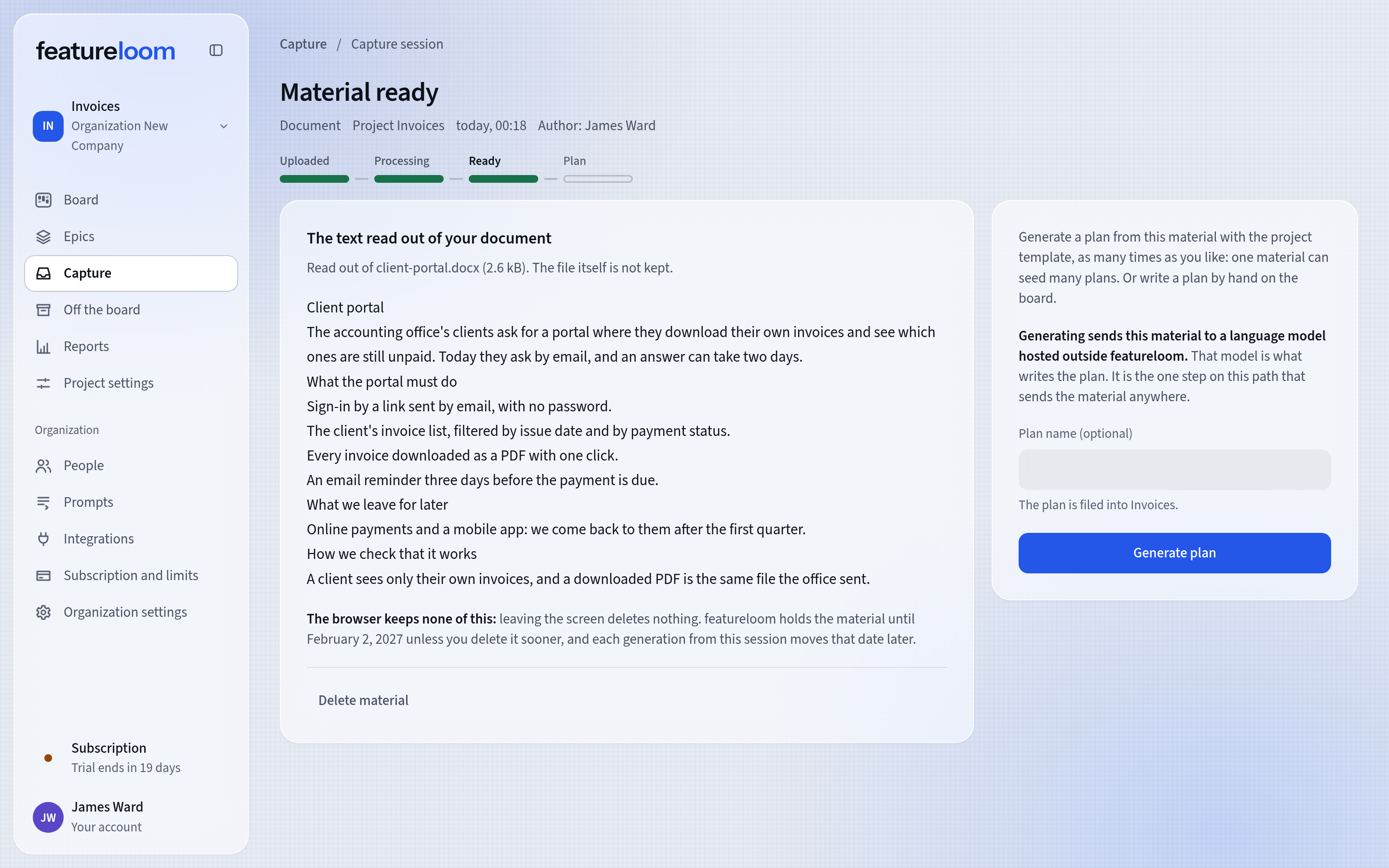
Sending starts a capture session. Under its title you see its course: Uploaded, Processing and Ready, and the last part, Plan, fills once a plan is generated from the material. Once the material is ready, the screen shows Material ready.

The session’s course You don’t have to wait at the screen: the session keeps processing with the browser tab closed. You get back to it from the Sessions in this project list on the Capture screen.
No text can be read from a scan without a text layer, and such a session fails. Send a file whose text you can select instead, or paste the passage you need as text.
Generate the plan
On the ready session’s screen you may type a name in Plan name (optional). The screen says that generating sends the material to a language model hosted outside featureloom, and that the model writes the plan. When you agree to that, press Generate plan.
Generating takes a moment, and you can close the page meanwhile: the result is not lost. When featureloom is done, the session shows Open plan.
The plan has the sections of the project’s plan template and is in the column marked with the backlog state. Above the document is the link Open the capture session this plan came from.
A session ready to generate Decide what happens to the material
Whether the same session can make another plan depends on the organization’s setting, and the session’s screen says so before you generate. Until an administrator chooses, the material goes the default number of days after the session was created or last generated from, and up to that day you can generate plans from it many times. Where a plan not realized yet was made from it, the material waits for that plan to be realized, and the session’s screen says until when.
An administrator changes the setting on the Organization settings screen, in the Material tab. The material stays with the project until somebody deletes it, is deleted once a plan has been generated, or is deleted a number of days after the session was created or last generated from. A number of days chosen there is kept to the day, even where a plan not realized yet was made from the material, and a change of the setting also applies to material that already exists.
Delete material on the session’s screen deletes it for good, and the plans already generated from it stay. The session’s author and an administrator see this button.
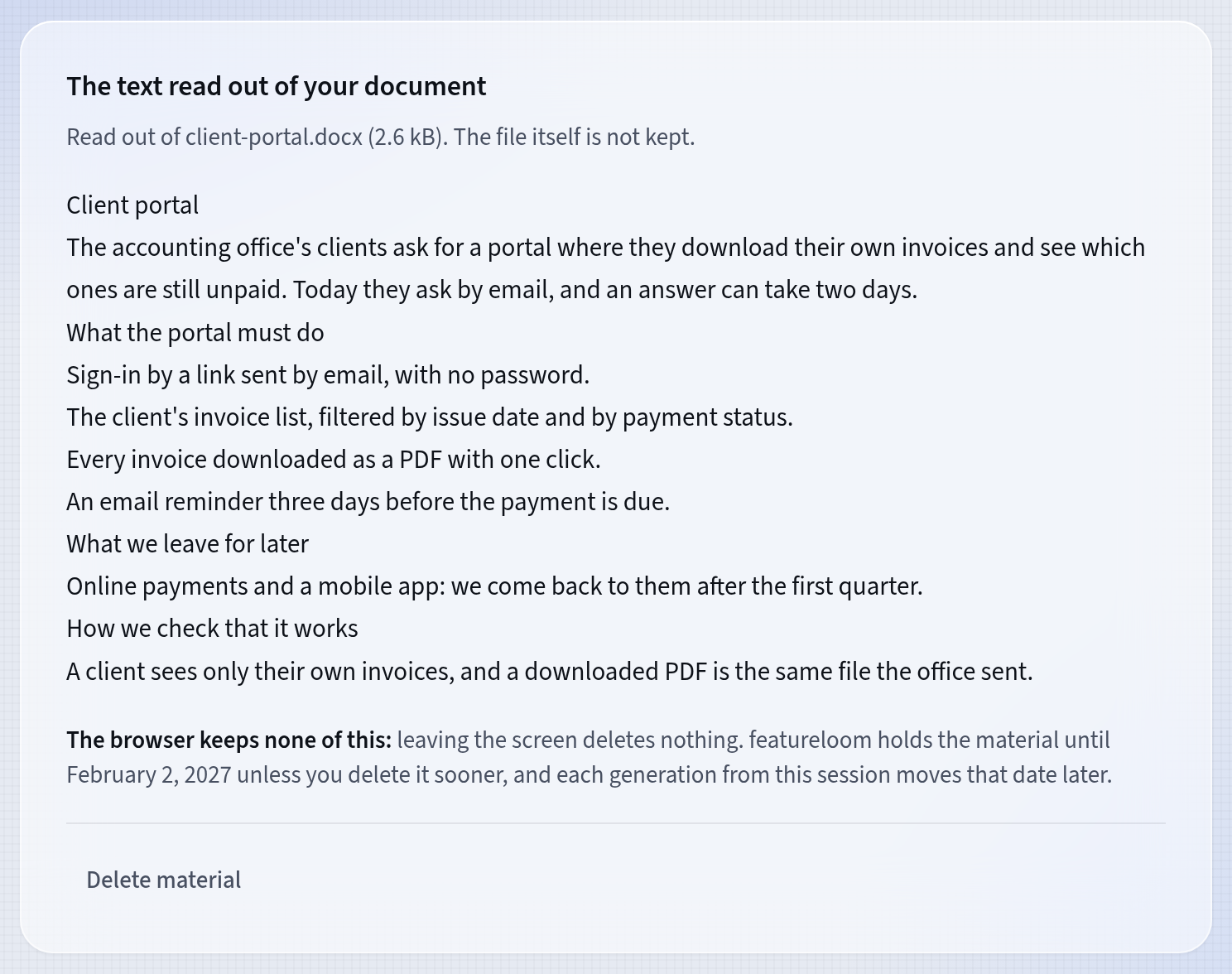
Your material
Good to know
- Have a meeting transcript and want to hand the plan to your agent right away? The tutorial A plan in the app from your meeting transcript shows that road.
- The Sessions in this project list shows the sessions that still hold their material, and Without a plan narrows it to those nothing has been made from yet.
- You change a generated plan like any other: the Edit button above the document.
- Once a plan from a session is realized, you can press Prepare the acceptance list at acceptance: a list to check the work against is written.
- Sending a product requirements document? The PRD entry explains what such a document holds and how it becomes several plans under one epic.
Updated: November 8, 2026
Next
From a meeting to epics and plans
A meeting transcript in a file: your agent in the console creates epics, writes plans and links them by dependencies.
See the tutorial