Projects and plans on the board · step 2 of 7
Write a plan yourself and keep its document
A plan is one markdown document: you write it yourself, and featureloom keeps its versions as you save. Such plans are part of your subscription, within its content limit: from the balance you pay only for plans the model writes from meeting transcripts and documents.
 Play the film: Write a plan yourself and keep its document
Contents
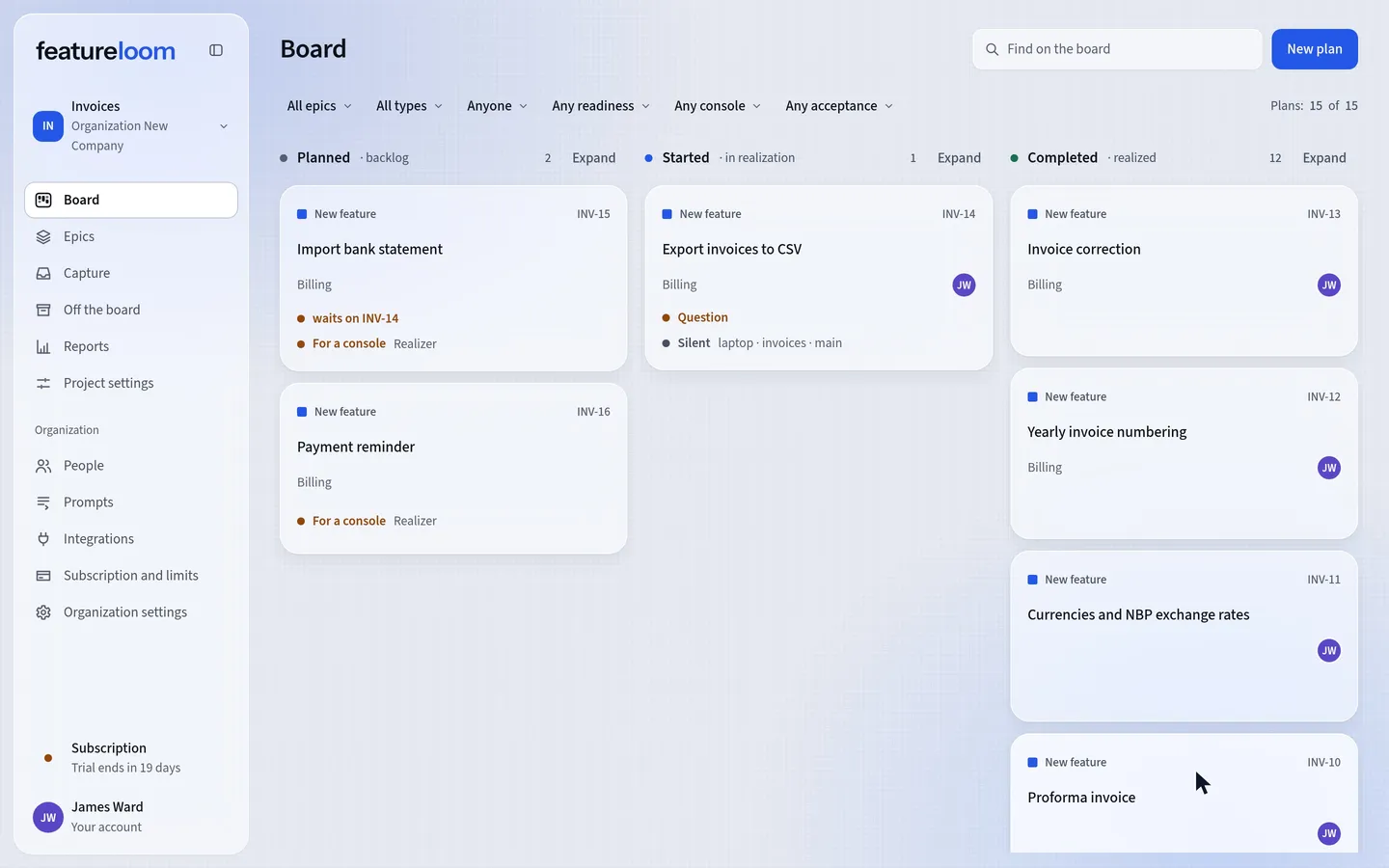
Open New plan
Above the board, press New plan and type a name in Plan name.
The four lists under the name say where the plan starts and what it belongs to. Column starts on the column marked with the backlog state, and Type on the organization’s default type, New feature for example. Choose an epic right away or leave it at No epic. In Responsible, pick the person responsible for the plan or leave it at Nobody.
Choose the column marked with the in realization state and the plan is yours from the moment it lands there.
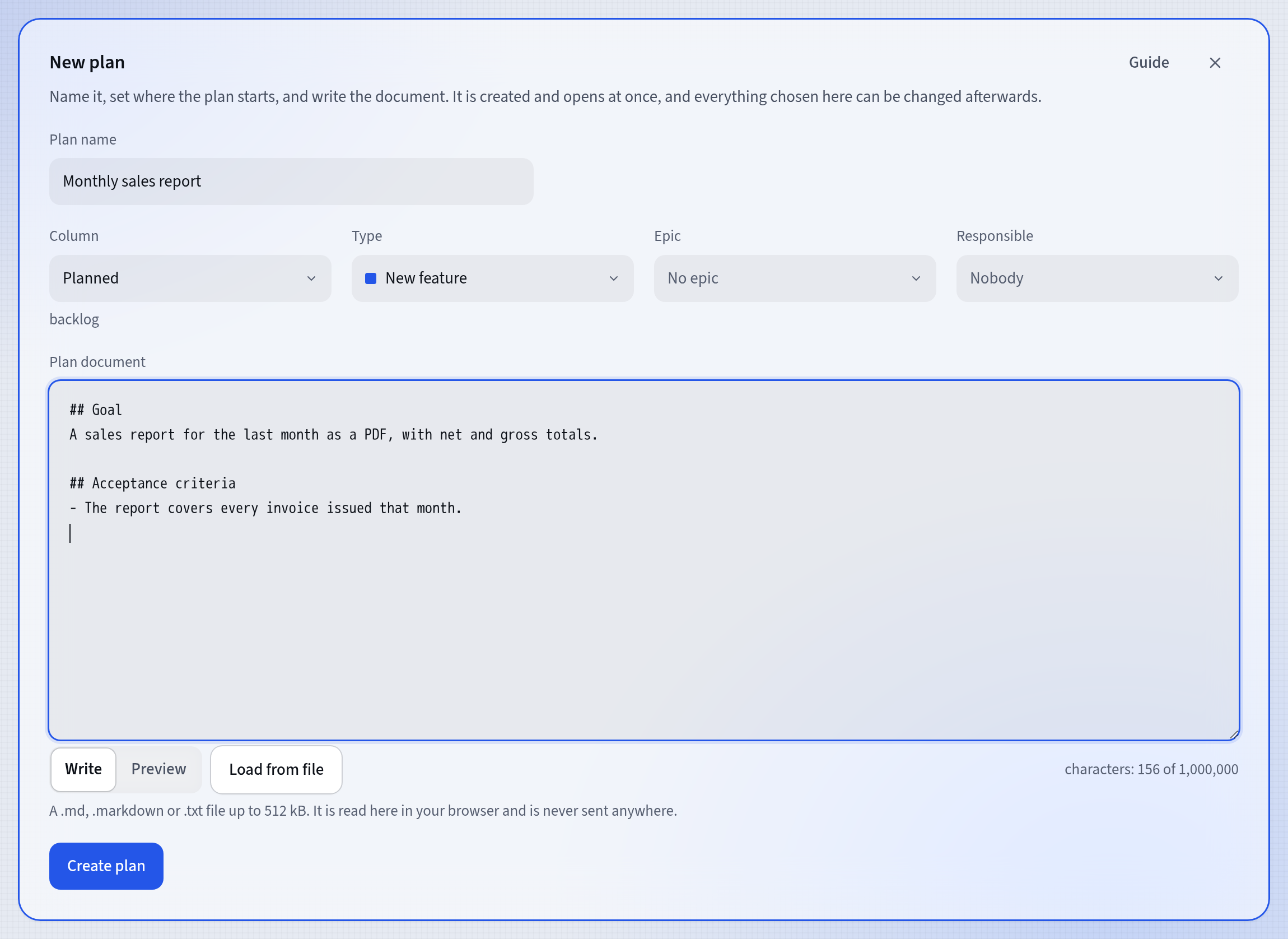
A new plan before it is created Write the document
The plan document is markdown, and the console that realizes the plan receives it whole. Write and Preview show the same text two ways: switching changes no character.
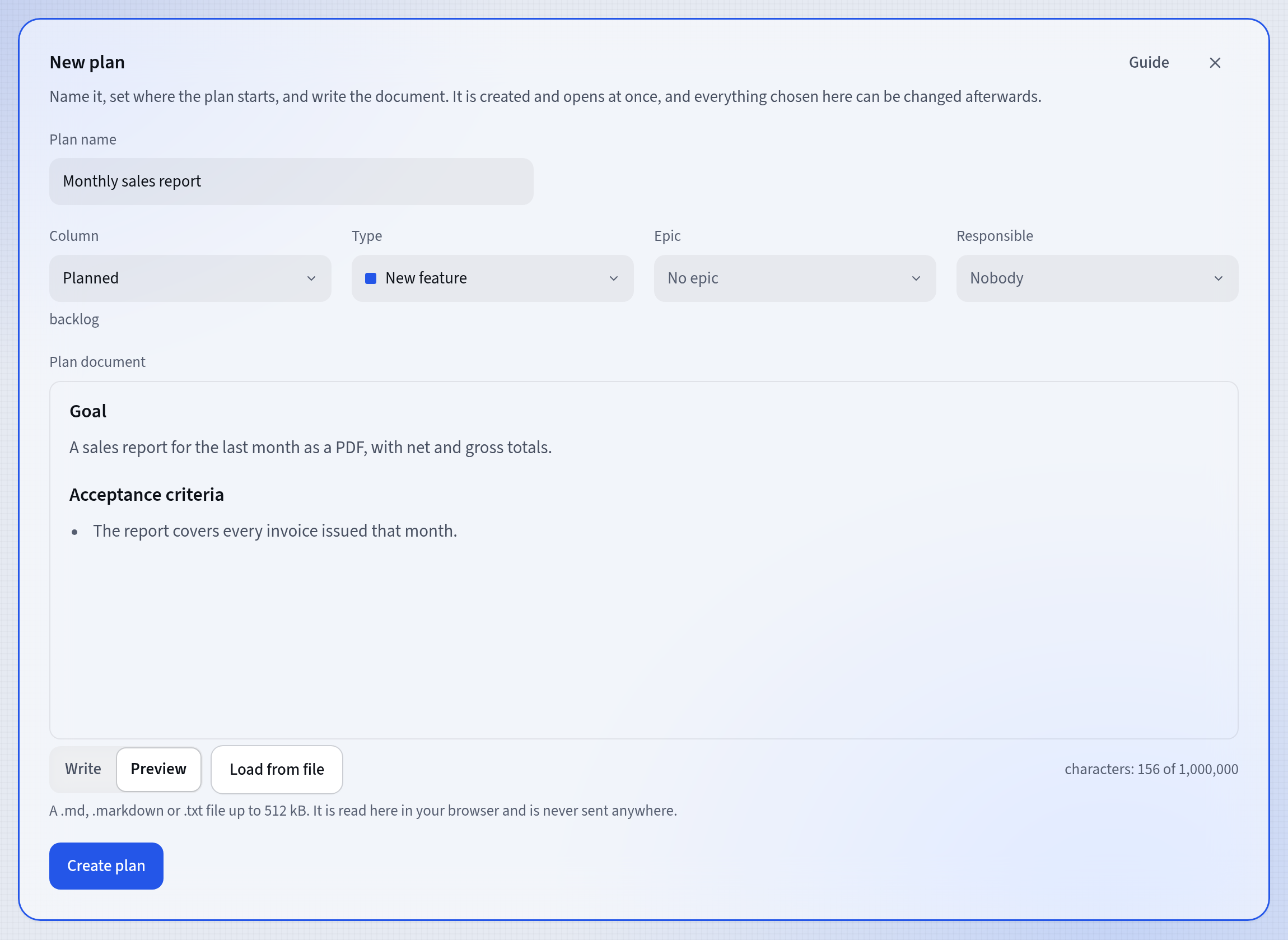
The document’s preview Already have the plan in a file? Load from file takes .md, .markdown and .txt files. The file is read in your browser and never sent anywhere, and its content replaces all the text in the editor, so featureloom asks first.
Press Create plan. The plan is created and opens at once.
Read the line of properties
Under the plan’s title you find the line of its properties: State, Responsible, Console’s prompt, Epic and Type. You change a value with an arrow beside it by pressing it.
At the end of the line are the buttons of the next step, Start realization for example. Such a button also moves the card to the column marked with the new state.
Choose a prompt in Console’s prompt, Realizer for example, and the Command for a console appears below the table of contents. The tutorial Your agent realizes a plan from the board shows how to hand the plan to your agent with it.
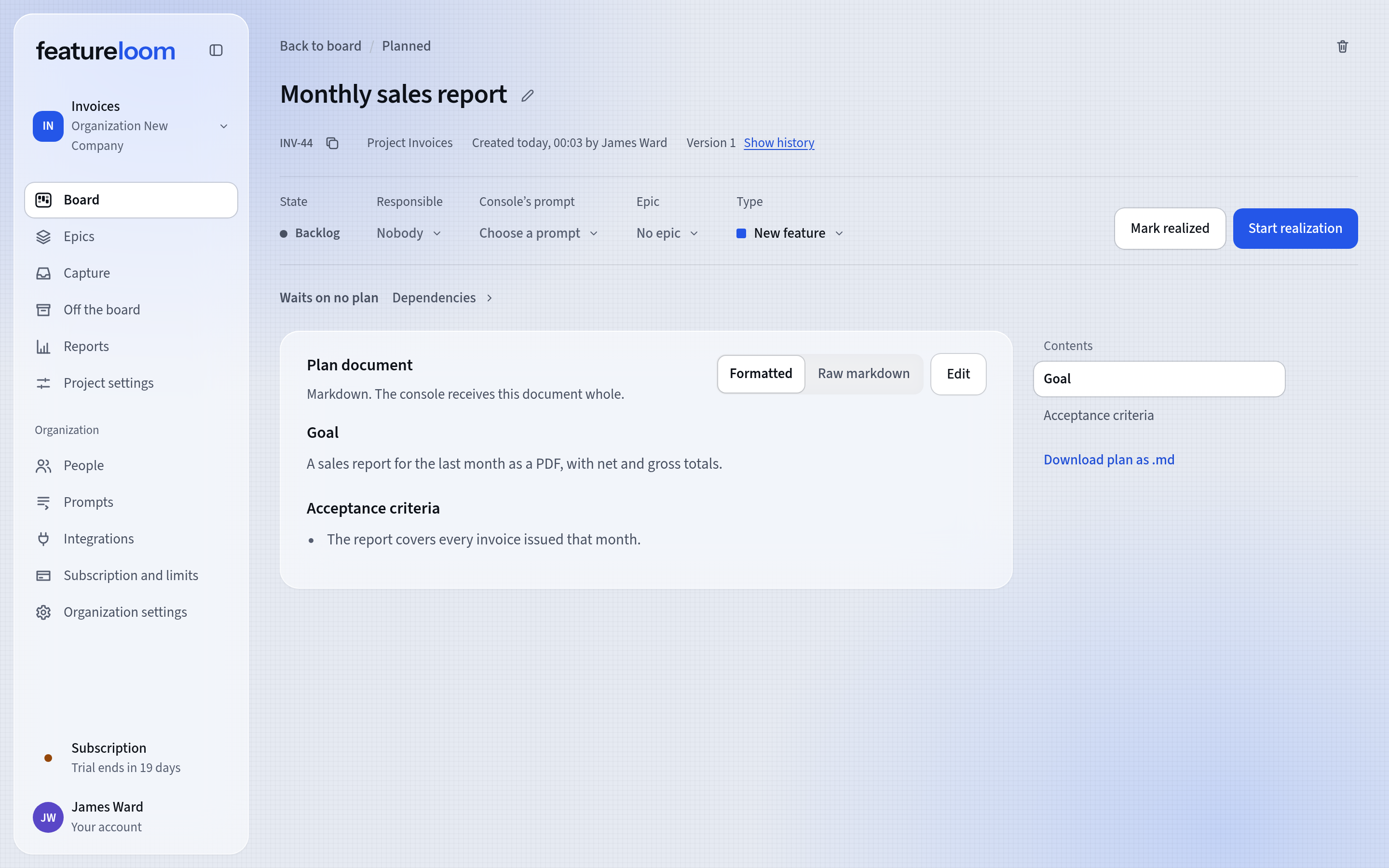
The plan’s line of properties Edit and save
Press Edit above the document, change the text and press Save document. Every save that changes the text is a new version of the document.
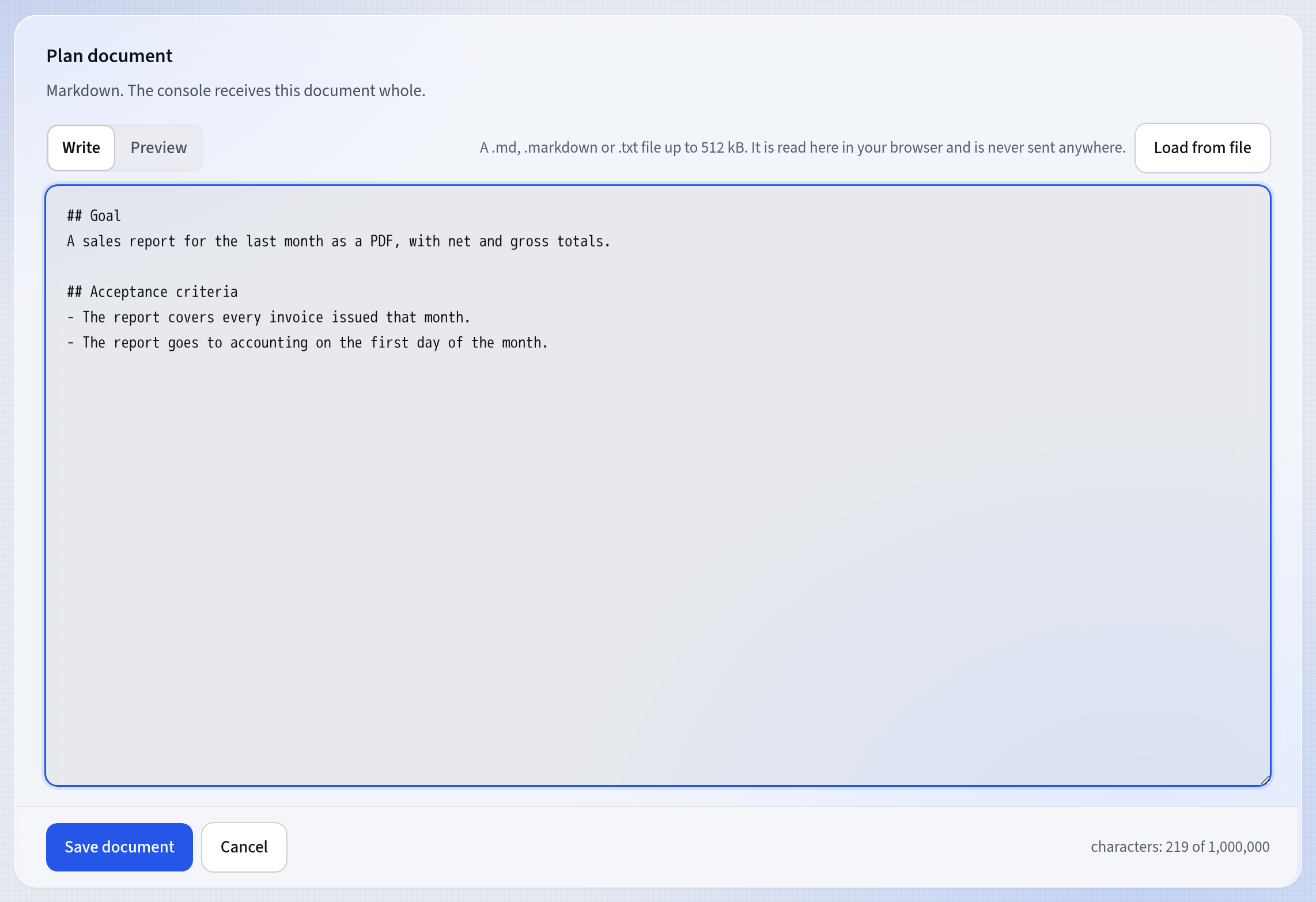
Editing the document A save is made against the version you opened. If somebody saved the plan after you opened it, the screen says so and nothing is overwritten: your text stays in the editor, you load the fresh document with Load fresh document, and you apply your change to it.
Go back to an earlier version
Show history under the title opens the document’s versions, newest first. Each version shows when it was saved, and newer versions also who saved them.
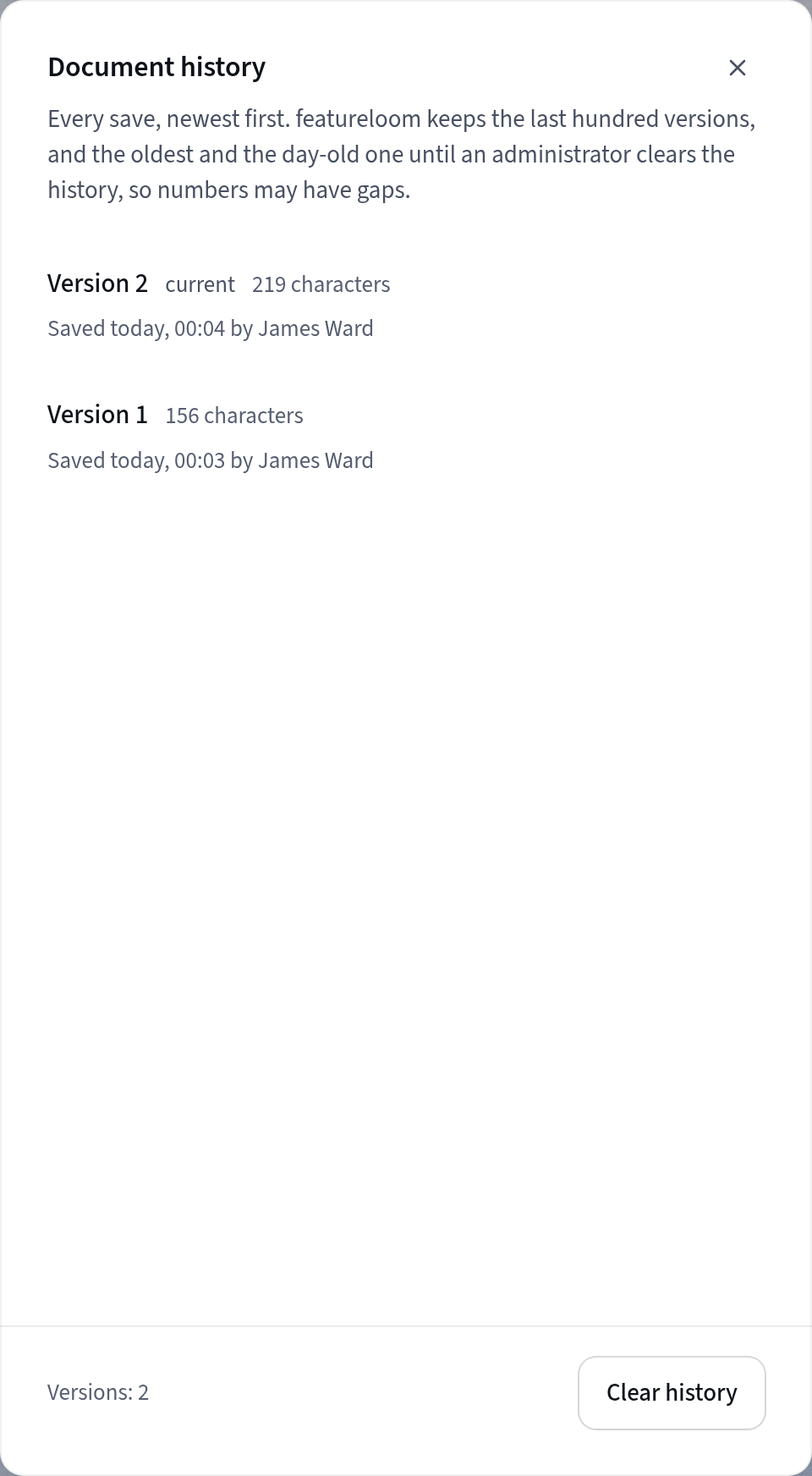
Document history featureloom keeps the last hundred versions, plus the oldest one and the one from a day ago, so the version numbers may have gaps.
Restore this version opens the old text in the editor. Saving adds it as a new version, and the newer versions stay in the history.
Good to know
- New plan starts from an empty document. The project’s plan template applies when a plan is generated from material and when agents write plans through a console.
- featureloom records the person responsible in a second step, after the plan is created. If that step fails, the plan still exists, and the Plan created window offers the hand-over again.
- The switch above the document shows the plan formatted or as raw markdown, character for character.
- Copy plan key under the title copies the key, INV-14 for example, and Download plan as .md saves the document as a file.
- An administrator of the organization deletes a plan permanently, with the bin icon above the title. It can’t be undone.
- Writing from a product requirements document? A PRD usually holds several pieces of work: write a plan for each and group the plans under one epic.
Updated: November 8, 2026
Next
A plan from pasted text or a PDF or Word document
A plan without writing from scratch: featureloom generates it from your text or document.
See the tutorial