Projects and plans on the board · step 7 of 10
The board day to day: find, filters and selecting plans
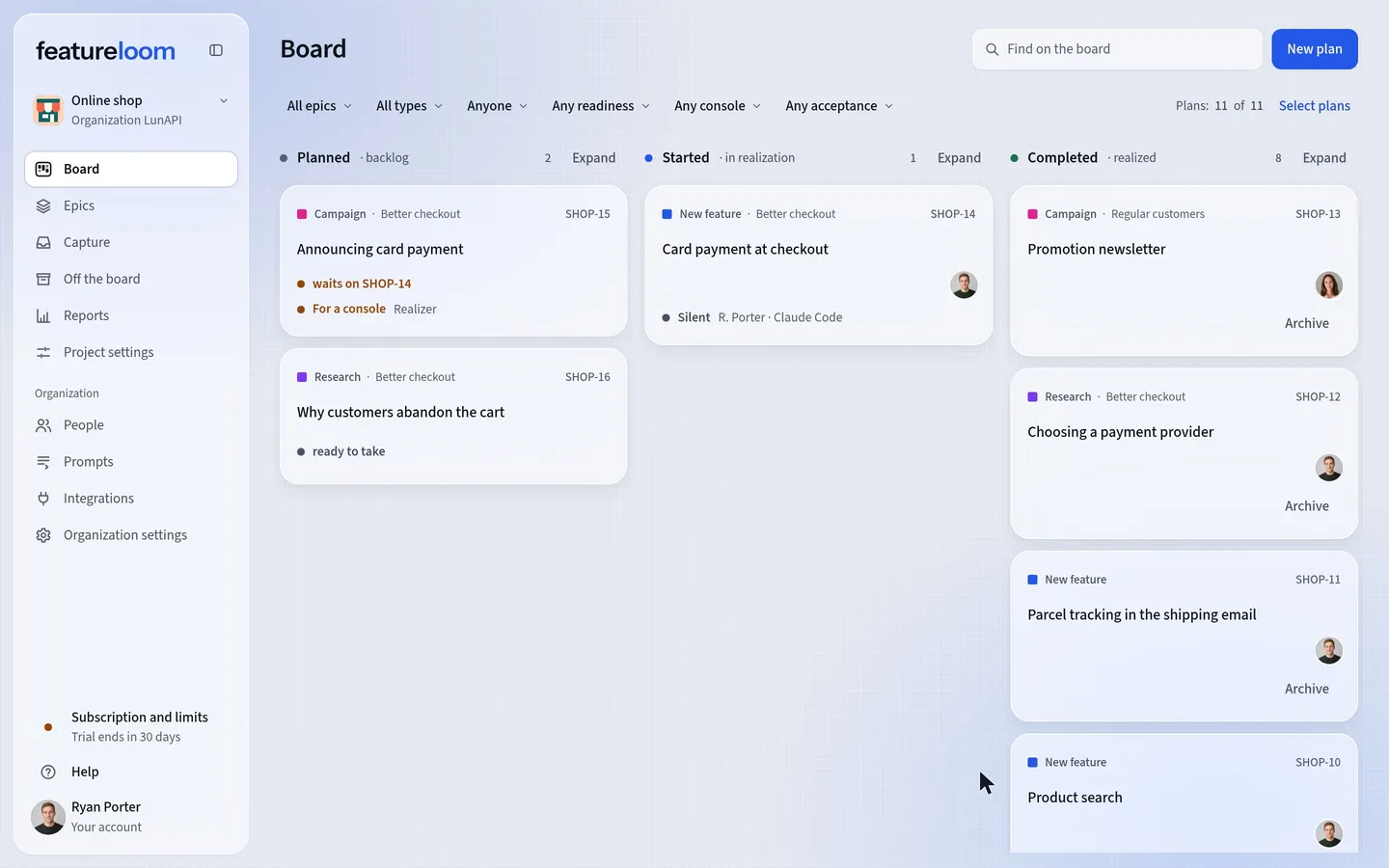
On the board you find a plan quickly by its name or key, narrow it with filters to what matters today and change several plans at once, without opening each of them.
 Play the film: The board day to day: find, filters and selecting plans
Contents
Find a plan on the board
In the Find on the board field above the columns, type part of a plan’s name or the start of its key, SHOP-14 for example, or just 14. You can type several words in any order, and plain letters instead of Polish or German ones. Only the matching plans stay on the board, and the count, Plans: 2 of 11 for example, says how many there are.
You don’t need to press Enter. Escape or the cross in the field clears it, and the cards the search hid come back to the board. When filters hide the plan you are looking for, or it is set aside or archived, a line under the filters says Matches outside the filters or Matches off the board, with a way to those plans.
Narrow the board with filters
Above the columns are the filters, such as Epic, Type, Responsible, Readiness, Console and Acceptance. A filter appears where the board has something to narrow by: Console once a console has signed a plan, Acceptance once there are realized plans. The Epic filter’s second choice, No epic, shows the plans without an epic.
A filter you choose hides the cards that do not match it, and several filters work together. The count beside them, Plans: 3 of 11 for example, says how many plans match, and Clear filters removes every filter but keeps the text in Find on the board.
Select several plans
Press Select plans beside the count. Every card gets a checkbox, and the bar Actions on selected plans appears at the bottom of the window. Press the cards of the plans you want to change together, or Select column in a column’s head.
The bar shows how many plans are selected. You can select up to 100 plans at a time.
Change the selected plans at once
Assign person and Set epic open a list of people or epics, and your choice is saved at once in every selected plan. Set aside takes the selected backlog plans off the board and asks first, and Archive moves the ones in the column marked realized to the archive.
An action that concerns none of the selected plans is off and says why. After a save featureloom says how many plans changed, and a plan somebody changed in the meantime is skipped and named by its key.
When you assign a person to plans meant for a console, featureloom asks whether to take them over. A plan taken over starts only from a console of the person who holds it.
Stop selecting closes the bar and clears the selection from the cards.
Read the plans’ cards
At the top of a card you see the plan’s type, its epic and its key: press the key to copy it. The type is a colored square with the type’s name, the epic comes right after it, and the plan’s key is at the end of the line. Once you copy it, a check mark takes the key’s place for a moment. The card of a plan without an epic has only the type and the key at the top.
Under the name, a card shows who is responsible for the plan, what the plan waits on and whether it is for a console or ready to take. Waits on and a key say which plan it waits on, For a console with a prompt’s name that it waits for a console with that prompt, and Question that the agent asked a question nobody has answered.
On a plan in realization the card names the console realizing it. Silent means that console has not been heard from for over half an hour, and the Console filter set to Silent shows every such plan.
Point at the card of a backlog plan and Set aside appears on it, and the cards in the column marked realized have Archive: the same actions as on the bar, for one plan.
A long column shows part of its plans first, with the numbers under them, Showing 50 of 120 for example. Show more loads the column’s next plans. Find on the board also searches the plans not loaded yet.
Good to know
- Filters and the text you typed are part of the page’s address: a link to a narrowed board opens it with the same filters and text.
- The Console filter also offers My consoles: the plans your consoles wrote, started or realized.
- In a low window or on a phone the filters fold behind the Filters button, which says how many of them are on.
- Plans you set aside or archive from the bar are in the menu, on the Off the board screen.
Updated: November 27, 2026
Next
Off the board: Set aside and Archive
A plan you don’t want to see on the board can be set aside or archived. Nothing is deleted.
See the tutorial