Agents and consoles · step 7 of 10
Connect Codex with a secret on a server with no browser
On a server you work with over SSH no browser opens, so Codex connects there with the connect command with the secret. The secret works like the console’s password, so you keep it to yourself.
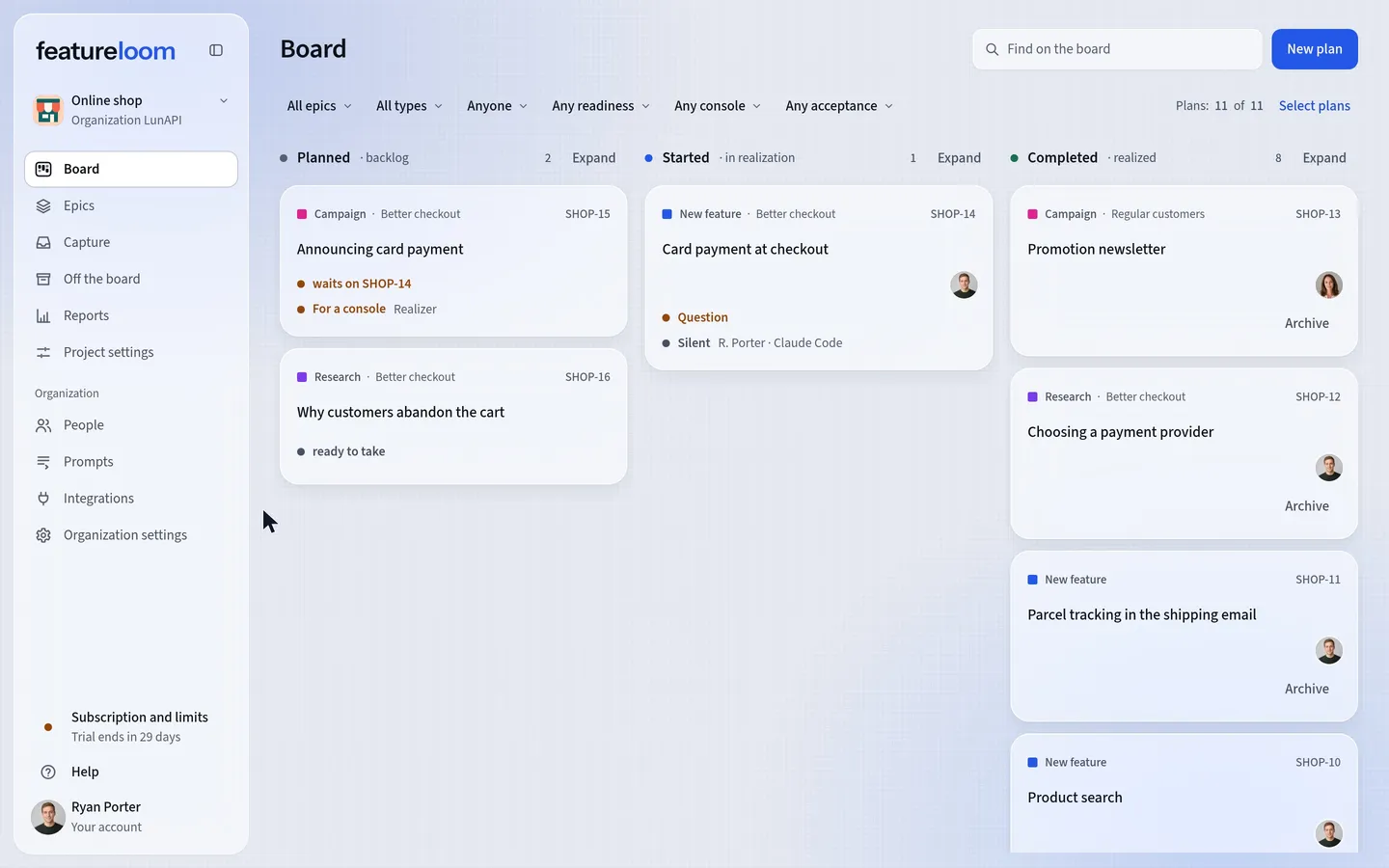 Play the film: Connect Codex with a secret on a server with no browser
Contents
Open the Connect Codex in the terminal window
In the menu on the left, open Integrations. On the Your consoles card, press Connect console and choose the Codex in the terminal card.
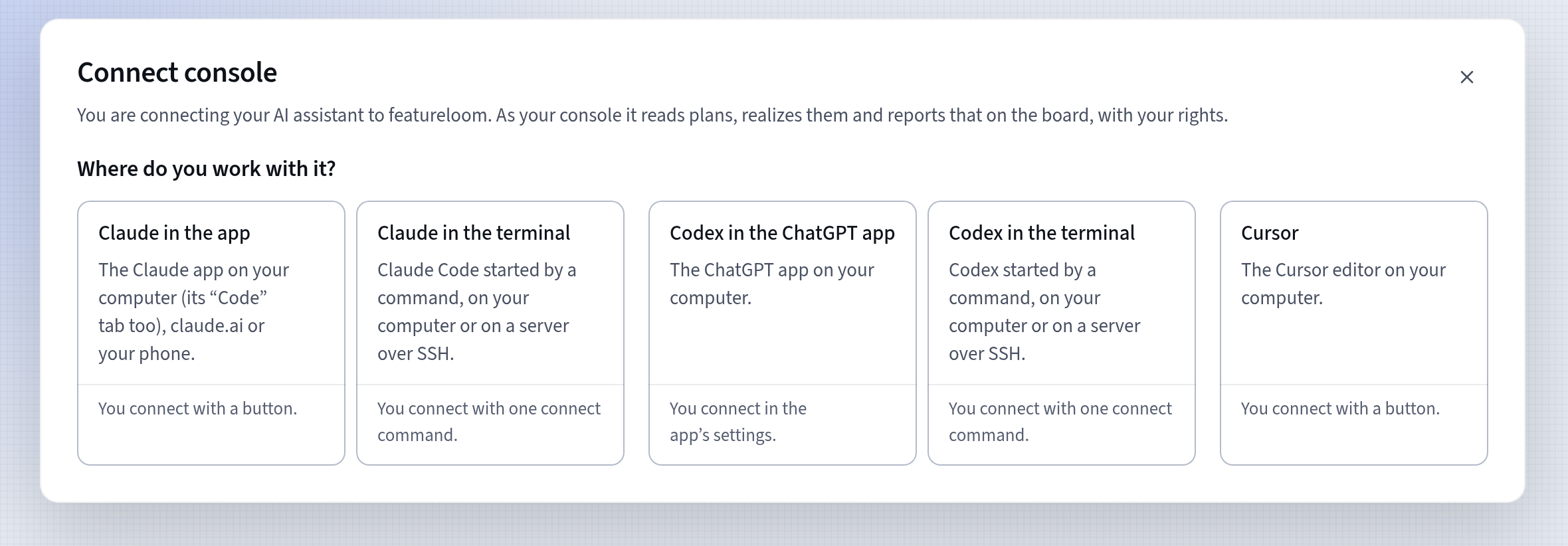
Connect console: choosing the console The connect command in step 1 of this window has no secret, because Codex signs in with it through the browser. In an SSH session no browser opens, so on a server you use the connect command with the secret.
Copy the connect command with the secret
At the bottom of the window, under Terminal with no browser (SSH), press Show the connect command with the secret. featureloom then issues a secret for a new console.
If the window first shows Confirm it’s you, confirm the way you sign in. After your password or a passkey, the window shows the connect command right away. After Google, press Back, then Connect console, Codex in the terminal and Show the connect command with the secret again. featureloom asks once an hour.
Press Copy the connect command with the secret. You see it only now, and closing the window before you copy it removes this connect command.
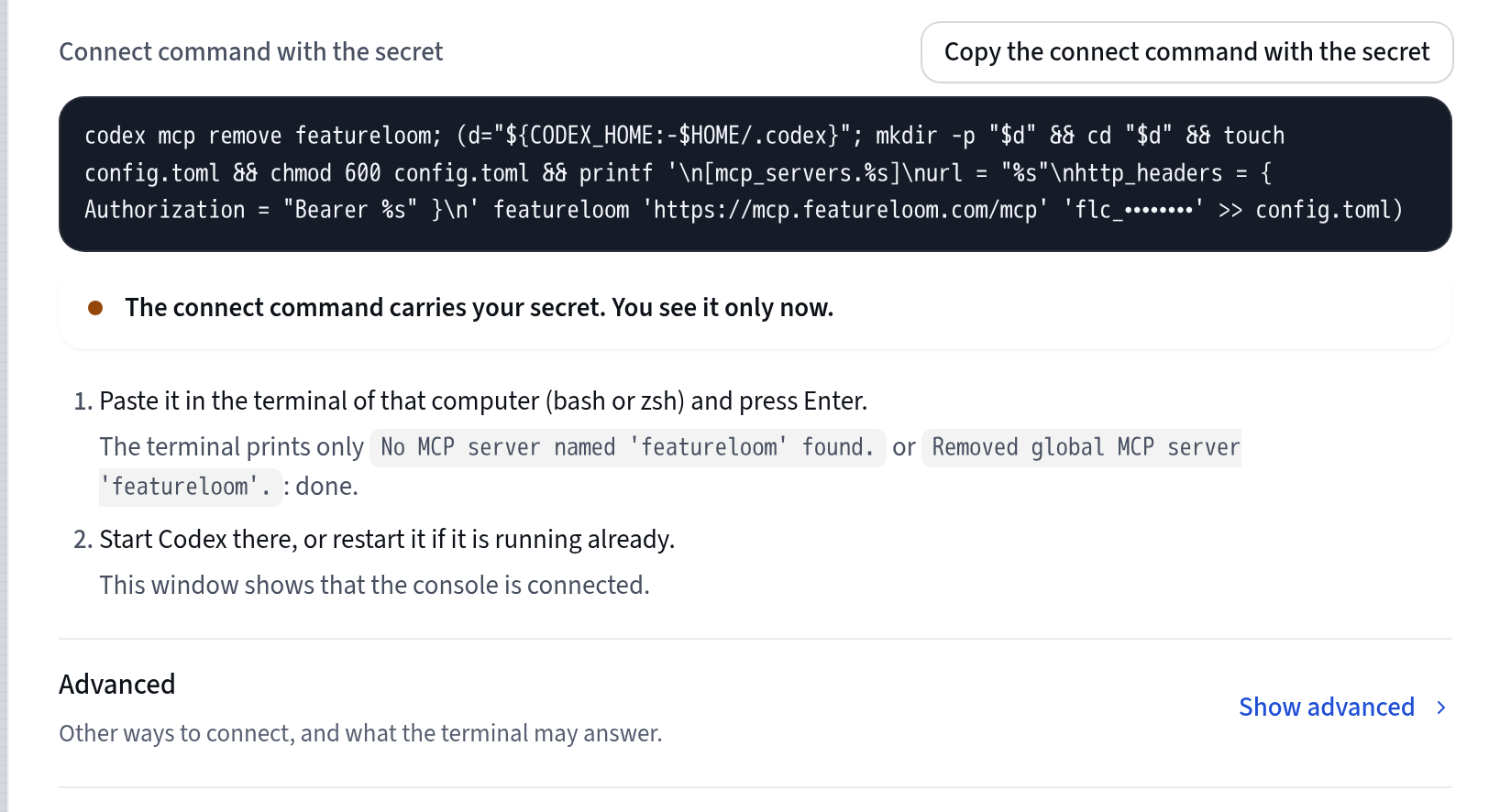
The connect command with the secret The connect command holds your secret. Don’t paste it into a chat or a repository.
Paste it in the server’s terminal
In the SSH session, paste the connect command in the server’s terminal (bash or zsh) and press Enter. Do it as the same computer user that runs Codex there, and in the terminal, not in a chat with Codex. The command adds featureloom to Codex’s configuration file as an MCP server, with the secret:
codex mcp remove featureloom; (d="${CODEX_HOME:-$HOME/.codex}"; mkdir -p "$d" && cd "$d" && touch config.toml && chmod 600 config.toml && printf '\n[mcp_servers.%s]\nurl = "%s"\nhttp_headers = { Authorization = "Bearer %s" }\n' featureloom 'https://mcp.featureloom.com/mcp' 'flc_…' >> config.toml)The terminal prints one sentence and nothing more:
No MCP server named 'featureloom' found.on a first connection, orRemoved global MCP server 'featureloom'.when you replace an earlier featureloom entry.Prefer to add featureloom to the file yourself? Under the steps in this part of the window, press Show advanced. You add the block for the configuration file to ~/.codex/config.toml, and the command chmod 600 ~/.codex/config.toml keeps the file with the secret to yourself.
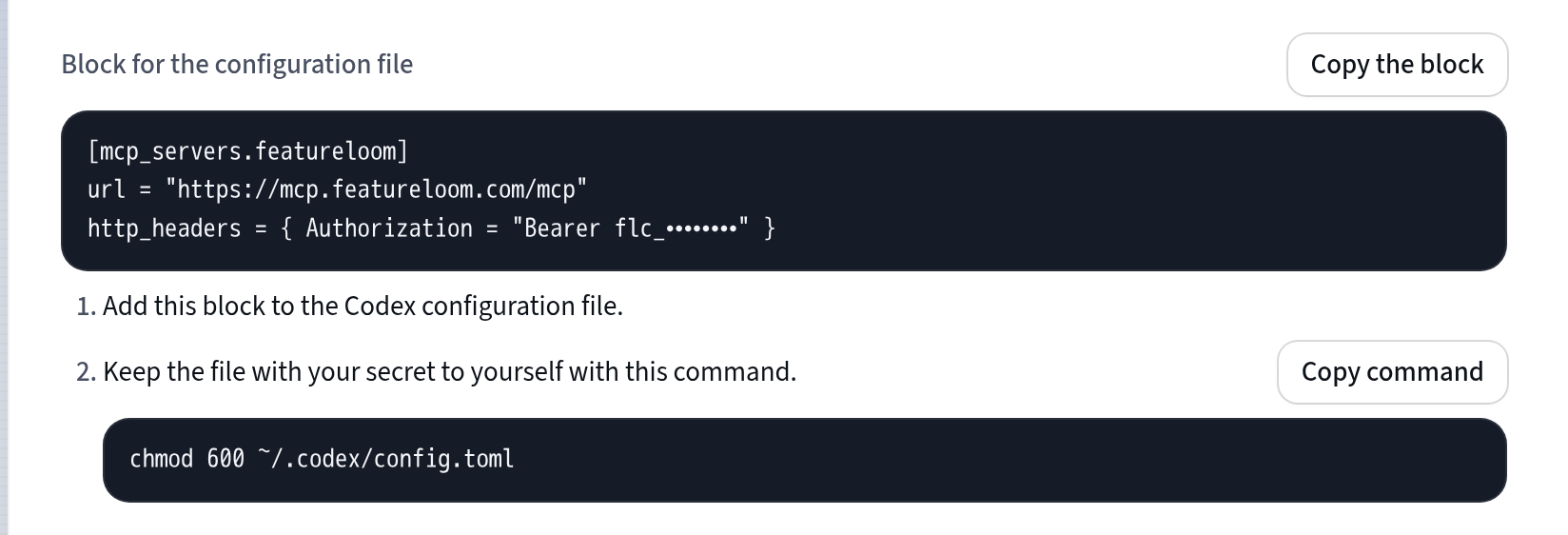
The block for the Codex configuration file Start Codex on the server
Start Codex there, or restart it if it is running already. As it starts, Codex connects to featureloom: the window shows Connected: Codex, and on the Your consoles card the Codex console is Live.
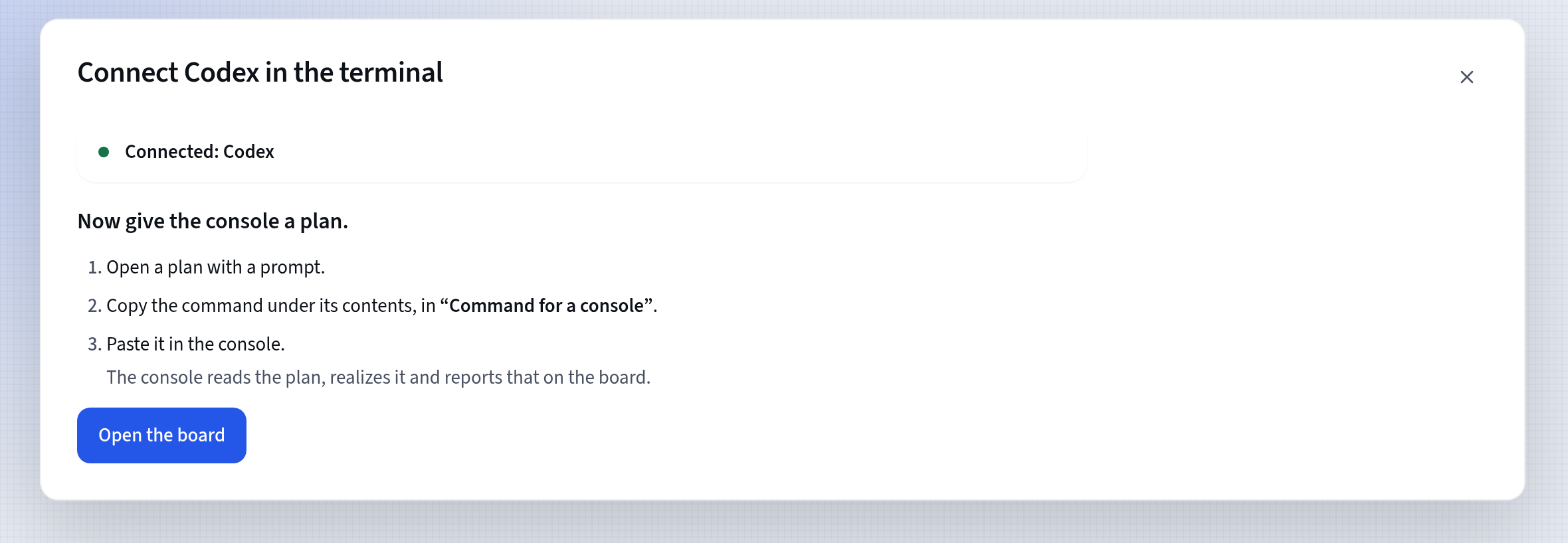
Connected: Codex In the server’s terminal you can also check the connection with this command. featureloom is on the list of MCP servers:
codex mcp listGive the console a plan
Open a plan with a prompt, copy the command under its contents, in Command for a console, and paste it in Codex as an ordinary message. For plan SHOP-14 the command is:
featureloom realizer SHOP-14Your agent reads the plan, realizes it and reports that on the board.
Good to know
- The secret works for 90 days from issue and expires sooner after 14 days without use. When the console expires, press Reconnect in its row on the Your consoles card: you get a new connect command with a secret for the same console, and the old one stops working. Paste it in the terminal of the server where you run Codex.
- You can have up to 10 consoles at once. You disconnect them on the Your consoles card.
- On a computer with a browser, you connect Codex with no secret, as in the tutorial Connect Codex with one command.
- The Codex integration page shows how Codex works with your board and what it may do there.
Updated: November 27, 2026
Next
Your consoles: several at once, Reconnect and Disconnect
Your console is connected: see how to name your consoles, renew a secret and disconnect a console you no longer use.
See the tutorial