Agents and consoles · step 3 of 10
Connect Codex in the ChatGPT app
You connect Codex in the ChatGPT app to featureloom in that app’s settings, with no command and no secret. Codex in the terminal on this computer then has the same connection.
Contents
Open the Connect Codex in the ChatGPT app window
In the menu on the left, open Integrations. On the Your consoles card, press Connect console and choose the Codex in the ChatGPT app card. The window leads you through three steps, and this tutorial follows them.
Open MCPs in the ChatGPT app
In the ChatGPT app, open “Settings”. In the left bar, under “Integrations”, choose “Plugins”, then the “MCPs” tab. You see the “Servers” list.
featureloom is on the list already? With an “Authenticate” button, go to step 4 of this tutorial. Without it, look at the Your consoles card in featureloom: if it has a Codex · signed in through the browser row that is Live, the connection is there already and you add nothing. If it has no such row, the app remembers an old sign-in: bring the button back with the command in step 4.
Add the featureloom server
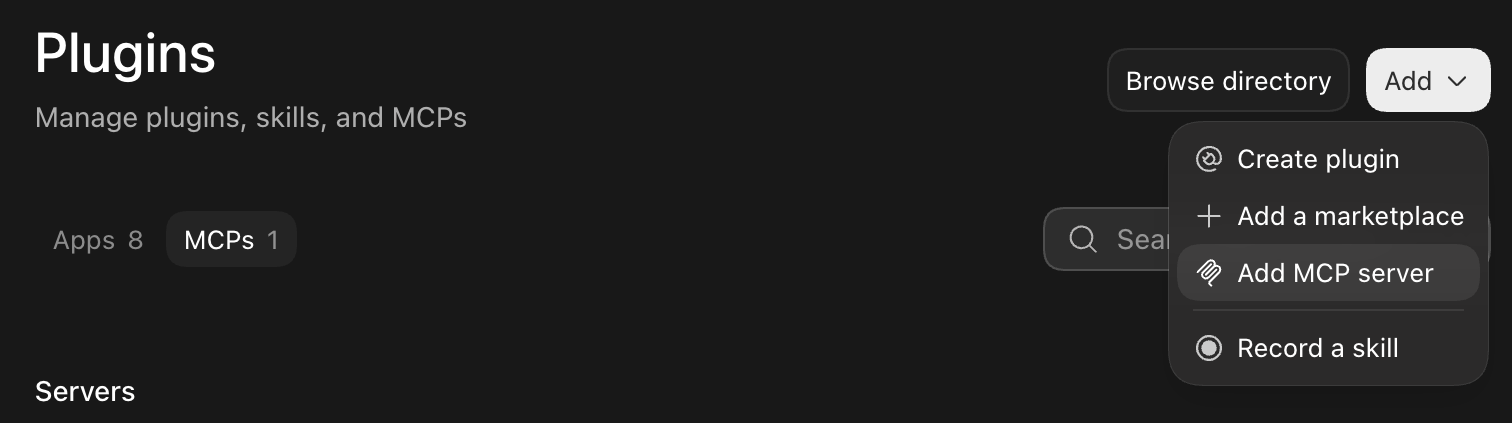
In the featureloom window, in its step 2, press Copy address. Then, in the ChatGPT app, press “Add” and choose “Add MCP server”.
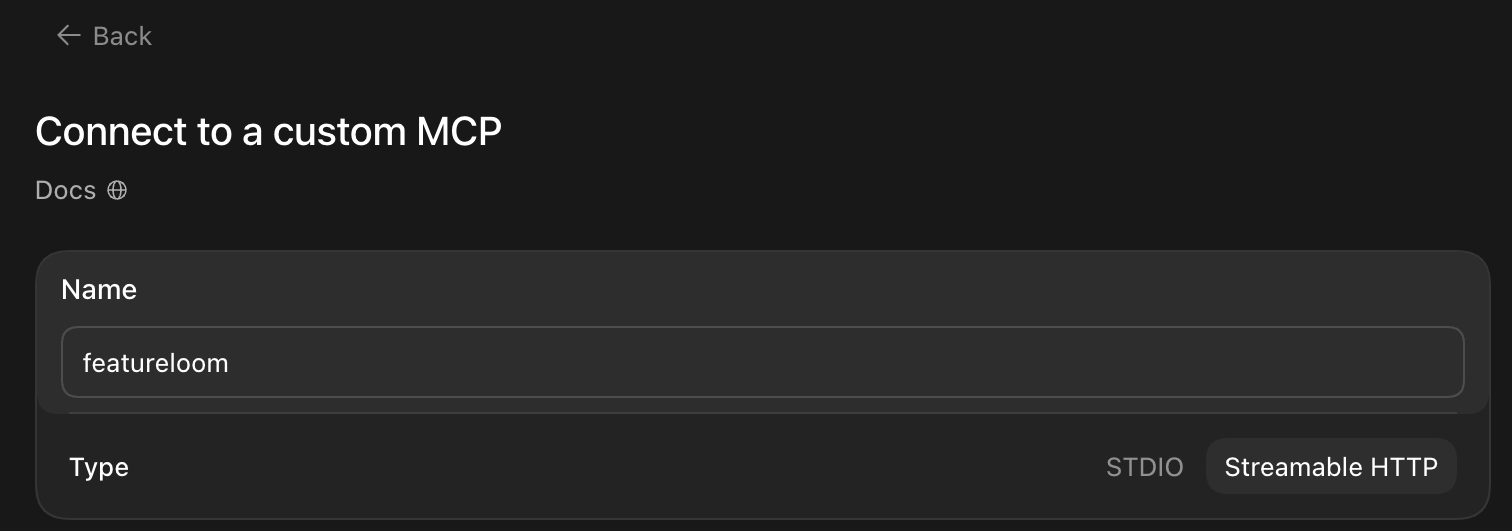
Screenshot of the ChatGPT app (OpenAI) In the “Connect to a custom MCP” window, type featureloom in the “Name” field, and in the “Type” field choose “Streamable HTTP”.
Screenshot of the ChatGPT app (OpenAI) Paste the copied address in the “URL” field:
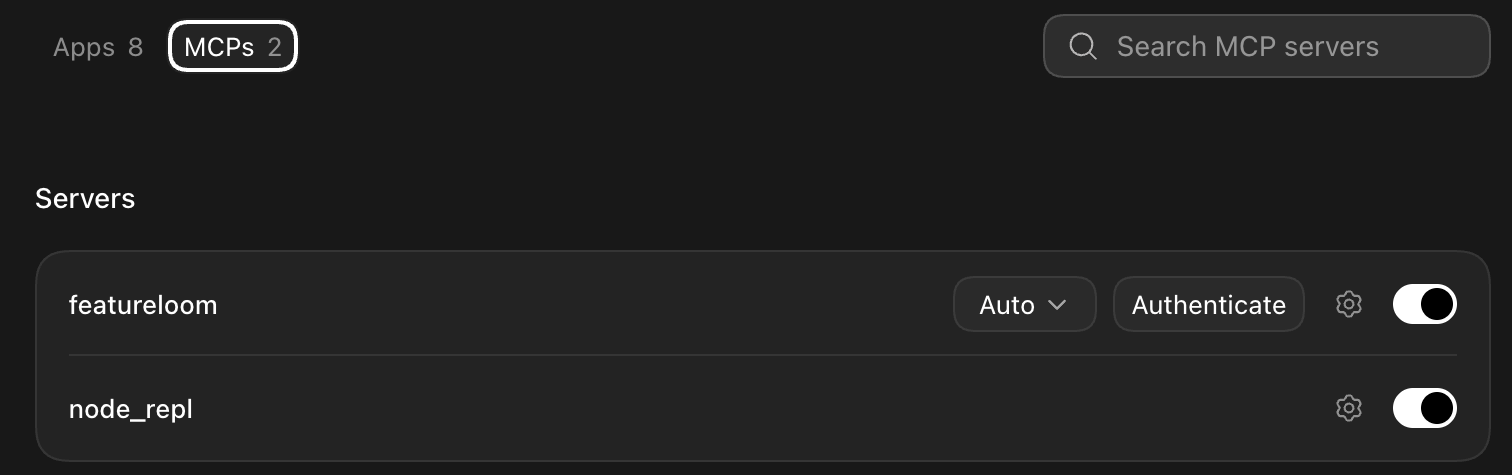
https://mcp.featureloom.com/mcpLeave the other fields empty and press “Save”. featureloom appears on the list with the “Auto” and “Authenticate” buttons.
Press Authenticate, then Connect in the browser
In the ChatGPT app, press “Authenticate” beside featureloom.
Screenshot of the ChatGPT app (OpenAI) Your browser opens the featureloom screen Approve the connection. If you belong to several organizations, choose the same one as in the Connect Codex in the ChatGPT app window, and press Connect. featureloom may ask for your password.
Then you see the Codex page “Authentication complete. You may close this window.” Close it and go back to the featureloom window: it shows Connected: Codex.
No “Authenticate” button beside featureloom, and no live Codex console on the Your consoles card? The app remembers an old sign-in. In your system’s terminal on this computer, as the same computer user that runs the ChatGPT app, paste the command below and press Enter. Then quit the ChatGPT app (on a Mac, Cmd+Q) and open it again: “Authenticate” comes back beside featureloom.
codex mcp logout featureloomGive the console a plan
Open a plan with a prompt and copy the command under its contents, in Command for a console. Paste it as an ordinary message in a new chat in the ChatGPT app. For plan INV-14 the command is:
featureloom realizer INV-14When the app asks to allow a featureloom tool, press “Allow once”. The question reads “Allow the featureloom MCP server to run tool…?” Your agent reads the plan, realizes it and reports that on the board.
When the connection stops working
Codex says featureloom is unavailable, or looks for the plan on its own? That happens after the console was disconnected or expired. In the “MCPs” tab, press “Authenticate” beside featureloom, then Connect in the browser.
Do not remove featureloom from the list: added again, it may lack “Authenticate”. Such a console has no Reconnect button: on the Your consoles card you see it marked signed in through the browser, and you connect it afresh in the ChatGPT app.
Good to know
- Codex in the terminal on this computer has this connection too, so you do not connect it a second time.
- Still no “Authenticate” after restarting the app? That is an older featureloom entry with a secret. The connect command from step 1 of the Connect Codex in the terminal window replaces it, as in the tutorial Connect Codex with one command.
- The terminal answers the command in step 4 with “command not found” or “is not recognized”? This computer has no Codex in the terminal yet: install it and paste the command again.
- “featureloom-2” is on the list too? The server was added twice. Press the gear icon beside “featureloom-2”, then “Uninstall”.
- Codex is connected in the terminal, but the app does not show featureloom? Quit the ChatGPT app (on a Mac, Cmd+Q) and open it again.
- Signed in to another featureloom account in your default browser? The sign-in opens there, so the console goes to that account.
- You can have up to 10 consoles at once. You disconnect them on the Your consoles card.
- The Codex integration page shows how Codex works with your board and what it may do there.
Updated: November 14, 2026
Next
Role prompts: your team’s process as console commands
Your console is connected: write your team’s rules as prompts it fetches with one command.
See the tutorial